


P: (iOS) Error: T20200124 - Forced Edit Reset on an image
I keep getting the error pictured below on files imported onto my iOS version of lightroom.
iOS version: 17.3.1 (current)
lightroom mobile version: 9.2 (current)
I've replicated the issue multiple times and been fighting it for about a month now
1. Import ARW files from camera via SD card into the lightning cable
2. Lightroom automatically converts them from ARW to DNG.
3. Edit photo 1, edit photo 2, edit photo 3
4. Press back to gallery & compare white/black points & colours across multiple photos
5. Tap back into any of the above photos to make adjustments and voila - Error T20200124
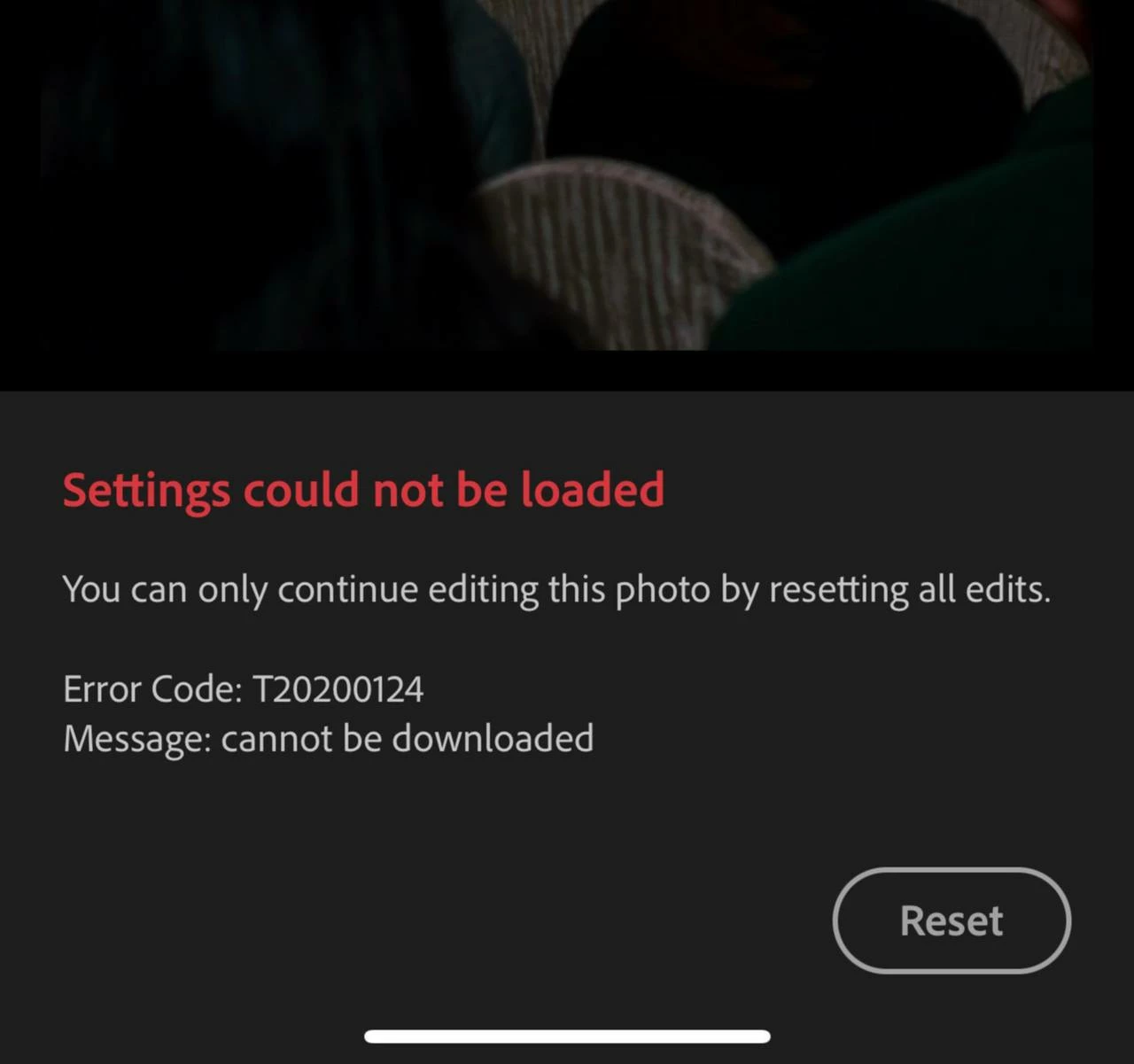
Error: T20200124
Message: Cannot be downloaded
"You can only continue editing this photo buy resetting all edits"
Reset button proceeds to fail - I can see it animating as though I've tapped it, but nothing happens. Photo does not reset.
It seems to be occuring because I've edited the photo BEFORE it's original file ~20MB (approx) has uploaded to the cloud. When I tap back into the photo lightroom is trying to pull an incomplete or nonexistent original from the cloud with edits and then craps itself? Why would it do that if the file is not fully uploaded AND is stored locally?
I've tried clearing my lightroom on-device cache to no avail
The only workaround I've found is to
1. Delete affected photos from "my photos"
2. Go to deleted items & restore the affected photos
3. When I go back to edit them, I still get the same error, but at least now the reset button works
4. WAIT FOR AN INCREDIBLY LONG TIME for the photos to upload - sometimes this gets jammed and I have to delete, permanently delete, and then re-import
5. Go to versions and restore my previous edit
6. Export finally
Is it me or did lightroom uploads slow down considerably?
I'm constantly on 5G or enterprise level WIFI and sync speed was not an issue until about 6 weeks ago?
More notes:
When I go to lightroom's web interface there's a section of photos that pop up under "Sync issues" that includes the files that haven't uploaded fully (with no smart previews which makes them even harder to identify). Usually they get stuck uploading and then nothing really works. Edits get jammed with this error etc, it's a vicious bloody cycle & making me want to terminate my subscription.
It's so frustrating! And there's no documentation on what this error code is?
 AdChoices