


Participating Frequently
March 7, 2024

P: (iOS) Error: T20200124 - Forced Edit Reset on an image

  • March 7, 2024
  • 31 replies
  • 7513 views

I keep getting the error pictured below on files imported onto my iOS version of lightroom.


iOS version: 17.3.1 (current)

lightroom mobile version: 9.2 (current)


I've replicated the issue multiple times and been fighting it for about a month now

1. Import ARW files from camera via SD card into the lightning cable 

2. Lightroom automatically converts them from ARW to DNG. 

3. Edit photo 1, edit photo 2, edit photo 3 

4. Press back to gallery & compare white/black points & colours across multiple photos 

5. Tap back into any of the above photos to make adjustments and voila - Error T20200124
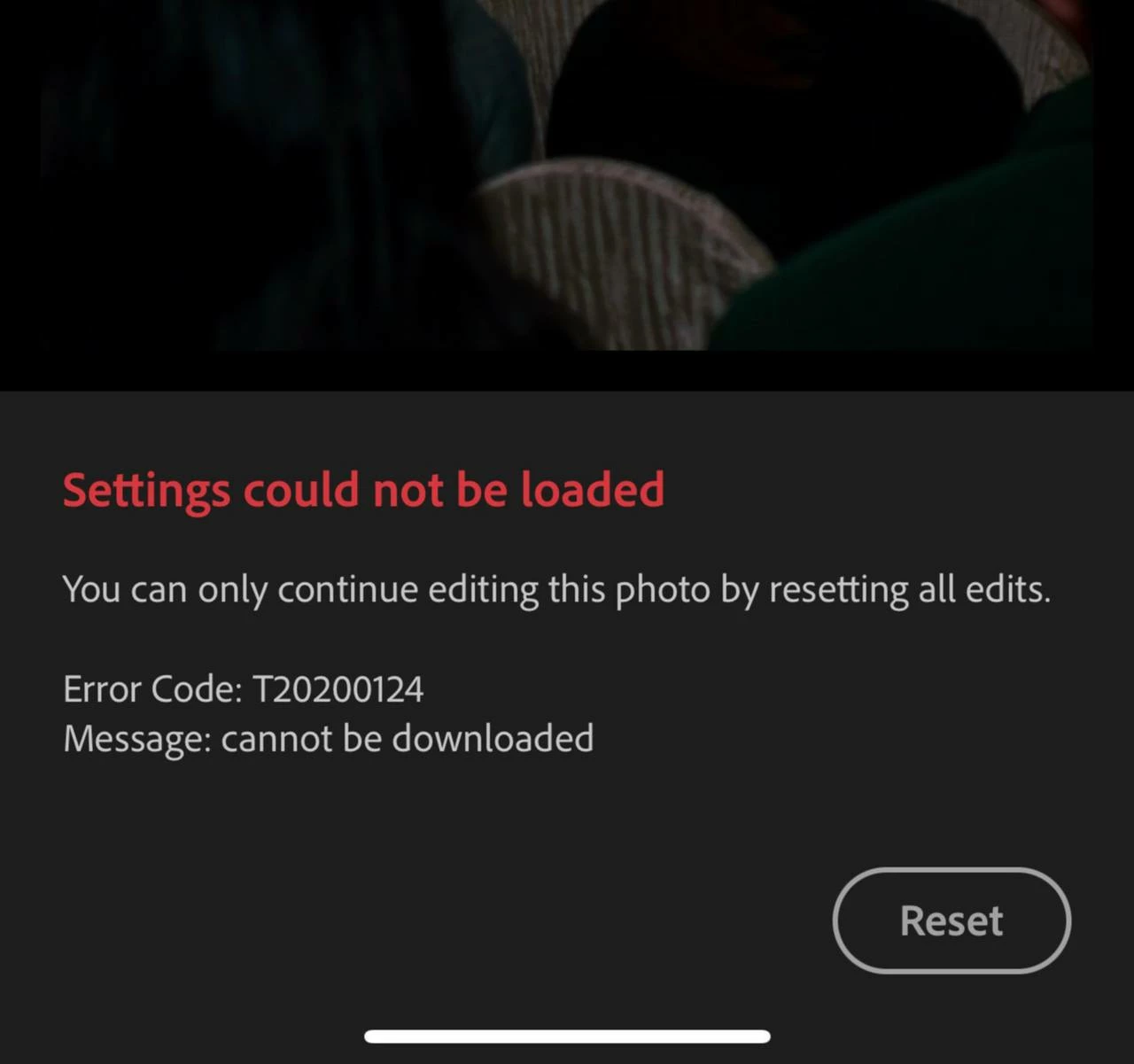


Error: T20200124

Message: Cannot be downloaded 


"You can only continue editing this photo buy resetting all edits" 

Reset button proceeds to fail - I can see it animating as though I've tapped it, but nothing happens. Photo does not reset. 


It seems to be occuring because I've edited the photo BEFORE it's original file ~20MB (approx) has uploaded to the cloud. When I tap back into the photo lightroom is trying to pull an incomplete or nonexistent original from the cloud with edits and then craps itself? Why would it do that if the file is not fully uploaded AND is stored locally? 


I've tried clearing my lightroom on-device cache to no avail 


The only workaround I've found is to 

1. Delete affected photos from "my photos" 

2. Go to deleted items & restore the affected photos 

3. When I go back to edit them, I still get the same error, but at least now the reset button works 

4. WAIT FOR AN INCREDIBLY LONG TIME for the photos to upload - sometimes this gets jammed and I have to delete, permanently delete, and then re-import 

5. Go to versions and restore my previous edit 

6. Export finally 


Is it me or did lightroom uploads slow down considerably?

I'm constantly on 5G or enterprise level WIFI and sync speed was not an issue until about 6 weeks ago? 


More notes: 

When I go to lightroom's web interface there's a section of photos that pop up under "Sync issues" that includes the files that haven't uploaded fully (with no smart previews which makes them even harder to identify). Usually they get stuck uploading and then nothing really works. Edits get jammed with this error etc, it's a vicious bloody cycle & making me want to terminate my subscription. 


It's so frustrating! And there's no documentation on what this error code is? 

This topic has been closed for replies.

31 replies

Community Manager
April 8, 2024


Update: 04/26/2024


Developers are working on a solution for the next app release. 


In the meantime, we have some workaround advice to share.  Making a minor edit should unblock sync.  Since this T20200124 error blocks editing in full-screen mode, one must apply edits via grid view via copy/paste.


Steps:

1.  APPLY A MINOR EDIT:  Open an image and nudge a mild edit setting like Texture or Grain to a setting of +1.  (We recommend trying a mild edit feature you rarely use to avoid changing existing edits as much as possible.)

2.  COPY THE EDIT:  While still in full-screen Edit view, tap the 3-dot menu.  Select Copy settings, and copy only the specific edit you made in Step 1.  Then, exit out to the thumbnail grid view.

3.  BATCH-PASTE THE EDIT:  Long-tap on a thumb to enter Selection mode, selecting the range of images you want.  Then tap Paste. 


Applying the mild edit should unblock sync for images that were affected by the T20200124 error.  Later, the original edit can be restored in the Edit Versions view. 


Update: 04/24/2024


The team continues investigating a fix for this issue for an upcoming release. Please watch this thread; it will be updated once we have additional information.


Until a fix is released, please allow import and Lightroom cloud sync to complete before editing the new images. This should help avoid new occurrences of the T20200124 error message.


4/8/2024: Converting post type from Discussion to Bug to reflect that the team is investigating this issue.

Participant
April 26, 2024

Participant
April 7, 2024

Mine is doing this too. It's incredibly frustrating and so much time has been wasted editing my photos only for them to have to be reset. If it happened once or twice, I'd get over it but this is happening every time I have to edit my photo batches and it's slowing down my workflow to the point where I feel like giving up on my work for a bit until it's fixed. Nightmare!

Participant
April 5, 2024

I experience similar difficuties with sync of photos begining March 3, 2024.  A few (23) images imported over a 4 day period would not sync with the adobe cloud.  They were imported through lightroom mobile on an ipad.  I isloated which photos would not sync in the lightroom classic sync status panel.  On the ipad, i found these photos and then one by one tried to reset multiple times but the T202114 error would not clear.   After several tries, I tried the sequence of clicking on the reset button, closing the edits panel, opening the edits panel, and making an edit (for example,  just tweaking exposure slider).  AFTER MAKING AN ADJUSTMENT, the reset worked and the image immediately synced to cloud and down to the lightroom classic desktop.  

It seem this mismatch of syncing that generated an error only occured on images that were edited before syncing to the cloud.  All my prior edits were lost during the reset, but at least I did not loose photos or have to delete and restore.  I believe this faulty behavior was introduced in a recent update because I have editing photos on the ipad before syncing in the past without this issue.  The key to getting the reset to work is forcing the edit sync by making another edit... this is a bug that should be fixed in future verisons.  reset should reset, period.

Inspiring
April 4, 2024

Just chiming in to say I'm also a long time user who recently started having issues with syncing between my iPad Pro and LR Classic. Lots of pending "stuck" uploads/downloads, some photos that weren't syncing at all, and a few corrupt catalogs. Thougt I finally had it resolved by downloading the problem photos, deleting, reuploading a few days ago...


Until today when I opened up my LR Classic catalog, it corrupted, then opened fine but then started syncing old edits on top of my latest. I didn't realize this until it had already overwritten 30 some photos with old edits and no way to get the edits back.


Never had issues like this before and now I'm considering switching to Capture One because of all of the lost work and I just don't feel safe with Adobe anymore. This a f-ing mess.

jennifers1602225
Known Participant
April 4, 2024

I feel your pain and I'm responding to everyone's posts in hope of Adobe actually doing something. I've phoned them three times, got nowhere, and received an email to say my case was closed (even though I still had the same issue). I'm losing edits that have taken a long time, extensive edits, reverting to the original photograph... 

Participant
April 3, 2024

Hi,


I have a non-solution solution. After going back and forth with various support, I found that:

1- Take the photos that are jammed in 'Sync Issues' on the web version of LR, and, one by one (nightmare), export the original versions to your computer or other device. I did this by searching for the file names.
2- Delete the photos from sync issues, and empty the trash.

3- Reupload the original files to LR. 

This was a mandatory for me because I had already formatted the SD cards. It works, and it sucks, and Adobe wasted zero time blaming it on nonsense application issues, etc. Realistically, I think that the cloud is busted. But, this is the workaround for now. 

Hope this helps, cheers everyone. 


jennifers1602225
Known Participant
April 4, 2024

Hi 

thanks.... as much as this gets the original file back, the edits are lost... which is wasting so much time, and confidence lost. 

Participant
April 2, 2024

I also have this issue. Im travelling and only have my phone at the moment and no pc or laptop. Its incredibly frustrating to see that the customer service is ignoring the dozens of users that are having this issue. Adobe is aware of this issue and is getting multiple PAYING customers approaching them for help. Ive just spent a long time editing and I have to reset everything?!?!? I do everything on data which I pay for so not only is this costing me time and effort but its costing me data for no reason and money.... for absolutely nothing

jennifers1602225
Known Participant
April 2, 2024

I still have the same issue, nothing has been done 

Participant
March 25, 2024

I'm also starting to get this message a lot within the past 2-3 weeks! Very frustrating! 

anyone know a work around yet or had any clarification from Adobe??? 

jennifers1602225
Known Participant
March 25, 2024
I’ve no update unfortunately
Sent from my iPhone
jennifers1602225
Known Participant
March 24, 2024

I'm getting this problem all the time now, started about a month ago, it's becoming difficult to use the cloud version of Lightroom, I'm a wedding photographer and cannot simply delete the images, I may have spent a long time editing images, then the error reads same as yours. Lightroom please sort this out asap, it was not like this previously. I've plenty of space available 

Participant
March 13, 2024

I need help urgently. I'm getting this error T20200124 right after I edit each photo which makes editing big batches impossible. How do I fix this?

Participant
March 21, 2024

Why in the last two weeks have I started getting an error message saying that settings could not be loaded? I edit on my iPad Pro, which I have been doing for years. All of a sudden I get these messages after I edit pictures and try to go back to them. It is so frustrating! I believe both my iPad and laptop are updated. Please help!

Participant
April 3, 2024

I also keep getting this message! Have you gotten an answer for this yet?


Participant
March 9, 2024

folgende Fehlermeldung erscheint bei mir in einem neuen, freigegebenen Album, aber nur be Einzelnen Bildern.

hat jemand eine Lösung?


Einstellungen nicht ladbar

Du kannst die Bearbeitung dieses Fotos nur fortsetzen, indem du alle Bearbeitungen zurücksetzt.

Fehlercode: T20200124

Meldung: cannot be downloaded