January 4, 2021

P: Lightroom Mobile: iOS local storage

  • January 4, 2021
  • 23 replies
  • 1760 views

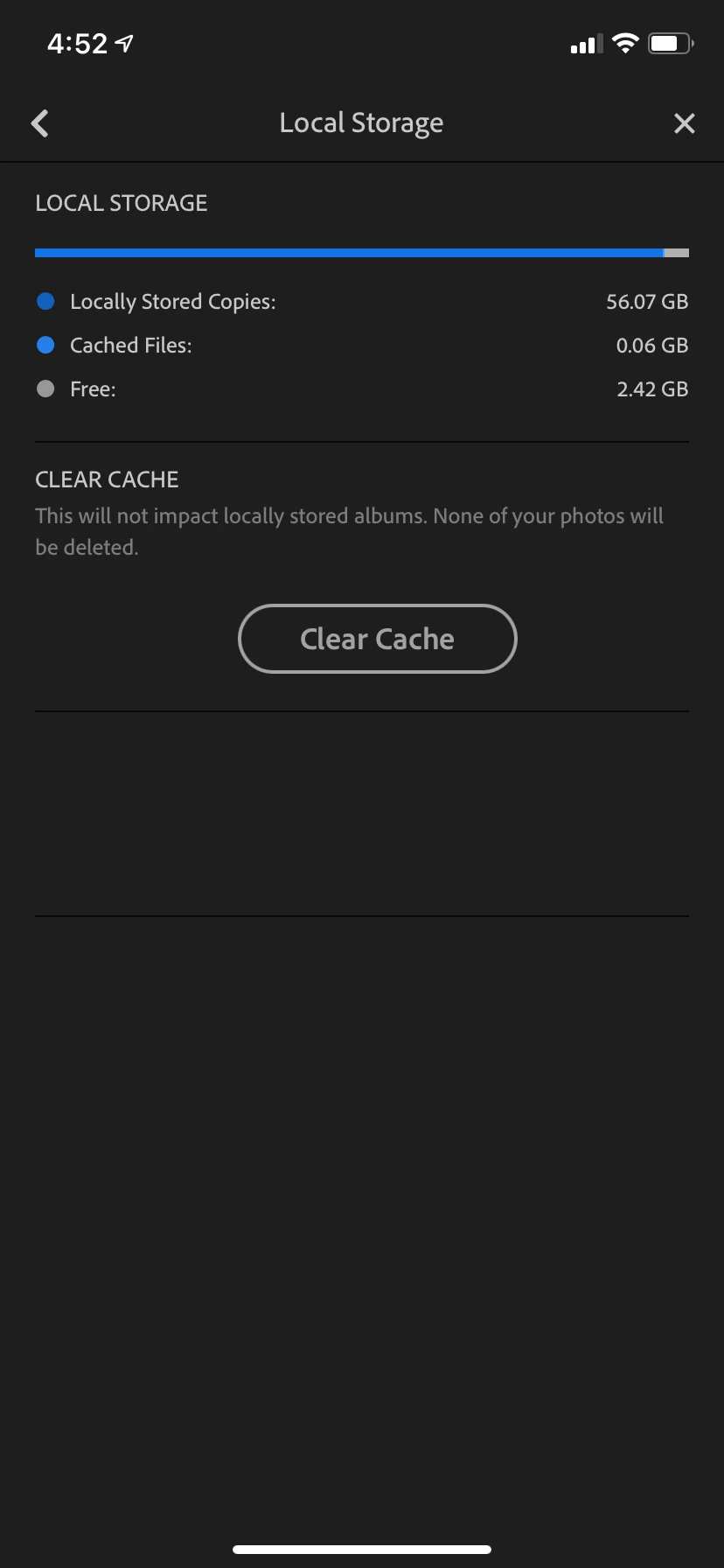
I have a 128gb iPhone 11.


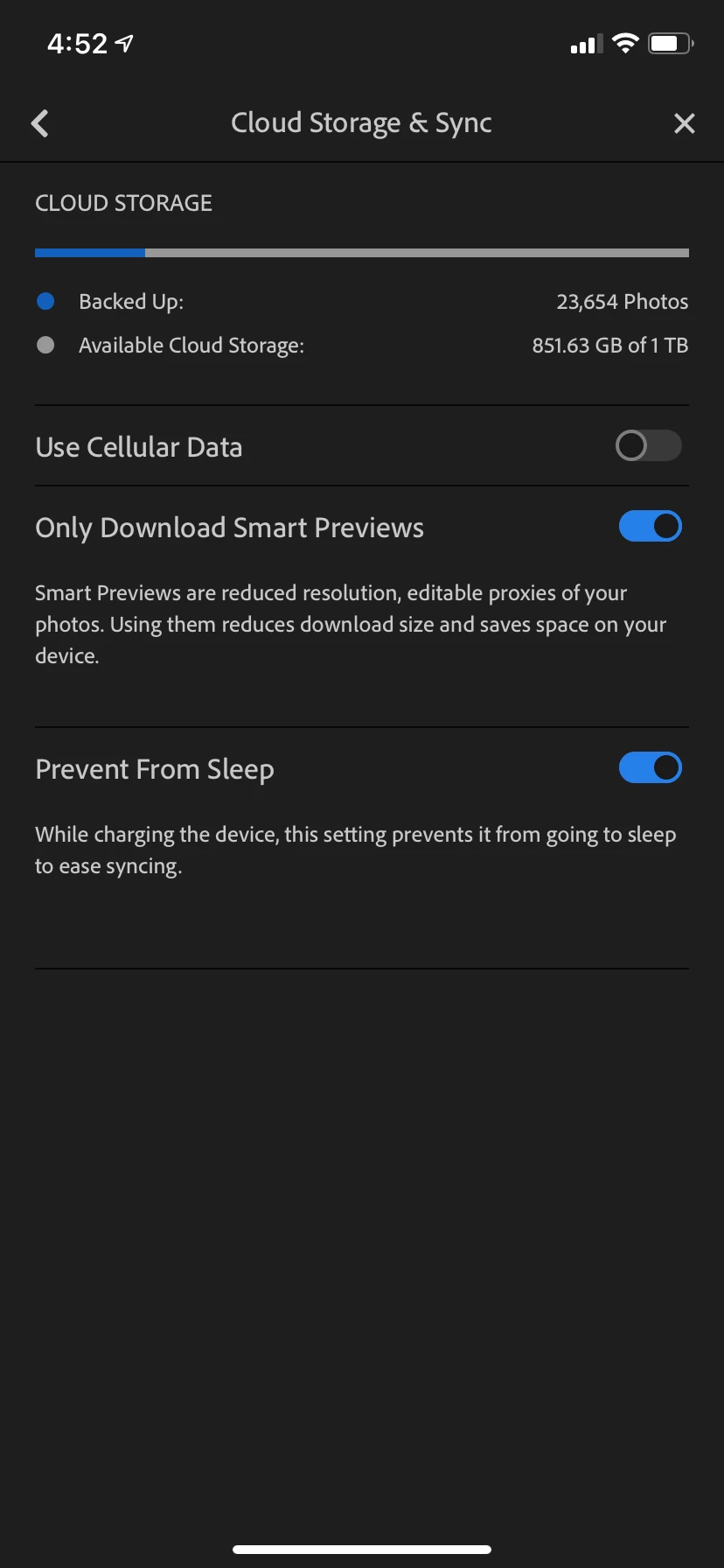
You can see my settings for Lightroom in the screenshots. You can also see how much local storage is being used by Lightroom - it is using 56.07gb of local storage. As a result, I am constantly getting the "Your iPhone storage is full" message, which makes my phone unusable for doing things like....taking photos. The irony!


I have already tried deleting the app completely and reinstalling, but the end result is the same. Am I missing something here or is this a bug of some kind?


Thanks


This topic has been closed for replies.

23 replies

Participating Frequently
May 24, 2021

There is no way you can find locally stored photos. Simple as that. If you import photos from the camera, they are stored as local. The album is not marked as such. The only way to get rid of these is to reinstall the app. The same if you accidentally hit get original. There is also some “temp” space, which gets lost until reinstall if an import gets stuck. All of this has being the case since day one of Lightroom mobile on ios. 

April 14, 2021

*Maeva_Vgr see my solution posted below

April 14, 2021

I would be very careful about doing this as it sounds a lot like actually deleting photos from your library. If you have the cloud sync turned on then you might lose photos.

April 14, 2021

It was a simple fix in the end. Assuming you have a Mac, connect your iPhone and then go to your iPhone in Finder.

Select your iPhone, then go to the Files tab, and then find the Lightroom app and expand the arrow (it takes a little while to load).

Then you should see a folder named a random string of letters and numbers. If you look at the size of this folder it will be roughly the same as what your LR iOS app says it is using in local storage.

I was so fed up with the lack of a solution I just went ahead and deleted this folder using Finder. Lo and behold, it worked. All my phone storage was freed up and there was no impact on my LR library.

DISCLAIMER: I only did this one time and it worked. I have no confirmation if this is the correct way of doing things and whether there is any risk to your photos. Maybe someone from Adobe can weigh in here to confirm?

Inspiring
April 13, 2021

Go to Lightroom > Library > All Photos > Select the three dots to the upper right > Select > Select All Photos > Delete.

Inspiring
April 13, 2021

I have the same issue ! Clear cache doesn’t work, the update don’t fix this problem... so what should I do ? 

Please help me... 😭

Inspiring
April 3, 2021

Or you can "CLEAR CACHE" in the Local Storage setting, which is found in the App under the main settings gear icon from the main page.  How did I find this?  Because I didn't know either, and your post had me looking for a better option than trying to go through each individual album.  Cheers

Rikk Flohr_Photography
Community Manager
Community Manager
March 16, 2021

 Updates to Lightroom Classic and the Lightroom Ecosystem products for Desktop, Mobile and Web were released today and contain a fix for this issue.

Please refresh your Creative Cloud application and install your update when it becomes available. Thank you for your patience.

Rikk Flohr: Adobe Photography Org
Inspiring
February 4, 2021

Ben,

It happened to me too. What I found is that you can delete all the Lightroom photos in the app and free the space on your phone. Go to Lightroom > Library > All Photos > Select the three dots to the upper right > Select > Select All Photos > Delete. I don’t use the cloud service, so check if there is a different folder for those to be apart. You can also take a test picture, upload it to LR and the cloud backup. Then delete from LR folder to check of the backup one remains.

That’s the only way to get rid of them. The app is just automatically importing them. Your original photos will remain in the phone. 

Community Manager
January 8, 2021

Kind of, if you'd have had more account on that installed version of Lightroom on that device.

Thanks for confirming, this means that you indeed only have one account on that device.

If you tap on the cloud icon, are you still uploading anything? 
That could explain the issue.