


hesspoint
Inspiring
October 22, 2017

P: Migrations fails at Albums

  • October 22, 2017
  • 23 replies
  • 158 views

My migration has been a disaster. After cleaning up my hard drive it finally started. At some point it seems that my external drive with my photos (not the catalog) got disconnected. The migration stopped and then after reconnecting it said that the original data source or something like that had changed even I did not do anything. I told it to continue with the original status (not sure about the exact wording anymore) and it said something like importing from manifest. Anyhow after that it kept migrating for quite a while so everything seemed normal.

Than after a few hours it crashed again with this ridiculous error message don't telling me anything. Clicking on support just brought me to a page with possible errors which did not cover my issue.
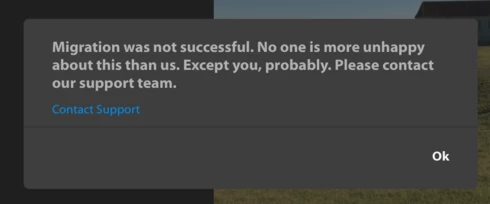


After clicking ok in the end it just exited and that was it. Somehow it kept syncing images, at least it told me so when clicking on the cloud icon top right.

I went to File > Migrate Catalog again and clicked continue. It started running again this time pretty quickly:
- mark catalog migrated
- adding photos and videos
- adding faces
- adding albums
There at albums at about 81% progress it crashed again with the same message above. I can do this over and over again and always the same result.

When I go into the album section in Lightroom CC it actually has a long list of folders but a) it is quite messy and b) it says 0 photos behind each name. However all albums have a little gray circle with a checkmark in front of them. The albums which I had previously synced with smart collections all have a little blue spinning wheel instead of the checkmark but it shows the correct number of images behind them (not 0)

Also what I noticed, not sure if related to this is about 300 something photos with no meta data and no capture date (which was not the case in Lightroom Classic)

For info I have about 65k images and videos in my catalog, mostly Raw. Currently it says that about 580GB out of 1TB cloud space are used and it says a a little more than 58k photos syncing right now.

Update: Now the photos show up also in the iOS and web app under 'all photos'. So the images seem to sync just the albums are also not syncing
One more thing: If I open the Lightroom app on my iPhone, iPad or Apple TV app (all up to date) or in the web client it only shows the albums I had previously synced via smart collections nothing else from the migrated catalog.

So where does this leave me? Is the migration failed? How can I make it finish? 

Thanks

Btw: I think that 'you can only migrate once' is absolutely ridiculous and a huge joke! There has to be a full reset / start over from scratch option that cleans out everything an lets me start over fresh.

This topic has been closed for replies.

23 replies

Participant
November 29, 2017
Ah, Apple iPhoto (and Aperture) shenanigans. I have been cleaning up that mess myself (not as terminal as your issue though)
hesspoint
hesspointAuthor
Inspiring
November 29, 2017
Update: I exported a few images as new catalog in Classic which where already uploaded in the failed migration. Then I migrated that small test catalog which worked without error in CC. However I checked and the images are now double.

So I guess before I attempt another migration approach of my full catalog there is a need to remove everything from the cloud before so I don't end up with all double images.

So how can this be done?

Thanks
hesspoint
hesspointAuthor
Inspiring
November 29, 2017
That was exactly the same issue I was having. I also had these 1_2_3 albums. They were created when I migrated from Aperture to Lightroom and I never got rid of these Albums. I now deleted them in LR Classic. However in the mean time I had actually cancelled the migration in hopes it would roll back everything back in the cloud and erase the bits and pieces of the failed migration.
However I still have these half migrated data in the Cloud I cannot get rid of. I guess trying to migrate the library again will only create more of a mess.

What can I do? Asha, can you actually remove the left overs from the failed migration so that I can start over fresh? Or can I do this by myself?

And what about all the photos already uploaded? Do I need to delete them before making another attempt so I don't end up with a bunch of doubles? Or will the migration re-link them to the newly migrated catalog?
Participating Frequently
November 29, 2017
I have now sent you the instructions on how to resume the migration with the files i have fixed for you. I didn't delete the problematic albums, but i have truncated the album names, so that its under the limit. Ones the migration is complete, you will be very easily be able to delete the albums you dont need.
Let me know how it goes. 
digdig22
Participant
November 29, 2017
Indeed, I am happy to get rid of those albums.
Participating Frequently
November 28, 2017
If you don't care about these albums, then it will be easy for me to fix the intermediate files and you should be able to resume the migration. If you want these albums also to be migrated, then we will have to spend more time trying to find better names which are shorter and then edit the files.
digdig22
Participant
November 28, 2017
Ok - I checked things in the classic program. Those long-named collections were the result of an attempt to import my (apple) iPhoto library, some while ago. I thought this was done using a Lightroom import feature, but don't recall the details. (If so, I may not be the only user with this issue)
digdig22
Participant
November 28, 2017
Thanks for the explanation. How do I fix this? Can I still change the albums in "Classic", save the library and then have the migration complete? (I suspect this may not work??) Hopefully I don't need to re-try the whole migration? Or, is that even possible or practical?

(By the way - suggestion: when something fails at the very end of a super painful and time consuming migration process, don't put a useless error message that tries to be funny. It is not funny to the (paying!) user (i.e. me) who just spent over a week opening up space, moving files around, getting the libraries in the right place, cleaning up external hard drives, and doing extensive google searching to get to that point. Especially if there are no concrete instructions for how to get actual help, or any hint whatsoever about what may be wrong.)
Participating Frequently
November 28, 2017
Thanks for the logs, Patrick. The issue is because your catalog had albums with names longer than 250 characters, and LrCC doesn't support albums with name that long. These names are of the form `1_2_3_..` and seems to be auto-generated. I am curious how these were created in the first place. 
We are working on handling this error gracefully as well as informing the issue to the user beforehand. 
digdig22
Participant
November 25, 2017
I have exactly the same problem. Same useless error message. No indication of the issue. Only some manual attempts at restarting (based on info from user above) suggest that mine also fails during the "albums" process. Also here, it is very unclear to me from the "error dialog", where/how to get support for this problem or how to proceed. It really feels like this "migration process" is designed to convince people to finally really abandon Lightroom, or is that just me? Can someone point me to support or useful info? (Note that it already migrated ~40K photos and it is not even clear whether/how I could restart the process??) Is there some support email where I can get help?