


Participating Frequently
July 13, 2020

P: on macOS JPG export color issues

  • July 13, 2020
  • 40 replies
  • 1822 views

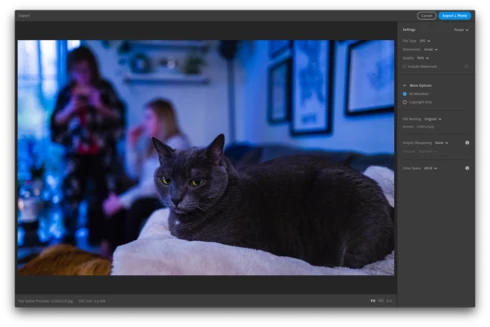
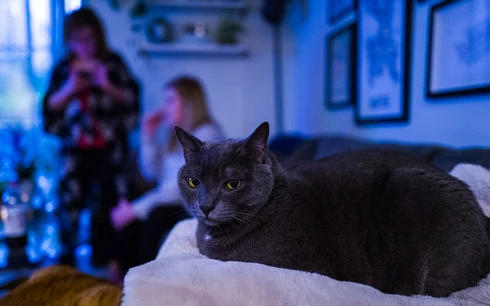
When exporting from Lightroom CC on macOS, the exported JPG takes on remarkably different colors (it looks like a lower/bluer color temperature, but I'm not precisely sure). The difference appears within the Lightroom CC export preview prior to exporting, as well as with the exported image when opened in other applications. Different images have different levels of impact, but I've seen visible differences in most of my images. The issue appears regardless of what Color Space is selected for the exported JPG.

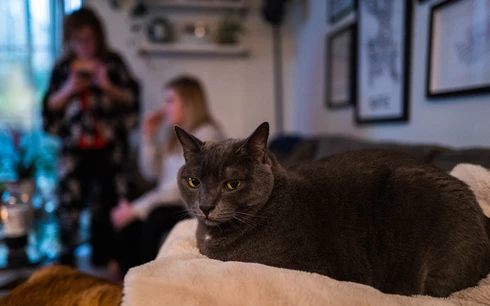
I do not have issues when exporting the same image with Lightroom CC on iPad. I've tested by exporting the same image with the identical settings on iPad and the image is reproduced faithfully.

I'm running Lightroom CC Version 3.3 from the Mac App Store (20200611-1039-7df19f1 Build) on macOS 10.15.5 on a MacBook Pro (Retina, Mid 2012).

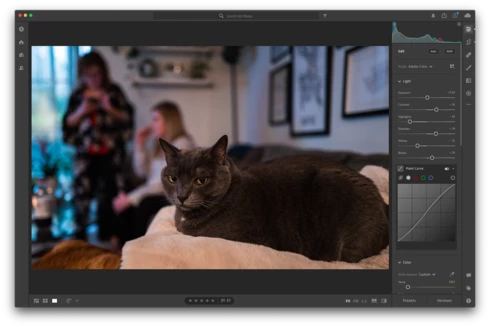
Screenshot editing the image (colors as desired):

Screenshot of export preview, displaying color issues (occurs regardless of Color Space selection):
Exported image from macOS, with color issues:

Exported image from Lightroom CC on iPad, identical settings selection, but no color issues:

For reference, I posted some details, including these screenshots of the issue and exported images, in the Lightroom community thread Trouble exporting image with my edits thread. Another user reported similar issues in a Pink hue rendered upon export thread.

This topic has been closed for replies.

40 replies

Inspiring
May 21, 2021

We can figure it out from here, I believe updating my systems (which will be changed by next week) will indeed make a difference

Inspiring
May 21, 2021

The green is for sure a problem with exporting, and it is very sporadic on when it happens. Thank you for the explanation of the blues and reds! The reason why the one in the screenshot is green is because I put the already saved-as-green photo back into the app to try and mess around with it.

Victoria Bampton LR Queen
Community Expert
Community Expert
May 21, 2021

Blue and red spots are clipping warnings. Press J to turn them on or off. I'm not quite following what's happening with the green, this thread is about colors changing on export but that looks like you're still viewing in Lightroom. Can you please clarify?

Also please go to Help>System Info… and get us the exact installed version number of your software and your operating system version.

Victoria - The Lightroom Queen
Inspiring
May 21, 2021

Hello! I am having this issue as well, except it's a green cast and it will apply them to seemingly random photos. I shoot in raw on a Canon Rebel EOS T7, and I edit in Adobe Lightroom. Not only is this cast happening, but I am not starting to get blue and red spots in my images when in the app on my laptop. I have gone through every one of the suggestions above. I experimented a bit, and the pictures with this speckling show up normally in the app on my phone and save normally on my laptop, but it is relentlessly annoying while trying to edit on my macbook air. I created copies of the pictures edited before this problem began occurring, and the spots show up differently, even changing the color they appear in (see attached). I have had several of my high school teachers specializing in photography, technology and adobe services look at it. We are all lost. Please help! I need these photos for a portfolio!

Inspiring
July 22, 2020
Awesome that worked ! Thank you Rikk, looking forward to the fix being released
Amaury
Rikk Flohr_Photography
Community Manager
Community Manager
July 22, 2020
At this point, reverting to 3.2.1 should restore your exports to normal until a fix is released.
Rikk Flohr: Adobe Photography Org
Inspiring
July 22, 2020
Hi 

Did anyone find the solution at ADOBE ?
My wife experiences the same issue, applying a present but when exporting to JPG or any other format, preset does not apply. Orange color stand out in the export.

We've tried to 
- Uninstal and install LR
- Recreate another preset
- Changed the color profile
- set 'Use Graphics Processor' to off

None of these actions worked.

Note that when she modifies the photo on her mobile, the export works correctly. THe problem only occurs on desktop !

PLEASE HELP !!
Inspiring
July 22, 2020
I also encounter the Problem as described on a 2016 15,4" MacBook Pro i7 2,6Ghz, although only having the pink cast (tint) on Eos R and Leica Q2 files, while on my Hasselblad X1D II I get way too warm results (temperature) instead of the pink cast.

All of this does not occur on my 2018 12,9" iPad Pro.
Todd Shaner
Legend
July 17, 2020
Justin, Adobe Color is part of the new Adobe Raw camera profiles and they are ALL based on Adobe Standard. Unfortunately, Adobe has not created any camera matching profiles for the Leica Q2 camera so we cant try using a "different" profile to see if that fixes the issue.
What I did notice is that the drop-down Profile selector has an entry titled 'Embedded, which is written to the raw file by the camera. It appears to me that for some reason the Adobe Standard profile is not accessible when exporting. When a previously assigned camera profile is "missing" LR chooses the "next available" profile in alphanumeric order. In this case the only other profile available is the 'Embedded' profile, which when chosen causes the image to take on a blue tint the same as the export file. The below screenshots show the same DNG image file with the same settings except for the camera profile (Adobe Standard vs Embedded). Try it for yourself!

Adobe needs to find out WHY on some systems the Adobe Raw camera profiles are not accessible during export. I haven't clue other than OS X permissions issues. This can be tested using other camera models that also have an embedded camera profile and see if the same issue appears. Justin do you have another Leica camera model?

Inspiring
July 17, 2020
I have the same problem on Lightroom mobile (iPad), but not on Lightroom web and CC desktop (Windows)
https://feedback.photoshop.com/photos...