


Participant
July 20, 2023

P: Point curve settings are missing when creating a preset

  • July 20, 2023
  • 27 replies
  • 7770 views

I am trying to save a preset I have created, however when I apply the preset on an image the point curve setting is missing. I am not sure why this is happening as I've previously successfully saved presets without settings being missed.


My Lightroom CC is up to date (V6.4), I have restarted it too.


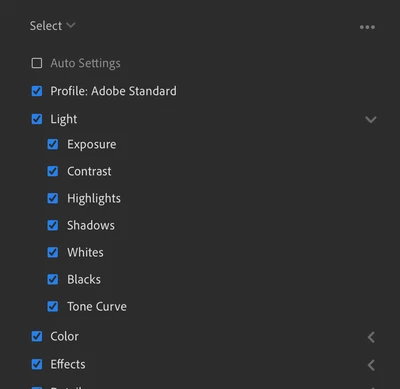
This is what the selection looks like when I press "Create Preset" as you can see the tone curves are ticked
 

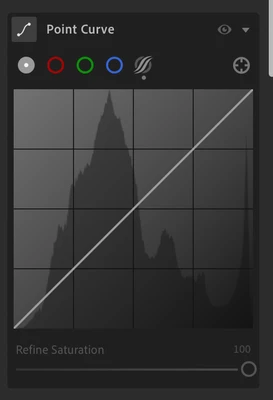
However, when I apply the preset, the point curve doesn't change.
 

Please could someone give me some advice, thank you.

 
This topic has been closed for replies.

27 replies

Participant
September 16, 2023

@yjin12345678 worked for me, thanks.

Participant
September 16, 2023

Worked for me. Thanks.

Inspiring
September 15, 2023

Sorry, for the post. The dictionary made a mess with it, and I'm still did not reach the rank to edit.

Inspiring
September 15, 2023

@yjin12345678 yes. The only thing it does is that the preset does not override the existing curve with the default flat one, but still for me there is no way to store the curve with the preset setting. 

Participant
September 15, 2023

Did you keep the "Tone Curve" unselected and save it?

Inspiring
September 15, 2023

@yjin12345678 just checked and it did not work for me.

Participant
September 15, 2023

I found a solution to this problem!! Just uncheck the "Tone Curve" from the Create Preset selection and then set it as default. 

Participant
September 7, 2023

Hallo liebe Community,


ist es euch schonmal passiert, dass ihr ein Foto bearbeitet, dann aus den Einstellungen ein Preset erstellt, beim Speichern aber die angepassten  Gradationskurven nicht mitgespeichert werden? Ist mir gestern zum ersten mal passiert, ich finde aber den Fehler nicht.


Danke euch für eure Unterstützung


lg Stefan

Rikk Flohr_Photography
Community Manager
Community Manager
August 31, 2023

Bug written

Rikk Flohr: Adobe Photography Org
Rikk Flohr_Photography
Community Manager
Community Manager
August 30, 2023

Hello all,


I've tested this again today and am still unable to repeat any failure. 


  • Fresh Image
  • Adjust Point Curve
  • Save As Preset
  • go to new image
  • Apply preset
  • Inspect Point Curve 
  • Applied correctly


  • Fresh Image
  • Adjust Parametric Curve
  • Save As Preset
  • go to new image
  • Apply preset
  • Inspect Parametric Curve 
  • Applied correctly


  • Fresh Image
  • Adjust Point & Parametric Curves
  • Save As Preset
  • go to new image
  • Apply preset
  • Inspect Point Curve and Parametric Curve
  • Both Applied correctly


Can anyone here provide a complete set of test steps that will reproduce this and post them here?

Without those, no bug can be filed. 


Rikk Flohr: Adobe Photography Org
Participant
August 30, 2023

Hi Rikk,


Thanks for looking into this. I followed your steps (adjust the point curve > create preset), it works perfectly. However, this doesn't work fine if we do below scenarios:


Scenario 1: You have a previously edited image (i.e. not fresh) with point curve adjustments, to mimic this, you can try below:

  1. Open Lightroom
  2. Select any image > Under Point Curve panel, adjust one (or all) of the following: RGB Channel / Red Channel / Green Channel / Blue Channel
  3. Close Lightroom
  4. Open Lightroom
  5. Select the image you used in step 2.
  6. Click Presets >  Click + sign (or you can click the 3 dots then click 'Create Preset')
  7. Set the name/group > Click Save
  8. Select a new image > apply the preset you created in step 7.
  9. Inspect the point curve - you will notice that the point curves (RGB Channel / Red Channel / Green Channel / Blue Channel) were not applied.


Scenario 2: You edited other images before creating a preset

  1. Open Lightroom
  2. Select any image, we will call this image1 > Under Point Curve panel, adjust one (or all) of the following: RGB Channel / Red Channel / Green Channel / Blue Channel
  3. Select another imager, we will call this image2 > make any adjustment to this image.
  4. Select image1 again (the image we used in step 2) 
  5. Click Presets >  Click + sign (or you can click the 3 dots then click 'Create Preset')
  6. Set the name/group > Click Save
  7. Select a new image > apply the preset you created in step 6.
  8. Inspect the point curve - you will notice that the point curves (RGB Channel / Red Channel / Green Channel / Blue Channel) were not applied.


Below are the specs of my machine when I tried this:

  • Lightroom v6.5
  • Windows 11


Note that I've tried this in 3 different lightroom version: (1) 6.5, (2) 6.4, and (3) 6.3.1. The issue is happening in 6.5 and and 6.4 only. 


Hope this helps. Cheers!


Rikk Flohr_Photography
Community Manager
Community Manager
August 31, 2023

I can replicate the failure using scenario 2 but not using scenario 1. I will log a bug against scenario 2. Thanks for the complete steps!

Rikk Flohr: Adobe Photography Org