


Participating Frequently
March 3, 2016

P: Group linear dodge may acts different from the layer linear dodge

  • March 3, 2016
  • 15 replies
  • 482 views

Hi everyone. I found that when choosing group blending mode as linear dodge, it would act in a differently from simply apply a linear dodge layer. An example:

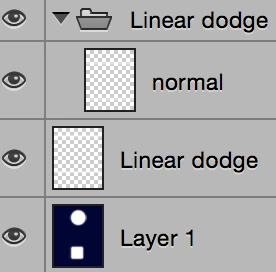


Upper one the adjust layer, lower one the 'adjust group'. (in case these helps: Layer 1 consists of deep blue& white, the two layers are white rectangles blurred using Gaussian blur.)


The group only contains one layer in normal mode which has identical pixels as the adjust layer does.

Same thing happens for color dodge mode, but not for lighten, screen and lighter color. Seems blending type related.


Searched for blending methods and group blending mode, but came to that in this case they should work in the exactly same way... Did I missed or misunderstood anything? 

This is a quite interesting feature but I'm curious about the mechanism.

Thanks in advance.

This topic has been closed for replies.

15 replies

July 11, 2019
This post has another file for testing:

https://forums.adobe.com/thread/2634249
July 10, 2019
This post has another file for testing:

https://forums.adobe.com/thread/2634249

July 9, 2019
Apparently there is still an issue with this in photoshop 20.0.5 as demonstrated here:

https://forums.adobe.com/thread/2634249


It's easy to replicate the issue in photoshop 20.0.5


1. Make a new document in sRGB, fill with 50% grey.


On the grey layer use a soft brush set to white and Linear Dodge (Add) in the tool options bar


2. Make a new layer, paint on that layer with the same white brush and then change the layer   blend mode to Linear Dodge (Add) and uncheck Transparency Shapes Layer in the Layer Style Blending Options.


Image is not available


3. Make a new layer, put the layer in a Group, paint with the white brush on the layer in the group. Then change the Group Blending Mode to Linear Dodge (Add). Now here's the problem that even if you uncheck Transparency Shapes Layer for the Group it still doesn't match the other two, assuming the other two is how it's supposed to look.


Image is not available


You can fix the group by filling layer 2 in the group with Black in the Behind blend mode, but for some other blend modes the fix is not so easy or it might not work on a particular document for whatever reason.


Image is not available


After further investigation it actually looks like the bug has to do with the Fill Opacity on Groups.


If you check Transparency Shapes Layer and reduce the Fill Opacity to 99 then it looks like the other two layers.


Image is not available


Participating Frequently
July 9, 2019
It's been like 2 years and this issue still hangs on somehow (just a few seconds ago I got a email where a comment said it's not fixed even in 20.05 and had been broken since 7 ??)... I sorta regret that I didn't test the fix and follow up more properly back then.

I'm not a active photoshop or forum user, but this doesn't sound good. Can we re-open this issue by any chance? If anyone would be willing to submit a new ticket, please feel free to use or refer to stuffs I described here, many thanks.
June 30, 2019
This issue was never fixed.  Still not fixed in 20.05.

In fact i'd go so far as to say some of photoshop layer blend modes have been broken since photoshop 6 (circa 2001)
That's when adobe made changes to layer blend modes like color dodge and ever since layer blend modes have been broken in one form or another.

In fact in photoshop 20.0.5 there is a bug with Opacity Fill on layer groups, the exact same bug
that is the reason for the ops post here in the first place.
Inspiring
December 4, 2017
This issue still exists. It is not fixed in the current version of Photoshop CC 2018 19.0 release. Color dodge only works if applied to a layer and you uncheck "Transparency Shapes Layer". It will not work at all if you apply the Color Dodge to a folder.
PECourtejoie
Community Expert
Community Expert
August 30, 2017
A user reported a similar-looking bug on the adobeforums, with 2017.1.1 : https://forums.adobe.com/thread/2376283
Participating Frequently
November 21, 2016
Thanks for the replay and fix! 
Legend
November 2, 2016
Participating Frequently
March 4, 2016
Thanks a lot!