


Known Participant
October 18, 2017

P: Healing and Spot Healing Brush Lag

  • October 18, 2017
  • 282 replies
  • 7290 views

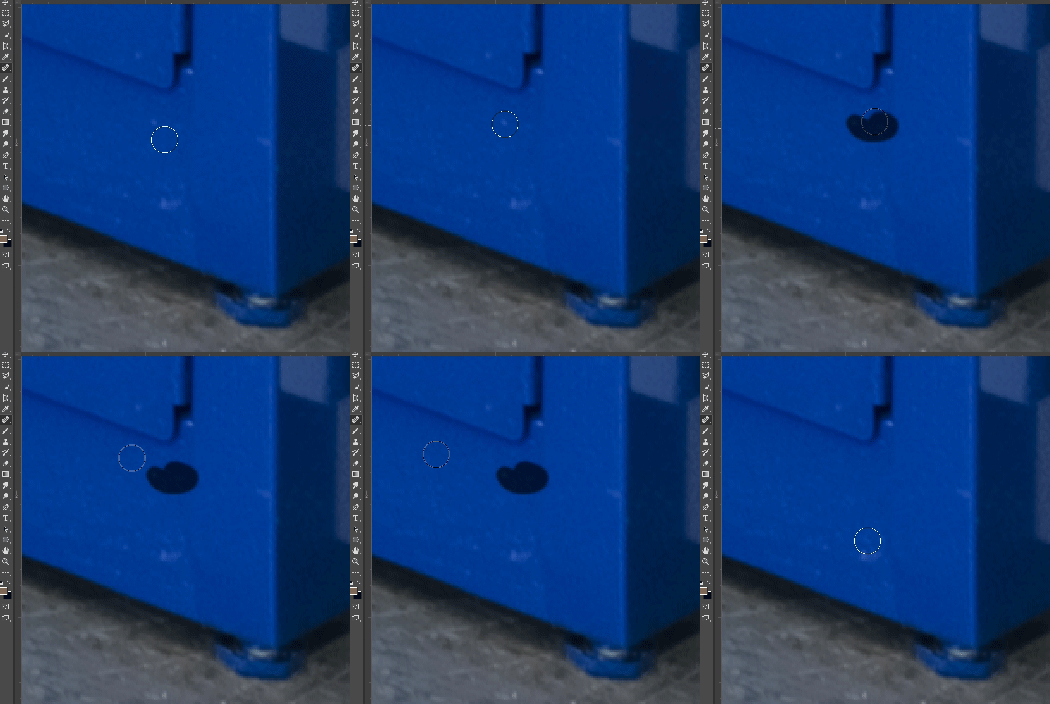
In most recent 2018 update, healing and spot healing brush have become much less responsive, sometimes taking multiple seconds after completion of stroke to affect the image.

Late 2016 Macbook, up to date OS and Software

I've done the regular things like turning off OpenCL and changing other performance options... no change.
GIF framerate is sped up 2x 
 

This topic has been closed for replies.

282 replies

Hannah Nicollet
Community Manager
Community Manager
January 22, 2018
My mistake Beth - with Mac it wouldn't be a driver download. Your suggestion that you upgrade to High Sierra may have been the answer. It might solve your problem because the AMD update would be packaged in it. 

Thanks,
Hannah
Hannah Nicollet
Community Manager
Community Manager
January 22, 2018
Hi Scott,

You're right. I only suggested that she turn off the GPU to narrow down the problem. Now we know that it is. Second step is to make sure the driver on her AMD is up-to-date. If that's the issue then she can just update the driver and then turn the GPU back on.

Regards,
Hannah
bellevue scott
Inspiring
January 22, 2018
It seems to me that turning off the GPU is not at all an ideal solution, and only a temporary work around. Using the GPU is a massive plus to speed and performance, so if that's the only solution to making PS work correctly, it would seem to me to be a very strong shortcoming of Photoshop. In my own work, if the only solution was to not use the GPU, it would simply not be a solution due to the scale and volume of images I process. 

Just my two cents. 
Hannah Nicollet
Community Manager
Community Manager
January 22, 2018
Hi Beth,

Okay great! Good to know it's your GPU, so let's make sure your driver is up-to-date. The download for your driver is available here (should be able to auto-detect, but if not look in About This Mac and then choose your download from this link): 

http://support.amd.com/en-us/download

Then recheck "Use Graphics Processor" and restart Photoshop to see if that solves it.

Thanks,
Hannah
Inspiring
January 22, 2018
Hi Hannah, 

Thanks so much for your help and the performance specs and tips. I'll be checking that out.

So, I turned off the Graphic processor and it has seemed to help. I can zoom in and out of the image much more quickly, I can hide and show layers with faster response, and I don't get any brush lag. (I use the brushes with a mask too, by the way.) 

I was desperate yesterday and uninstalled 2018 and reinstalled 2017. PS CC 2017 worked more smoothly than 2018. I reinstalled 2018 for this test...with the Graphics Processor off, 2018 works much, much better and possibly even better than 2017. 


Thanks!
 Beth
Inspiring
January 22, 2018
> Regarding a white paper - does this help?>

Having read this paper multiple times over the years (as it's updated), I know I'm stuck with my old slow computer until Apple gives me a choice, but this was one of the key reasons I wanted to have sets (groups) in my asset panels for ALL the assets. Brushes was the most important, but Patterns is next in importance.

It's really made a difference that I can easily trash and restore my brush sets (not to mention easily make those sets) so I don't bog my computer down completely. I'm still going to have problems with 1.5 GB+ files (on disk, maybe under 1GB) that have 60+ layers and masks on everything. But the remarks on purging (I have a KBSC for that) and getting rid of assets have helped me muddle through with my ancient Mac Pro.

One quibble I have with the Performance paper is it says turn on Automatic Updates in your System software.  Best, imo, is to pay attention to notifications. Auto-updating is playing with fire. Let someone else be the guinea pig for a few days, unless you just love the risk—maybe because you're like the engineers who wrote that Performance paper.<G> None of your regular OS news sites reports  significant problems, then update.
Hannah Nicollet
Community Manager
Community Manager
January 22, 2018
Hi Beth,

In Photoshop > Preferences > Performance > Graphic Processor Settings can you uncheck "Use Graphics Processor," restart Photoshop and see if it makes a difference? This isn't a setting you would normally want to keep, just a test to help narrow down the issue.

Thanks,
Hannah
Inspiring
January 22, 2018
That performance guide looks very interesting - I will give it good study!

I'll try to capture something on the lag issue, but earlier I turned off smoothing in brush preferences, and things seem to be normal now!

Many thanks,
P
Hannah Nicollet
Community Manager
Community Manager
January 22, 2018
Hi Peter,

Sorry to hear you're seeing lagging performance again. Would you mind making a screen capture of what you're seeing? I'll submit it for investigation.

Regarding a white paper - does this help? This was updated in September, so it's fairly recent:
https://helpx.adobe.com/photoshop/kb/optimize-photoshop-cc-performance.html

Regards,
Hannah
Inspiring
January 22, 2018
Hi Hannah,
As per my previous post, 19.0.1 seems to have cured my healing brush lag.
However I am now seeing quite a bit of lag when using a brush having made a layer mask - just thought I would flag this.

Slightly related to this - I'm sure there are many of us power users would love to see a "white paper" on the subject of Photoshop and performance. What is the role processor core and speed v graphics card and RAM. Along with all the various "settings" within Photoshop preferences.
Which is more important to Photoshop cores, processor speed, graphics card, RAM?
Many years ago Adobe produced a great "White Paper" on Raw files - could we have something like this please?
Peter