


Inspiring
January 24, 2018

P: Histogram behaviors are different from prior versions

  • January 24, 2018
  • 104 replies
  • 3328 views

I am experiencing problems with the histogram in 19.1.0. I am a mid-career fine art photographer by profession, and have been a PS user since Version 2. I am also a member of the Authors Guild, and write on photography for various publications. I have been purposely hanging back at PS 2015.5.1, as it has served me well. Yesterday, I decided enough, is enough, and installed 19.1.0.

This first histogram is at Cache Level 1 for the file values of a 36Kx24K pixel 16-bit grayscale file.
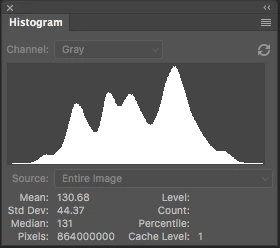
 

Please notice how there are "tails" (lines) out each side of the main body of data, indicating that there are small levels of data almost to the limits of range. For me, it is important to know about these tails exist so that I do not end up creating a clipped condition when applying a curve function. We use S-curve limiters to compact the tails without clipping.

Here is the exact same file at Cache Level 1 for the same 36Kx24K pixel 16-bit grayscale file, but this time in 19.1.0.
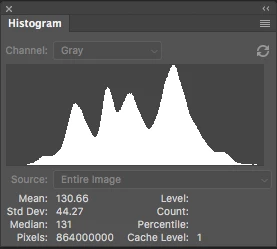
 

Please notice how there is no tail indicating data extending to the left, and rather a botched one going to the right. This is not helpful! You will also notice that the Mean and Standard Deviation values differ.

Further, it use to be nice to be able to take the cursor and scan across the histogram with a display of level and count showing up for whatever was under he cursor. This seems to have gone away in 2015.5, and is even worse in 19.1.0.

Thanks for your help.

Pete

This topic has been closed for replies.

104 replies

Inspiring
May 12, 2020
Jeff,
How did you make that image have such a nice shaped histogram? I know of no way to modify the distribution of the amplitudes in PS other than Curves and Levels. I have a histogram shaper that I use sometimes but I'm surprised by the quality of the end tapering.
Regards,
RONC
Inspiring
May 11, 2020
If the desaturated version into the histogram looks OK then you and Jeff need to pass the conversion problem on to the coders to fix and you eliminated one problem for the histogram coders.
I'm not going to think about the ProPhoto stuff anymore.
I'll try to to get a post up on recommendations for the histogram soon. Have a health problem first though.
RONC
Todd Shaner
Legend
May 11, 2020
Comparing the difference of the ProPhoto RGB conversion to it after Desaturate there appears to be numerous pixels at  level 1 that are different. So it appears the Convert to Profile operation is adding artifacts.
Inspiring
May 11, 2020
The next question "is the problem in the conversion or in histogram".  If you take the conversion RGB and take the blend/difference with the desaturated RGB image and then view the output of that with Levels with the right arrow moved left to "2" you will see the difference of the images magnified in amplitude.  If the images are different then the problem is with the conversion from grayscale to ProPhoto.  If they are the exactly the same, the problem is with Histogram and ProPhoto input.  You might have uncovered a bug in the conversion too.

Life isn't easy trying to find what causes what happens.

RONC
Todd Shaner
Legend
May 11, 2020
Applying Desaturate (CTRL+SHFT+U) to the RGB converted image removes the color spots in the Histogram palette. Isn't that expected if the subsampled image caused color artifacts (R≠G≠B)  to be created during the conversion?
Inspiring
May 11, 2020
To eliminate the Grayscale to ProPhoto conversion, I would desaturate the ProPhoto and then run Histogram to see if the color shows.
RONC
Inspiring
May 10, 2020
Subsampling the image previous to doing a histogram should be fine if it not too severe.  I would say if the input is like 200k in one direction, the histogram should be run on segments not the whole thing.  I think the user needs decide whether there is enough variablity in the data to require segmenting.   This something that Adobe needs to plan on this not only for the histogram.  Ergodicity is something that needs to re-evaluated within the processing package.

RONC
Todd Shaner
Legend
May 10, 2020
All three channels are identical but near the tall peak I see a couple of different color values.
I noticed them as well and it appears to be a bug since the original image is grayscale (R=G=B). Jeff spoke with someone in Engineering and they mentioned the Histogram uses a subsampled image. I can see how that would affect the original histogram results, but converting from grayscale to RGB Color using a subsampled image should keep R=G=B in the new Histogram.
Inspiring
May 10, 2020
I see another problem showing in the top display.  All three channels are identical but near the tall peak I see a couple of different color values.  That is weird too.
Needs to be looked into.  I used sRGB for my tests as it is most stable version.
RONC
Todd Shaner
Legend
May 10, 2020
Good catch! I can confirm what you are seeing in the All Channels view of Jeff's file after selecting Image> Mode> RGB with ProPhoto RGB working space. The Blue channel has no tail and stops at about level 222. the Red and Green channel tails stop at about level 246. So definitely somethings wrong and the root cause is probably related to what's causing all of the tails to show missing on Pete's system.