


Inspiring
January 24, 2018

P: Histogram behaviors are different from prior versions

  • January 24, 2018
  • 104 replies
  • 3328 views

I am experiencing problems with the histogram in 19.1.0. I am a mid-career fine art photographer by profession, and have been a PS user since Version 2. I am also a member of the Authors Guild, and write on photography for various publications. I have been purposely hanging back at PS 2015.5.1, as it has served me well. Yesterday, I decided enough, is enough, and installed 19.1.0.

This first histogram is at Cache Level 1 for the file values of a 36Kx24K pixel 16-bit grayscale file.
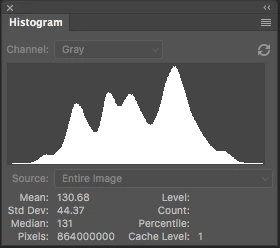
 

Please notice how there are "tails" (lines) out each side of the main body of data, indicating that there are small levels of data almost to the limits of range. For me, it is important to know about these tails exist so that I do not end up creating a clipped condition when applying a curve function. We use S-curve limiters to compact the tails without clipping.

Here is the exact same file at Cache Level 1 for the same 36Kx24K pixel 16-bit grayscale file, but this time in 19.1.0.
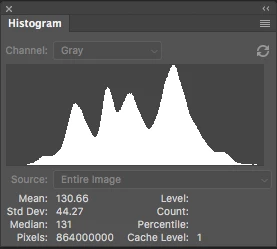
 

Please notice how there is no tail indicating data extending to the left, and rather a botched one going to the right. This is not helpful! You will also notice that the Mean and Standard Deviation values differ.

Further, it use to be nice to be able to take the cursor and scan across the histogram with a display of level and count showing up for whatever was under he cursor. This seems to have gone away in 2015.5, and is even worse in 19.1.0.

Thanks for your help.

Pete

This topic has been closed for replies.

104 replies

Inspiring
May 6, 2020
I changed preferences and see no difference.  I forgot to mention that I'm on a Win 10 laptop with latest Win and PS.

It looks like the values are interpolated which could reduce the strength of the bin in the display.  Interpolation at an edge can also decrease the strength unless proper padding is used.

I do not have the disappearing Histogram issue when trying to use a Curves Adjustment layer.  My problem is only what has been referred to as tails in the histogram display.  The difference between curves and histogram seems to be that the tails show more in the curves which is probably do to the fact there are more px in the vertical direction.  It might have been at one time that the display was nearest position.  I truly expect all bins with live data should have the same strength but different height.

RONC
Todd Shaner
Legend
May 6, 2020
"This 128 x 128 square is shown, the 64 x 64 from my original is barely shown, and the 32 x 32 of yours almost doesn't show the low level bins."

Ronald clearly your system is behaving differently than mine or *Jeffrey Tranberry's. Your 512x512 image file Histogram does not show the darker area when smaller than 64x64 px. Mine shows the darker area in the histogram with height proportional down to 32x32 px. Below 32x32px the histogram line height remains the same and visible including a 1x1px darker area. A 32x32 px area in a 512x512 image is very small (.4%) and I imagine that's the histogram display lower level limit to remain visible. So it appears to be working correctly on my system.
In addition you have the disappearing Histogram issue when trying to use a Curves Adjustment layer. The cause of that remains to be determined since neither I or Jeff can duplicate it. So we have two possibly related issues.

Jeff can correct me here, but further trouble shooting needs to be performed before this can be turned over to Adobe Engineer for review. That's why I suggested resetting the PS Preferences file as a simple next step to rule that out as a possible cause of your issues. A corrupted Preferences file can cause some very strange issues!
Inspiring
May 6, 2020
I think that you understand the problem.  Look at the image below.  This has a 128 x 128 darker are and shows on the histogram.  It shows in two ways.  It is so tall because of the increased count for that amplitude.  It is also the same "color" as the full height one representing the rest of the images amplitude.  Now look at my previous image and you can barely see this short one as it is shorter and weaker on that histogram.  Looking at your image, the short one is even shorter or non-existent and darker too.  I contend for the histogram to be of value we must be able to see what on the bottom row of the histogram.   The bottom row is where the tails should be.  They must show even if their count is just 1 on the whole image.  How can the user see the lowest amplitude and highest amplitude points?   The problem is that the histogram is 100 px in height and any bin that has a count less that 1/100 of the maximum count is ignored.  This 128 x 128 square is shown, the 64 x 64 from my original is barely shown, and the 32 x 32 of yours almost doesn't show the low level bins.   The tall peak is 100 px tall no matter what but the lower ones should have at least one or two px height if they are not zero in count.

 This version of the histogram was coded without knowledge of its use.


The display in levels and curves is 200 px tall so the tails show unless they are 1/200 of the maximum bin count then they disappear.  

at some time in the past, the histogram display worked as I say it should but I can't tell you when it changed.  If Chris Cox is still around let explain what I'm saying as he probably did the first version.

Changing my preferences will not change this problem.

Let me know how I can help.

RONC  PS user since v3.
Legend
May 6, 2020
Launch QuickTime, Select File > New Screen Recording... then export the movie after you're done recording. You can record audio if you want to talk through the process. Post to drop box or some other file sharing platform and post the URL.
Todd Shaner
Legend
May 6, 2020
Here's a 512 x 512 image with 32 x 32 lower density square. It looks normal and as expected except the Curves Adjustment layer histogram lines appear darker, but still visible.
I can't duplicate the issue with this image.


I suggest resetting your PS Preferences file as the next trouble shooting step. Close PS and rename the Prefs.psp as shown below and then restart PS. This will allow easily restoring it if of no help.

Users/[user name]/Library/Preferences/Adobe Photoshop [version] Settings/Prefs.psp.OLD

If the issue persists I suggest downloading Jeff's image file and see if it also exhibits the issue.
Inspiring
May 6, 2020
Guys,

Here is a synthetic test.  Image is 512 x 512 in one shade of gray.  I inserted a square of different sizes with a darker gray.  If square is less than 64 x 64, the histogram doesn't show the information.  I tested 64 x 64 shown, 32 x 32, and 16 x 16.  It should show in all cases in my view of how to do it.  I think the monitor settings (scaling on laptop screens) also could affect what is seen.  


I think it is time for someone to view the software.  This probably affects histogram, levels, and curves in PS, LR, and ACR.  Other programs  might have the problem but I have no idea which.

Let me know if you need to discuss.

RONC
Inspiring
May 6, 2020
The bottom row must show as white if there is a any pixel has the particular value. With the user expecting to be able to see the black and white points it is a necessity. It worked that way for a long time but I think it was changed and no one noticed
Someone needs to build a synthetic to test it. Because the program is working with normalized counts (scaled relative to peak count), any value greater than zero at an amplitude should be white in this example and for color data, the idea must be applied to for each color.
RONC
Inspiring
May 5, 2020
The two images above, are displaying the histogram at very different scales.  The histogram output has about 1.25 times as many pixels in the x direction and half as many in the y direction.  The tails seen could easily be in how the last row of the plot is computed.  I have wondered a number of times what has changed between version of PS and the histogram but never compared to the Curves or Levels displays.  I would recommend that the bottom row display everything below a certain level not just how the levels fall.
RONC 
Todd Shaner
Legend
May 5, 2020
Pete, download Jeff's image file and see if it also exhibits the same issues. This will help determine if something in your files is causing the issue.
Inspiring
May 5, 2020
Update: I do not have the WACOM tablet connected or the driver software installed on this computer yet, so that eliminates a side-show variable.

I reproduced the disappearing histogram problem once again. Touch the Curves function, and the histogram goes pooooooooooof!