
Participating Frequently
November 1, 2017

P: Image changes don't show on screen or in navigator

  • November 1, 2017
  • 63 replies
  • 1100 views

Issue: Various edits made to the current document do not refresh the screen preview or the navigator panel until the canvas is clicked again, or a keyboard shortcut is invoked. This includes such interactions as showing and hiding a layer, entering quickmask mode, making a lasso selection, and using the Undo command.

After trying numerous fixes, I eventually narrowed it down to a single preference which is causing the problem for me. The issue seems to be caused by disabling the "Start" Workspace in Preferences > GeneralI fixed the problem by re-enabling the "Start" Workspace. As soon as I re-enable it and restart, the issue goes away. I can reliably reproduce the issue by again disabling the option.

Note: This issue began for me a couple weeks ago using CC 2017 18.1.1, and is still occurring after updating to CC 2018 19.0. I am on Mac OS X 10.11.6.
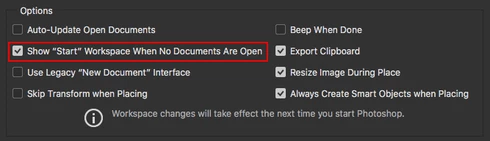


See the video below for a comparison of the normal with the default setting ("Start" Workspace Enabled), and then with the option disabled.


A similar issue for Photoshop CC 2017 is discussed here with no resolution: https://feedback.photoshop.com/photoshop_family/topics/problem-photoshop-cc2017-the-edited-image-isn...

This topic has been closed for replies.

63 replies

Participating Frequently
February 7, 2018
I did trash my Photoshop CC 2018 preferences and restarted. But, that didn't fix the problem. 
Participating Frequently
February 7, 2018
Re: deleting preference file, I did notice that just before this issue started happening, when I opened Photoshop, all my loaded brushes were missing and panes were open that were not open before (and which I don't ever use). So, maybe the preference file was corrupted. 
Participating Frequently
February 7, 2018
Does not apply, because I use a Wacom Intuos 3 which requires a different driver. That driver is also the latest as of this moment and is version 6.3.15-3
Participant
February 7, 2018
EDIT: Downgrading to 19.0 fixed my issue. I'll wait for a new update before I update again. Unfortunately this also reset my preferences file. It might be worth just deleting the preferences file and seeing if that fixes the issue in 19.1.

I am also having this issue on:
- Adobe Photoshop Version: 19.1.0 20180116.r.238 2018/01/16: 1153018  x64
- System architecture: Intel CPU Family:6, Model:61, Stepping:4 with MMX, SSE Integer, SSE FP, SSE2, SSE3, SSE4.1, SSE4.2, AVX, AVX2, HyperThreading
- MacBookPro12,1
- No wacom driver apart from any that come with MacOS.

It recently started about a month ago. I don't believe I've installed any new apps or plugins in that time (apart from Adobe CC updates).

I've tried enabling/disabling graphics processing and the show workspaces option, neither have solved the problem.

A solution would be greatly appreciated.
Participating Frequently
February 6, 2018
Happening to me. All of a sudden, starting yesterday. I turned off the Graphic Processor. That had no effect. I have no Wacom driver. I'm on El Capitan 10.11.6. 27" iMac (mid 2010). 
Hannah Nicollet
Community Manager
Community Manager
February 6, 2018
Hi Marcia,

Yesterday we noticed that this behavior happens with the newest Wacom driver, 6.3.27-2, installed on certain systems. Uninstalling that driver using the Wacom Tablet Utility (Uninstall for All Users) seemed to rectify it. It appeared that installing Wacom Driver 6.3.25-2 seemed to fix this particular behavior. 

http://www.wacom.com/en/support/product-support/drivers

Does any of that sound pertinent to your situation? 

Thanks,
Hannah
Inspiring
February 6, 2018
No Wacom installed on this Mac. If it may be of any help: I had this issue before (2y ago) and then I fixed it by replacing faulty RAM modules. This time around however I am sure that’s not the case since 19.0 is working just fine. (So I would also think it has something to do with memory).
Participating Frequently
February 6, 2018
I do, but not always.
Note that the above described bug apparently happens in stages. A while into working in Photoshop inactive image windows (mine are floating) will not all be displayed, some will have only the grey checkerboard. When clicking on them to make them active they appear correctly.
At a later stage this is not possible. They turn black and only forcing a layer to move e.g. with the move tool the image will appear.
I assume it has something to do with memory management. I happens sooner with large works (e.g. 12.000px wide and up with lots of layers too).
Participant
February 6, 2018
I do not. 
Hannah Nicollet
Community Manager
Community Manager
February 6, 2018
Thanks for the feedback. I just edited that comment to reflect this - do you happen to have a Wacom driver installed on your machine?