


cyplot
Participating Frequently
January 23, 2018

P: In fullscreen mode, canvas moves to upper left corner and 3/4 of the canvas is unusable

  • January 23, 2018
  • 62 replies
  • 1282 views

Hej Hannah,

thank you guy for your support & the solution today. I think it solved the issue with the floating Screen somehow, but... something new is happening 😕😕
I think it depends if I work “with“ or “without“ the graphic-card-support and/or the Application-Frame On/Off (just on MAC).
I am using PS on a MacBookPro here with a Nvidacard on 2screens. I always work in PS on the bigger 2nd screen which is a Wacom-Cintiq:

1. I open a PSD-file here (a test-file orange/yellow)
2. it opens in the upper-left corner – ok so far!
3. i changed the screen-mode (F), and...
4. the the hole canvas appears in a small rectangle in the upper-left corner and the other 3/4 of the canvas is just black and not useable?!! (see screenshot)
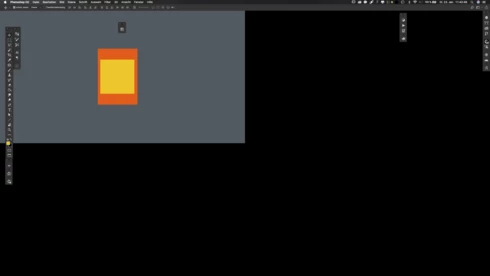


...thats absolutely useless here. When i switch OFF the graphic-card-support is seams to work fine in the frameless PS. Or i have to switch the PS-Application-Frame ON to use the graphic-card-support again. But use “graphic“ and “frameless“ at the same time it cause this new issue?!

This was not an issue in CC2017!
 
– help?!

Note: This conversation was created from a reply on: Photoshop CC 2018: Floating document windows in fullscreen w/menu bar causes wind....

This topic has been closed for replies.

62 replies

Participating Frequently
February 7, 2018
OK, I am sorry to say you were right I did the hits in a wrong way and that is working again! Thanks for your help. I dont want to argue stutbornly but before 19.01 one did'nt have to hit this sequence to get the same result but as far as that's work i am happy... Thanks again
Peter Villevoye
Community Expert
Community Expert
February 7, 2018
It's a small effort, although I still don't understand the (unique?) way or mode you're working in. Maybe you're using the suggested keys in a wrong order (type f for full screen, then tab - tab to 'kick' the screen, then Shift-tab to hide all auxiliary panels). Unless, you can make and post a video of it, let's give it a rest...
Participating Frequently
February 7, 2018
First, thanks for your interest about my problem. I tried, Shift+tab doesn't work. Actually as far as I should press any key instead from moving my pointer all solutions are sh..t. Hope for a new version now...
Peter Villevoye
Community Expert
Community Expert
February 7, 2018
After pressing tab twice, press SHIFT tab to make the panels disappear again (except for tools and option bar) and make any panel(s) appear when you're near the edge of the screen. Does that work for you ?
Participating Frequently
February 7, 2018
I am using an Imac 27,5" 3,5 Ghz, Intel 7with 32M Ram and Nividia GPU
Participating Frequently
February 7, 2018
No, if you press tab you got a proper view that's ok but with previous version you don't have to press tab but put the pointer to the right edge (where the worktab was before wiped by the tab) and tabs appears. Press tabulation worktabs disappears, pointer to the right edge worktabs comes again without changing the zoom level.I was used to this very swift way to work and really upset to return to the ages....I am using an Imac 27,5" 3,5 Ghz, Intel 7with 32M Ram and Nividia GPU
Peter Villevoye
Community Expert
Community Expert
February 7, 2018
I can perfectly mimic the behaviour of the appearing panels in the edges of the screen after applying any reshuffle of the windows, together with the GPU running, and proper view on my screen. Press tab twice. After this trick, everything behaves as usual. Or maybe I'm misunderstanding or confusing your method ?
Participating Frequently
February 7, 2018
Ok, this is a well known trick but my issue is : when working a picture you want a larger view press the tab the pic become fullsceen the working tabs disappears from the right side, before 19.01 you approach the pointer to the right side making workingtab appears again to allow correction or wahtever... Now, nothing but a jump of my canvas to the left... I did ask the users service got an answer to disable GPU, wrote my problem to PS family no answer after a week...Sure if I use a second hit on the tab the picture come again but if I roll back to CS6 I will get the service as well !
Peter Villevoye
Community Expert
Community Expert
February 7, 2018
In stead of disabling the GPU or working with the application window switched on (to prevent it from happening) you can temporarily solve it by pressing the tab twice, to change views and let the GPU performance and screen arrangement behave again. No big problem...
Participating Frequently
February 7, 2018
Hello, nope either, I totally agree with your position Peter however you can't say :"the issue can easily be circumvented without further sacrifice" as disabling the graphic processor lead to another big problems with brushes etc...
More, I can hardly accept that a big one like Adobe could put on the air a version with such a big bug affecting so many users !
Let's hope for a swift (!) solution ...