


cyplot
Participating Frequently
January 23, 2018

P: In fullscreen mode, canvas moves to upper left corner and 3/4 of the canvas is unusable

  • January 23, 2018
  • 62 replies
  • 1262 views

Hej Hannah,

thank you guy for your support & the solution today. I think it solved the issue with the floating Screen somehow, but... something new is happening 😕😕
I think it depends if I work “with“ or “without“ the graphic-card-support and/or the Application-Frame On/Off (just on MAC).
I am using PS on a MacBookPro here with a Nvidacard on 2screens. I always work in PS on the bigger 2nd screen which is a Wacom-Cintiq:

1. I open a PSD-file here (a test-file orange/yellow)
2. it opens in the upper-left corner – ok so far!
3. i changed the screen-mode (F), and...
4. the the hole canvas appears in a small rectangle in the upper-left corner and the other 3/4 of the canvas is just black and not useable?!! (see screenshot)
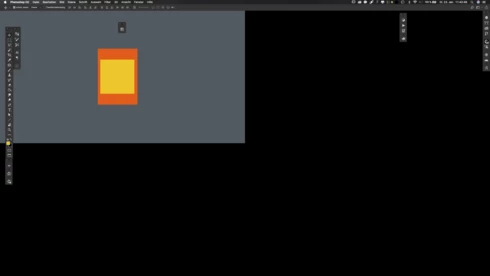


...thats absolutely useless here. When i switch OFF the graphic-card-support is seams to work fine in the frameless PS. Or i have to switch the PS-Application-Frame ON to use the graphic-card-support again. But use “graphic“ and “frameless“ at the same time it cause this new issue?!

This was not an issue in CC2017!
 
– help?!

Note: This conversation was created from a reply on: Photoshop CC 2018: Floating document windows in fullscreen w/menu bar causes wind....

This topic has been closed for replies.

62 replies

Hannah Nicollet
Community Manager
Community Manager
January 26, 2018
Hi Tristan,

I merged your post with a duplicate thread that contains workarounds. This is a known issue and the work around while we work on getting out the fix is to press tab once or twice.

Thanks,
Hannah
Inspiring
January 26, 2018


I just upgraded to Photoshop 2018 (release 19.1.0) and there is a major bug with full screen mode on a retina macbook pro hooked up to an external monitor in dual-display mode. When entering full screen mode on the external monitor the "usable" area seems to only be 25% of the screen size as illustrated in the attached screenshots. Trying to use the hand tool (space) to pan works, but moving it outside the bounds of the usable area crops it off.

Specs of my setup:

  • Macbook pro (15-inch 2016)
  • MacOS Sierra (v. 10.12.6)
  • Radeon Pro 450 2048mb graphics card
  • Built in display - 15.4 inch (2880x1800)
  • External display - Dell U2717D - 27 inch (2560x1440)


Participant
January 24, 2018

I’d like to clarify this workaround as having two options. First, let me identify the three screen modes: 

OPTION 1

[With Tabs unchecked in Preferences]  Press the “F” key to cycle through these modes.

A - Floating windows WITH palettes, menus, or option bar (This is the mode with the bug - cropped image in the upper left hand corner)

B - Isolates one image file WITH palettes, menus, BUT NO OPTION BAR. (The cropping bug may also appear in this mode)

C - Full Screen Mode - isolates one image file WITHOUT any palettes, menus, or option bar (Unless you press Tab, then you will get palettes and menus, BUT NO OPTION BAR)

OPTION 2

If tabs are employed, then it’s a more preferred way to work, because you get the palettes, menus AND options bar. Let me explain:

Go to Preferences>Workspace. Turn on “Open Documents as Tabs” and “Enable Floating Document Window Docking”. 

Now by pressing the F key, the screen modes are as follows: 

A - Single image file WITH tabs for other open files at the top (just below the options bar), along with palettes, menus, and option bar. I don’t like this view because when the image is zoomed out enough to see the whole thing, I can’t move it around - it’s locked in the center, sometimes behind a palette.

B - Single image file WITHOUT tabs - along with palettes, menus, AND OPTION BAR (This is the mode I prefer to work in, because I can isolate one image, I get all my palettes, menus AND the option bar - very important, because here I can change all the attributes of the tool I’m currently using. 

C - Full Screen Mode - isolate one image file WITHOUT any palettes, menus, or option bar (Unless you press Tab, then you will get palettes and menus, but NO OPTION BAR)

I’ve been a digital painter in Photoshop for about 18 years, so I’m approaching this from a painting perspective with a primary painting image on my Cintiq and reference images on my MacBook Pro monitor. Some people don’t like tabs and they want to see multiple windows open all at once. I like that too. Any window can always be undocked and then it’s a floating window again. But then when you cycle through the screen modes, the cropping bug will show up again. 

For now, Tabs seems to be the best workaround for me. I hope this helps! 

-Scott 
Hannah Nicollet
Community Manager
Community Manager
January 24, 2018
While we investigate the fix for this issue, the workaround is to press tab once or twice. 

*** Thank you Cyprian ***
cyplot
cyplotAuthor
Participating Frequently
January 24, 2018
... my pleasure!
Cyprian Lothringer /// mai@cyplot.de
Hannah Nicollet
Community Manager
Community Manager
January 24, 2018
Obviously it's already being investigated for a fix, but thanks so much for sharing that workaround.
Participant
January 24, 2018
Hello Hannah, thanks for your investment 🙂

Nope, I'm using an external display and a first generation Wacom Bamboo.

It does seem to appear only on the external screen though

Macbook pro 15" retina late 2013
- GPU Nvidia GeForce GT 750m 2Gb
- External display: Eizo S2433W, res 1920*1200 (HDMI, working as extended workspace)
- Mac Os 10.13.2
Participant
January 24, 2018
I confirm that this workaround is working
Hannah Nicollet
Community Manager
Community Manager
January 24, 2018
Did you discover that Cyprian?
cyplot
cyplotAuthor
Participating Frequently
January 24, 2018
Thats funny somehow:
the workaround for this issue is indeed to press onece or twotimes the TAB-button!

But why this issue happening anyway? Adobe, please fix this issue some how – thanks!
Cyprian Lothringer /// mai@cyplot.de