


alanterra
Inspiring
October 21, 2017

P: Interprets colors differently than Photoshop 2017

  • October 21, 2017
  • 34 replies
  • 1241 views

[Edited: No one has commented on, or perhaps even read, my post below, which means that I can still edit it. So I changed the title from the more sanguine "Photoshop CC 2018 interprets Vibrance/Saturation layer differently than CC 2017."

I think that this bug is a complete show-stopper. If Photoshop 2018 changes the colors, and the effect of flattening, compared to Photoshop 2017 and earlier versions, then I can't use it. And I find it surprising that others can use it, at least on images that were edited with earlier versions.

Perhaps I am being overly shrill — I would love it if someone would check out and confirm or deny that this is a widespread bug.

My original post follows.]

I installed Photoshop CC 2018 (Macintosh, Sierra v. 10.12.6) and I find that the colors displayed in a file are different than they are in Photoshop CC 2017. This makes it impossible for me to use Photoshop CC 2018.

I have a test file with two layers — an image and a Vibrance/Saturation layer. The file is in 8-bit Pro Photo. I have one color sampler in it (set to 5 x 5 in both versions of the program). If I turn on the Vibrance/Saturation layer, the colors are much less saturated in PS CC 2018 than in PS CC 2017. There are also small differences in hue. The following table shows the differences seen:
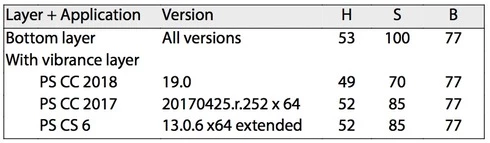
This difference can also be seen visually, and if you show out-of-gamut (CMYK gamut) colors the areas shown are different between the two programs. And, if you flatten this image, the values shown in the two versions of the Photoshop above are "baked into" the file — which means that the difference I am seeing is not a difference in reporting HSB values, but is a difference in interpreting a Vibrance/Saturation layer.

The file, and versions flattened in PS CC 2017 and PS CC 2018 can be found at https://www.dropbox.com/sh/35yds87iocpglup/AAAd-QVKoztY2HDxonkgxXQca?dl=0

It would be great if someone else could test this bug report and see if it can be replicated on other machines.

This topic has been closed for replies.

34 replies

alanterra
alanterraAuthor
Inspiring
October 27, 2017
Yes, I agree, "this is just weird." All I can say is that I am working on a project of photos of flowers, and in general, as I edit them, they get more and more saturated. At the end, I add a layer of Vibrance/Saturation to control that, and for most of these photos I get a big difference between PS 2017 and PS 2018. Obviously, I am working in some kind of "space" where the differences between PS 2017 and PS 2018 are manifested, and your photo is not in that space.

Of course, if I had first transformed to L*ab, I probably wouldn't be having this issue, but it would be a lot of work to redo my 2,000+ photos now. And, in any event, I don't think any user of Photoshop expects colors to shift when a new version comes out.

I suspect that Adobe must have some regression tests when they bring out a new version of Photoshop, to confirm that it interprets files the same as previous versions. (They must, right???) And, probably, their photos are like your photo, and no shift was evident.

A
Inspiring
October 27, 2017
Okay, this is just weird. Your file shows a significant difference in saturation. My own file shows no difference.


alanterra
alanterraAuthor
Inspiring
October 26, 2017
Hi Cristen.

Did you download my TIFF and try it? If so, did you get the same HSB values or different values?

I was quite surprised when I saw this, and I saw the effect on many images (as part of a project I am working on).
Inspiring
October 26, 2017
That's a fairly significant difference in saturation you're seeing. Here on my Mac I've tried several images, including creating a graphic image with saturated colors, and I can't see a difference side-by-side, nor does the Info panel. Now I'm curious. I don't want something like that to sneak up behind my back.
alanterra
alanterraAuthor
Inspiring
October 26, 2017
Hi Jeffrey

I had to reinstall PS 2018 in order to check.

I turned off the extension, and it had no effect on the colors.

To confirm, I'm on Macintosh and I added a tilde to the following file (not quite the same path as you indicated):

/Applications/Adobe Photoshop CC 2018/Adobe Photoshop CC 2018.app/Contents/Required/Plug-ins/Extensions/~HalideBottlenecks.plugin

Alan
Legend
October 26, 2017
Can you run a quick test for me? If you're on Windows, quit Photoshop, go to the application folder and navigate to Required>Plug-Ins>Extensions>HalideBottlenecks.plugin. On Mac, right click on the Photoshop app, choose Show Package Contents, and navigate to Plug-Ins>Extensions>HalideBottlenecks.plugin. Put a tilde infront of the plug-in's name to disable it.

Try running Photoshop and check your colors. Are they correct? 
Inspiring
October 26, 2017
I agree with you, I see colors as much less saturated after the update. I need to go back to the previous version.
alanterra
alanterraAuthor
Inspiring
October 26, 2017
Great. Glad you could solve your problem. I think you owe me 25¢ 😉

FWIW, by default, when you uninstall 2017, the preferences are not deleted, so when you later reinstall, you get back those preferences, not the default preferences. But it depends on which buttons you pushed when you did that. (And if you are like me, you have no idea what you did 20 minutes ago, let alone 2 weeks ago).
Participant
October 26, 2017
Hey Allen, thanks for the advice. I first created a new user and tested out the programs and the issue went away. So that assumes that it is indeed a preference issue. I went back to my normal user and scoured the preferences one by one, side by side, and visually nothing was different.
I then uninstalled PS2018 and reinstalled and the issue has gone away.

So thanks for the help! Though I still wish I knew exactly what the issue was.

Interestingly enough, when I installed 18 the first time I removed 17 at the same time. When I started having issues I re-downloaded 17. That makes me question the preferences issue as all the preferences from 17 would've been gone or carried over the first time I installed 18. Weird.

For what its worth. I tried to replicate your issue with the new copy of 18 and I could not. Hope it gets solved for you.

Thanks again.
alanterra
alanterraAuthor
Inspiring
October 26, 2017
Hi Josh

Thanks for the clarification. You are displaying a png file, which makes it clear (at least to my muddled mind) that your issue is different than my issue. My issue is that the same layered file is interpreted differently. The bottom image is the same, but as layers are applied (at least, a Vibrance/Saturation layer), the colors diverge between the images. In your case, there is but one layer, and PS reports the same color values, but displays them differently.

I would first look into something in the preferences being different. I wasn't 100% careful when I installed PS CC 2018, but while I thought that I clicked "keep preferences from older version" I did see some preferences had changed.

You could walk through (again!) all the preferences and see if there are differences, but what I find easiest in situations like this is to create a new user in System Preferences:Users and Groups. When you launch PS in a new user, PS should create default preferences for both PS 2017 and PS 2018. Then you can see if there is a difference in displaying your file. (Copy your test file into the Users/Shared folder to access it from the new user).

The other thing you could do is go to Creative Collection app and uninstall PS 2018, and make sure that you delete the preferences when you delete the app. Then reinstall PS 2018 and make sure you check "bring over preferences from earlier version" (not sure of the exact wording).

Anyway, I would bet (at least 25¢) that your problem is PS CC 2018 preferences being different from PS CC 2017, and that your issue is unrelated to my report.

Good luck!

A