


SteverB1
Participant
May 3, 2021

P: JPG from themoviedb dot org opening purple with horizontal lines

  • May 3, 2021
  • 17 replies
  • 8802 views

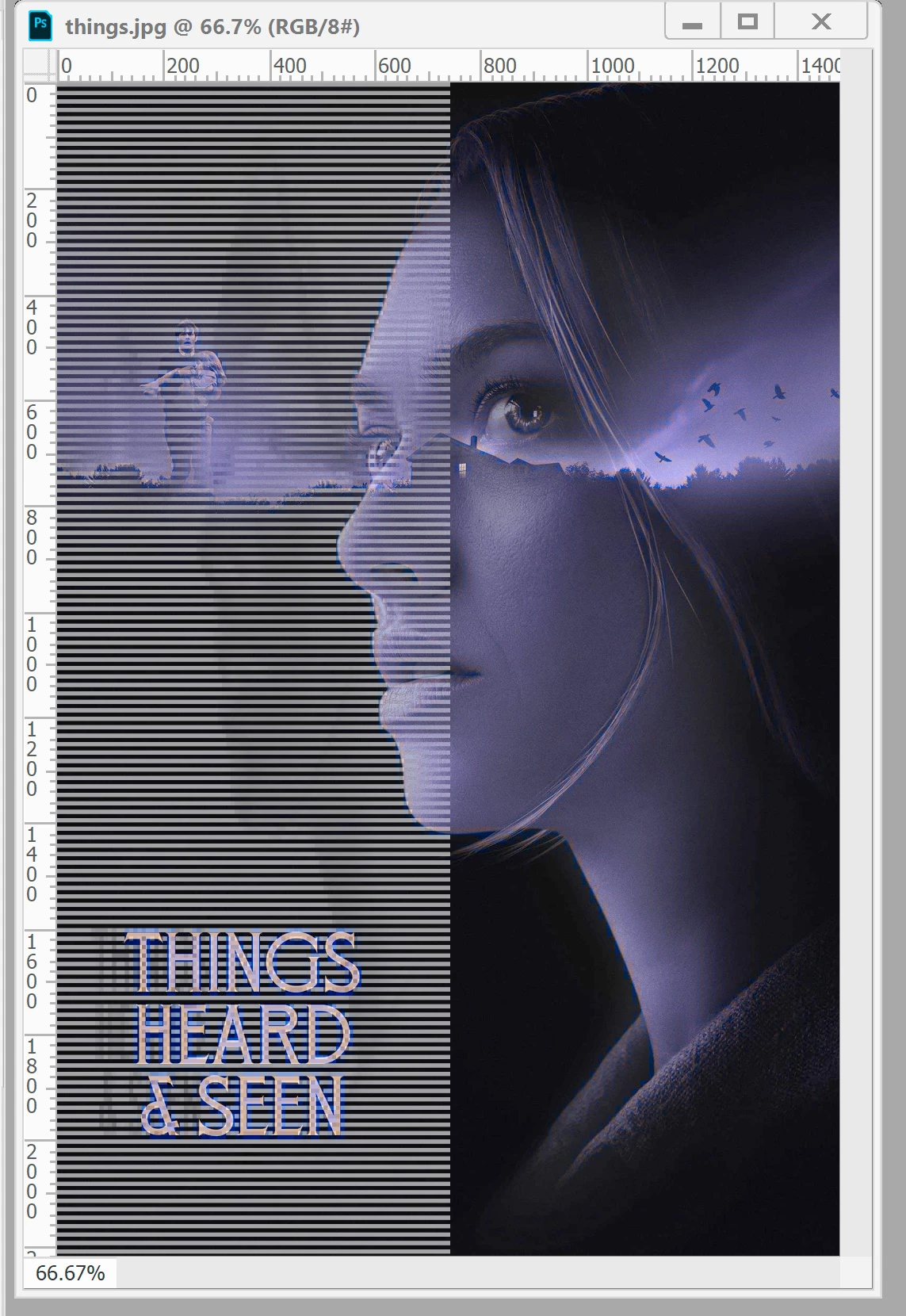
Sorry about the ridiculous thread title, but I literally don't know how to describe this. I'm attaching an image from PS upon opening. This doesn't happen on every JPG, but it happens only on JPGs, and has started in the past six months or so. I'm using version 20. The pictures are not alike, but they all look the same: there's an overall purple cast to the image, with the horizontal lines on the left side stopping at the center. Under the lines, the image seems inversed, but it's hard to say. As far as I know, the images are RGB, and they look fine in File Explorer. The quick fix is opening it and then saving it in Paint and then everything is fine, but as it's happening more and more, I'm getting tired of doing that. Has anyone seen this? Do I need to reinstall? Update? I generally don't like updating as it seems to always have more bugs and the version I have has been working fine otherwise. I'm stumped by this one. Any help would be greatly appreciated. Thanks!
17 replies

Participant
October 7, 2021

Hello! Is there any new information about the solution to this bug?

Legend
September 1, 2021

I can reproduce with your file. I've asked engineering to take a look.


Workaround:


  1. Preferences > Camera Raw... File Hanlding, set JPEG handling to "Automatically open all supported JPEGs"
  2. Open the file in Photoshop which will load it in Camera Raw.
  3. Click Open.
Peru Bob
Community Expert
Community Expert
August 9, 2021

Try updating or rolling back your graphics driver directly from the video card manufacturer’s site. If NVIDIA, do a clean install of the latest Studio Driver (NOT the Game Driver).

Participating Frequently
August 9, 2021

No change, Photoshop is still the only program that can't open the pictures properly.

Participating Frequently
August 9, 2021

On Win10x64 with PS v21 and have the same thing and it's only in PS this happens. Same image is normal in any other program I open it in, ACDSee, Paintshop Pro, Gimp, Firefox, Google.


Regarding your screenshot, is that from TMDB? Because that's the place where 99% of the images I have problems with come from. So maybe it's easier to get them to change some encoding settings that clearly is odd than trying to get Adobe to fix it.

SteverB1
SteverB1Author
Participant
August 9, 2021

It's either from TMDB or fanart.tv, yes. It sort of defeats the purpose of using the API, but maybe I should try taking files (at least a few to check) directly from the website. That is a good idea to check with them too. I notice this purple thing happening with stuff that comes through when I'm tagging movies, so maybe some mysterious gremlin in their API is doing something. The other user that posted a picture also showed one from a movie although I can't remember which one, but I recognize it -- it must be in my library too. lol Thanks for the tip!

SteverB1
SteverB1Author
Participant
August 9, 2021

I just dragged the same poster directly from the website and the same thing happens.


Maybe there's something a more expert user can figure out. Before opening the uncorrected image (when it looks purple), the only difference I see between it and a corrected version is the Chroma Subsampling. In the uncorrected images the Chroma is 4:2:0, and when I've run it through Paint, it's then 4:4:4 and loads normally in PS. Since this is the first time I'm sort of learning about Chroma Subsampling, and not quite getting how it might apply to this problem, I'm hoping someone else will see this and say, "Oh, yeah, that...."

Jumpenjax
Community Expert
Community Expert
August 2, 2021

I have had this problem before and I would close and open the file and it would be fine. It turned out I did not have enough Ram. You might want to check and see if that might be the issue.

Lee- Graphic Designer, Print Specialist, Photographer
mtuncy
Participant
July 3, 2021

Exactly the same issue since 20, continues on 21 and it's getting worse, more and more files show up like this. I'm on a Mac, removed and reinstalled, fixed/repaired all color profiles. Tried opening files by fixing RGB profiles or add if missing etc. Completly uninstalled, reinstalled Photoshop, reset preferences, no avail. Everywhere else the pictures look OK (in any other apps or finder or preview etc.) only happens in Photoshop and with some JPGs. Any help would be greatly appreciated. Thanks!

Trevor.Dennis
Community Expert
Community Expert
July 3, 2021
@mtuncy


You'll get more people viewing if you start a new thread.  Mention the version of OSX you are using in the Subject line.

gener7
Community Expert
Community Expert
May 3, 2021

Have you tried first resetting Photoshop Preferences?

SteverB1
SteverB1Author
Participant
May 11, 2021

No change except having to set up all my preferences again, but thanks for the suggestion.

gener7
Community Expert
Community Expert
May 11, 2021

I never seen anything like this myself. v20 is CC 2019. Maybe check on Legacy Compositing?

I'd ask why you havn't gone to v 21 or v22 (You can keep major versions installed so you have a fallback.) On the OS side, make sure your video drivers are up to date and check up on the scratch space. You may have to open a chat with support.