


Inspiring
January 27, 2026

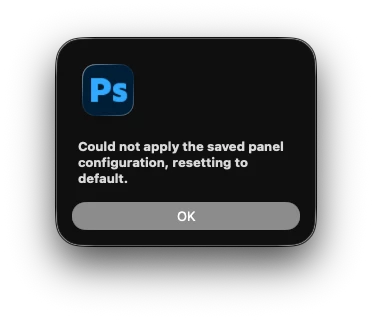
P: Launch Error - Could not apply the saved panel configuration, resetting to default

  • January 27, 2026
  • 12 replies
  • 741 views

When launching Photoshop the following error appears on screen:
“could not apply the saved panel configuration, resetting to default”

After the application starts up, workspace can be restored back to the saved preferred layout and everything function correctly. 

This started with 27.1 and has continued in to 27.3
There was also already a thread on here where Adobe said it was being looked in to and myself and others had submitted error logs to show where it appeared to flagging the error. After the community change here, that previous bug report has disappeared from the link resolving there or finding it via search so adding a new till it gets addressed. 
 

    12 replies

    clif_CROPAuthor
    Inspiring
    May 28, 2026

    Not sure if there is a little confusion but just to add a note regarding workarounds. When I restart and get this pop up I just have to use the “Reset (enter name of workspace here” that is in the Workspaces window. Just selecting it while already selecting it doesn't work. I have a keyboard shortcut set up for the Reset (unless it was already there by default) but I think i added it back in the day that when they get messed up it's easy to reset. I use SHIFT CMD R. 

    That should work better than the toggling back and forth. 

    For what its worth, while I was having the problem on both my Mac Studio and my MacBook Pro, at some point an update fixed the Mac Studio as I no longer get the error there but I still do every time I open Photoshop on my MacBook Pro. 

    dolldivine
    Inspiring
    May 28, 2026

    I’m on a PC, so this glitch must run pretty deep.

    dolldivine
    Inspiring
    May 28, 2026

    Earlier somewhere in the forum, someone suggested a hack where you make two versions of the same workspace.  When one gets wiped on program load, you load the other then resave it as #2 and so on.  This was working for me for a few months but today not only did my regular workspace get wiped, but the backup one is wiped too so I’m starting from scratch.  Between this, the program losing recent files, the weird lines appearing glitch, the program is almost unusable.  It’s hard to believe that I’m paying for it.  


    I logged in on my laptop and it has some older version with none of these bugs.  I just want to go back to that version.  I really don’t care about having the latest ai updates.  I just want it to work.

    dolldivine
    Inspiring
    April 30, 2026

    This is still happening with 27.6.0

    Also, not sure if related or something else, but photoshop periodically loses all the recent file data so the opening screen has nothing to show, even though I was working on a file 8 hours ago.

    Claire H.
    Community Manager
    Community Manager
    April 30, 2026

    Hi ​@dolldivine, Thanks for the update! We are still internally investigating this issue and have not released a fix yet. That other issue you’re mentioning may not be related, so I would recommend writing another bug report. In the meantime, if you believe others may also benefit from this, please encourage them to upvote or share their thoughts in the comments. I appreciate your patience! ^CH

    gener7
    Community Expert
    Community Expert
    April 20, 2026

    Here’s an AI-generated summary of things to try:


    The error "Could not apply the saved panel configuration" typically occurs in Adobe Photoshop when the application's workspace settings or general preferences have become corrupted. 
     
    1. Reset the Active Workspace 
    Often, a simple reset of your workspace layout can clear the error. 
    • Go to the Window menu.
    • Select Workspace.
    • Click Reset [Workspace Name] (e.g., Reset Essentials) to revert to the default layout. 
     
    2. Reset Photoshop Preferences
    If resetting the workspace doesn't work, you may need to clear the main preference file. 
    • The Keyboard Shortcut (Fastest): Hold down Ctrl + Alt + Shift (Windows) or Command + Option + Shift (Mac) while launching Photoshop. A prompt will appear asking to delete the settings file; click Yes.
    • In-App Method: Go to Edit > Preferences > General (Windows) or Photoshop > Preferences > General (Mac). Click Reset Preferences On Quit and restart the application. 
     
    3. Check for Permission or Disk Access Issues 
    The application may fail to save or load configurations if it lacks permission to write to its settings folder. 
    • Administrator Rights: Try right-clicking the Photoshop shortcut and selecting Run as Administrator to see if the configuration can then be saved or applied.
    • Full Disk Access (Mac): Go to System Settings > Privacy & Security > Full Disk Access and ensure Photoshop is toggled On
     
    4. Address Conflicting Cloud Backups
    In some cases, background syncing software (like Dropbox or OneDrive) that backs up your "Documents" or "Desktop" folder can conflict with Photoshop's ability to read/write settings. Try temporarily pausing these services to see if the error persists. 
     
    5. Reinstall or Use the Clean Tool 
    If the error occurs immediately upon launch and prevents the program from opening at all, it may indicate a deeper installation corruption. 
    • Use the Adobe Creative Cloud Cleaner Tool to completely remove old preference artifacts before performing a fresh installation. 
    mv.retouching
    Participant
    February 23, 2026

    Also had this problem, did not get solved by 27.4, but here is the solution for Windows. I guess something bugged on Photoshop’s end and it caused the issue

    Delete this folder completely:

    C:\Users\(USER)\AppData\Roaming\Adobe\Adobe Photoshop 2026\Adobe Photoshop 2026 Settings

    Known Participant
    March 17, 2026

    I tried this and it didn’t work for me.

    paulflong
    Inspiring
    February 17, 2026

    same error


    Gavin at MRP
    Inspiring
    February 4, 2026

    Still unsolved in 27.3.1 Release


    Gavin at MRP
    Inspiring
    January 30, 2026

    The latest Photoshop update (27.3.0) has NOT resolved this issue.


    Known Participant
    April 2, 2026

    Still no fix in today’s update (27.5.0).

    Jeff Arola
    Community Expert
    Community Expert
    January 29, 2026

    Some users including myself have had success solving the issue by trashing the MachinePrefs.psp

    in Macintosh HD/Users/UserName/Library/Preferences/Adobe Photoshop 2026 Settings

    Participating Frequently
    January 29, 2026

    I get the same message but mine doesn’t restore once I select it in the menu bar. I have to constantly remake my workspace. This is getting extremely frustrating.

    paulflong
    Inspiring
    March 18, 2026