


Doug.S
Inspiring
October 24, 2020

P: Legacy (CEP) panels/plug-ins scaled too large/cut-off
  • October 24, 2020
  • 41 replies
  • 2125 views

In Ps 2020 I had about 20 plugins which I told PsCC2021 to install like in Ps2020; and it did install them, But...


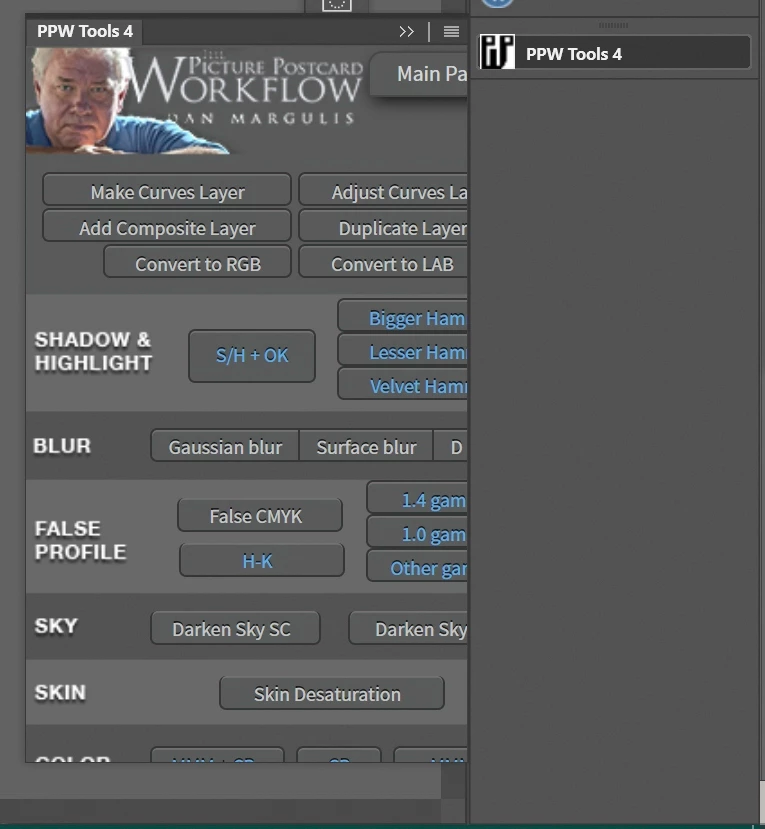
Of the 20 only 2 work OK; and then only partly. Basic issue is all are sized too big so only some of the panel is shown and panels cannot be re-sized. The 2 that I can re-size work OK but the size does not stick and are wrong old size when Ps 2021 is opened again.


Plugin developers say Adobe made a new code set for the legacy apps and broke the plugins?


I went to Adobe store and found a legacy plugin, installed OK, but same problem of panel size wrong/broken/does not work.


I am using 4K monitors. Ps 2020 was working just fine with them, and still is. Why break legacy stuff? I appreciate new plugins but nothing I use is there.


Please fix the legacy plugins i/f code...it should be as simple as copy/use what worked in Ps 2020.


Now I use Ps2020 for most things and Ps 2021 for any new features

41 replies

Inspiring
December 2, 2020

This fix will work only if the Windows desktop on which Photoshop is run is set at 100%. On my 4K 27" monitor, I can't run at anything less than 150% scaling, so the fix introduces weird canvas errors in Photoshop where some tools and effects gets off-centered from the cursor. There are a few other threads about this and we have yet to get an answer from Adobe...

Inspiring
December 2, 2020

Hello again,

The issue with the fix seems to be related to the Windows scaling setting. Mine is set at 150% (on a 4K 27" monitor); if I set Windows at 100% the fix does work as intended and the canvas is properly centered with the layering matrix (e.g. gradients and other layered effects are not off-centered from the cursor anymore). This can't do the trick for me though, as I can't realistically run Windows at 100% scaling on a 4K monitor of the size I have.

Can anyone at Adobe acknowledge this problem please?

Verto
Known Participant
December 2, 2020

Hi charles_o_hara

I am very sorry that the posted solution does not work for you. I can't think of anything else you can do to make it work. For if it helps, my scale settings are as follows:

WINDOWS
Screen resolution: Main monitor 2560x1440, and secondary monitor 1680x1050
Size of text, applications, etc.: 100%

PHOTOSHOP
UI scaling: automatic.
UI font size: small
Escale UI To Font: disabled

If with all this, you still cannot re-produce the appropriate conditions for it to work, you will have to wait to see if Adobe releases an update that solves the problem. I cannot contribute more because I do not know the exact reason for the error.

Of course it would be unfortunate if Adobe did not fix the problem.

I wish him well. A greeting.

Inspiring
December 1, 2020

In photospop 2021, my extension panels are cut off.  I tried the fix 

  • Right-click on the Photoshop 2021 executable.
  • Select properties.
  • Select the compatibility tab.
  • Click on "Change settings to all users"
  • Change high DPI settings"
  • "Override high DPI scaling behavior. Scaling performed by:" and select in the menu: "System (Enhanced)"

It fixed the issue on my desktop, but not on my acer laptop.   I don't have my TEXT size increased (window UI is @ 100%, ) 

Does anyone have a workaround for laptops until Photoshop comes out with a fix?  

Inspiring
December 1, 2020
Inspiring
December 1, 2020

Hi Verto,

I tried all three settings you mentioned. The "Application" setting does not fix the panels, and both "System" settings give me the off-grid issues. I guess it may be related to scaling percentages, so your scaling settings may differ from mine and hence this fix may work for you, but it doesn't for me.

I am forced for now to switch between the two versions depending on what feature I need... this is a bit infuriating, to say the least.

Verto
Known Participant
November 24, 2020

In the "Change high DPI settings" menu, there are three options to override high DPI scaling.

On my system, if I choose the "Application" option, I get the slave error again with the panels. If I choose the option "System (Enhanced)", the error is corrected. But if I choose the option only "System", I also find a cursor deviation similar to what you indicate. Try changing the option of the rescaling override menu, and see what happens.

Inspiring
November 24, 2020

With that fix, on my system zooming in with the mouse drag + keyboard shortcut now zooms in towards a corner of the canvas instead of towards the center.

About the gradient vector, I meant the tool that places the start and end points of the gradient : it is now off-center from the cursor by a large margin and it appears off canvas most of the times I try to use it, making it completely useless for precise work.

It seems like forcing Windows to scale Photoshop somehow messes up with the pixel matrix that is used for some calculations in Photoshop, whereas some other tools work fine with the fix. I'll try to do a recording of the issue when I find the time, but I must say, on my system at least, those glitches make the solution a non viable one, as it breaks some functionalities, and I'm thus stuck with the older PP version until further notice. 

Verto
Known Participant
November 23, 2020

Hi Charles,

I don't have that problem. If I zoom with the mouse wheel, everything works fine, centering the zoom where the mouse is. If I zoom with the keyboard shortcut, the zoom is centered in the center of the screen.

As for what you mention about gradients and vectors, I don't understand what you mean. In principle I have not found any errors in my system.

Inspiring
November 23, 2020

@Verto

II tried this fix at first, it does work to fix the panel issues but it introduces some kind of shift in the vector calculations, on my system at least. With this fix zooming now does not point towards the middle of the screen anymore and gradients and other vectors do not appear where the cursor is...

Can anyone else confirm this?