


Inspiring
December 1, 2015

P: Liquify lightens result on 16 bit/channel images

  • December 1, 2015
  • 231 replies
  • 4095 views

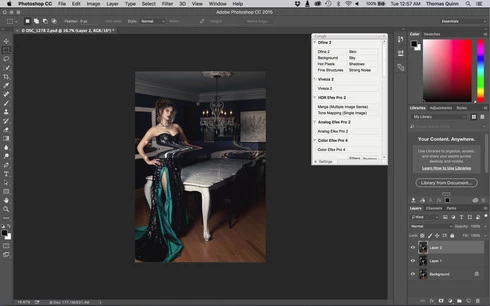
I am having issues with the new upgrade to Photoshop CC 2015 on Mac El Captain. The only thing I did was upgrade from a working CC 2015 to the new version. Using the liquify tool give the following look. There is a box around the area liquified that is lighter than the other areas. When I turn of Use Acceleration in Graphics Processor, it is better but .... I didn't have to do this in the prior version i.e.. Yesterday.

New Update: The Squiggly waist is the liquified:
This topic has been closed for replies.

231 replies

Inspiring
December 1, 2015
Same problem, hate workarounds, I just want it to work I use that tool a lot for seniors and little fixes.
Inspiring
December 1, 2015


After updating to Photoshop CC 2015.1 I have noticed a problem with the liquify filter. Turns out, the liquify filter brightens the chunks of the layer that have been liquified.

This is an example image:


And here it is after liquify:
Participant
December 1, 2015
Same problem for me, but in 8-bit fixed
PPhotography808
Known Participant
December 1, 2015
8-bit with GPU enabled works. Better choice of the two workarounds for since I rarely used the menus--short cuts short cuts short cuts :)

Thanks!
Adam Jerugim
Inspiring
December 1, 2015
We are now able to reproduce the problem in-house and are working on a fix.

For the time being there are two workarounds:

1. Use 8-bit images instead of 16-bit images with Liquify
2. Disable GPU for Liquify by holding the Option key down as you select the Liquify filter from the filter menu

Thanks,
Adam
Inspiring
December 1, 2015


Hi After today's update I can't use a Liquify tool. After making changes on a separate layer a bright square appears in the place where the changes were implemented. Could you please fix it?Thanks
Participant
December 1, 2015


Liquify tool cause artifacts; just it, and I'm not happy with this

ps.
best test on gray colors;
I checked all possible interpolations [ image interpolations];
I work on
Adobe Photoshop Version: 2015.1 20151114.r.301 2015/11/14:23:59:59 CL 1053036 x64
Inspiring
December 1, 2015
Yes, I'm having the same problem reported above. Also El Capitan.
PPhotography808
Known Participant
December 1, 2015
Having the SAME problem with latest Mac update (El Capitan)
Inspiring
December 1, 2015
Reverting back to the prior version via the Creative Cloud Tab.

Squiggly line does not show a box around it....

All I did was revert back to the prior version via the Creative Cloud App.