This topic has been closed for replies.

62 replies

Participating Frequently
June 29, 2020
Jakkal: Perhaps your search phrase was the problem, because,  believe me, there are MANY  postings on the topic... People get help here, but the people doing the helping should not have to answer the very same issues over and over when the answer is already posted.... Sorry that you felt my suggestion was unhelpful, but I think that doing a little research first would save you and others time...

You were not submitting a bug report. You were repeating a bug report that had been made so often that it had become tattered in the telling! I wonder whether you noticed that your post has now been combined with another which is very long and has your answers repeated several times....  Take a look
c.pfaffenbichler
Community Expert
Community Expert
June 29, 2020
Have you disabled Legacy Compositing? 
Jakkal
Participating Frequently
June 29, 2020
Hi there. I did search. My issue was initially with the text, and when I searched for text layer problems, nothing came up. I did try alternative, and I even looked through recent posts. If they've all been merged perhaps there's only one thread now instead of 'many posts'.

Comments like these are generally unhelpful as they just discourage people from posting for help - which considering Adobe's site sends you here directly when you want to submit a bug report - seems to be the point of these forums.

Participating Frequently
June 29, 2020
READ the various threads posted on this topic ! Turn OFF Legacy Compositing. Go to Edit, Preferences, Performance, then uncheck the box.

As a suggestion: it is unusual for someone to have a never-before-posted situation, so it is always a good idea to start by doing  search here in Photoshop Family. Try different ways to phrase the issue, and much of the time your answer will pop out.

This particular issue has MANY MANY MANY posts!
Jakkal
Participating Frequently
June 29, 2020


I just updated to Photoshop CC v21.2. I'm on Windows 10. Everything seems normal up until I try to copy and paste something. In this case I've noticed it specifically with text layers and drawing layers.

Procedure to Duplicate (Happens every time for me):
1. Write a sentence in notepad.
2. Copy sentence to a text layer in Photoshop.
3. Move the text layer anywhere on the canvas. You will notice that there is a ghost copy of the text layer still present where it was originally located.

Alternative Issue:
1. Write a sentence in notepad.
2. Copy sentence to a text layer in Photoshop.
3. Edit your original sentence. You'll see the original ghost sentence is still visible while the new edited sentence is also visible making it impossible to read.

This is not just with notepad. If you write the sentence in Photoshop in a text layer, and then copy/paste part of who of that sentence to a new layer, it will do the same thing.

If you draw on a layer and copy/paste it, it will also do the same thing.

Any advice on how to fix this would be greatly appreciated.


devinb73566105
Participant
June 29, 2020


Hi! I updated Adobe Photoshop earlier today. After doing so, I now have a problem where when I use the eraser tool, optically it does not work, but if I change the visibility of a layer below the layer I erased on, then the visuals will update and show what I have erased.
Known Participant
June 29, 2020
This is just how Adobe roll, welcome to CC. Having your beta testers (us) pay you for the priviledge must be nice.
Known Participant
June 29, 2020


I just updated to 21.2.0 and as with every new Photoshop release I'm now getting to play 'find the bugs'. It did not take long.

If you create a new document, create a layer (a shape with fill and outline in this example), now drag and drop this layer into another document.. all seems ok, until you move it, a duplicate ghost of the image/element is visible underneath. As you can see there is only one layer but the document shows two. If you toggle the background layer on/off then the ghost disappears, but move it again and it returns. It doesnt appears to disappear when you save the document.


I disabled my GPU in prefs but no difference.

Windows 10, 7940X, 64GB, GTX 1080Ti. 4K Display.

I know there are a huge amount of variables when it comes to end users specific hardware configurations but you do have to wonder if Adobe even bother testing this stuff when you notice that their own logos don't even render properly on the splash screen:


Back to 2019 we go.
Inspiring
June 26, 2020


Updated to newest version. Now the type tool behaves weird. When I type something and move it somewhere else it stays where it was before as a duplicate. But there is not duplicated layer. It does disappear when I hide/unhide the background layer below.

Inspiring
June 26, 2020


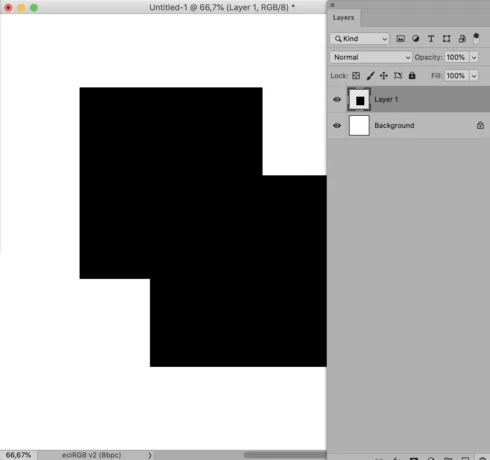
I have a problem with the new update Photoshop 21.2.0 on Mac. When I type a new text layer or move an existing one it gets duplicated but not in the way that it creates a new layer, but it gets "baked" on the last position. It is very confusing because you get a lot of fixed text. The only way to get rid is to close the document and open it again.

Please fix this problem ASAP, because it is annoying and interrupts my work. I use photoshop every day.

Kind regards
Adam

UPDATE: all layers are affected (vectors, images, brushes, etc.) by this "burned/backed" effect.

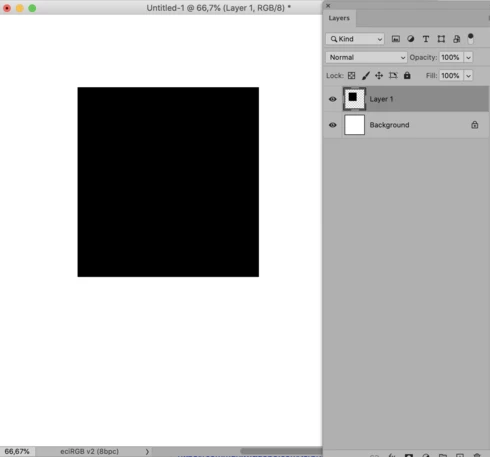
Picture of the problem: