This topic has been closed for replies.

62 replies

Inspiring
June 25, 2020
I've been opening files that were originally created on 20.0.4 on 21.2 and getting the same ghosting problems.

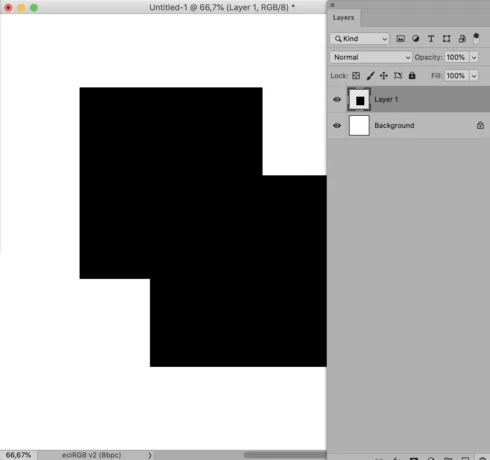
I've tried turning Legacy Compositing On and Off (and restarting Photoshop of course) and I can't get rid of these issues. It looks like everything is correct in the tiny Layer Previews, but on the main window everything is doubled until a background layer is turned on and off to force a refresh?
Inspiring
June 24, 2020


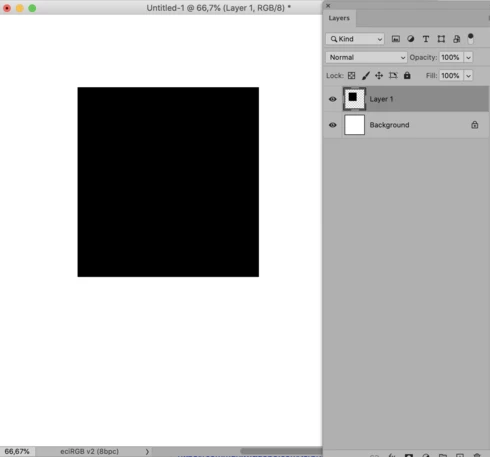
When i move and image where it previously was still appears in the same spot unless I flick the layer off and back on. this happend when i try eraser tool. it doesnt show me what I have erases unless I flick the layer on and off again.
Known Participant
June 23, 2020


I recently updated to version 21.2.0, on Mac OS 10.13.6. Thisis the first time I am running an often used action that creates a text layer,at 30% opacity, but that text layer is not displaying properly- text visuallyis closer to 100%, but if I lower it to 0%, it is still visible. When I finish therest of the action, flattening the image, text is correctly set to 0%, and notvisible. So basically now I can no longer visually accurately judge opacity oftext layer in Photoshop.
Inspiring
June 23, 2020
Thank you, Jeffrey, for directing me to this thread! Unchecking "legacy compositing" has fixed this issue.
Inspiring
June 23, 2020


I have the June 2020 update for Photoshop on my desktop Mac. When I drag/move an image or edit text, the previous version stays on my canvas, almost as if there's been a new layer created. I have to hide and then unhide the layer to get rid of this "shadow" layer. For example, if I move an image higher on my canvas, it does move, but there is also a duplicate of the image that remains where it was originally. This is very frustrating! Can anyone help?
Participant
June 23, 2020
UPDATE: now getting lags w/ curves layer and Levels layer.

Ugh

Why do I ever update anything?
Inspiring
June 23, 2020
I agree as well! There were multiple issues not working. And my "Legacy Compositing" was checked, not unchecked by default. 
Inspiring
June 23, 2020
Totally agree!
Participant
June 22, 2020
unchecking Legacy Compositing definitely improved performance. But not totally solved

Another potential clue:

Since unchecking Legacy Compositing, I can see improvement in seeing my changes reflected live. EXCEPT for the Levels adjustment tool. If I move a slider, the area of the affected image goes gray until i deselect and reselect the adjustment layer.

Curves, gradients, etc., no problems. But layers is a problem
Inspiring
June 22, 2020
The suggested fix from Jeffrey Tranberry resolved it for me:

"The workaround is to make sure "Legacy Compositing" under Preferences > Performance is unchecked."