
Yustas240
Inspiring
December 28, 2017

P: Photoshop 23.3 opens images with everything in white color.

  • December 28, 2017
  • 150 replies
  • 77262 views

Hey!

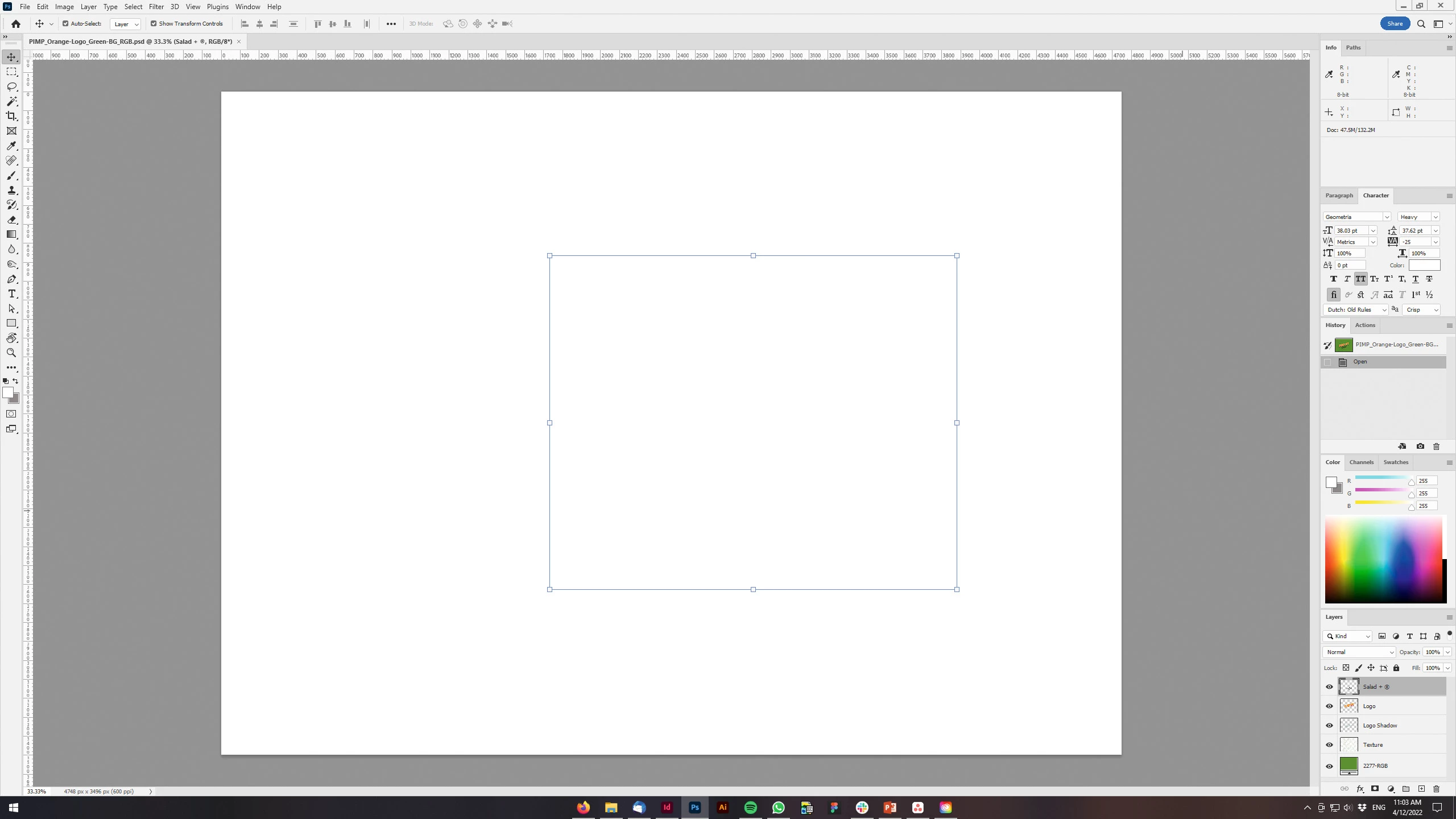
Just updated my Photoshop to 23.3 version. And when I'm trying to open any RGB file - it opens with all layers colored in white color. Seems like RGB is not active at all.

IF I transfer it into CMYK - all good.


Windows 10 Home.

Below is the print screen of RGB file turned into CMYK. Cuz I was unable even to make a printscreen in RGB.
 

150 replies

Michael Bullo
Community Expert
Community Expert
April 15, 2022

Just a quick note for anyone who doesn't know. The Adobe Creative Cloud app allows for multiple versions of Photoshop to be simultaneously installed. If you are ever stuck by an update that doesn't work, install and use an earlier version of Photoshop while you solve the problem with the update.

phil180
Inspiring
April 15, 2022

I have just opened my latest updated PS platform, and any Chrome files i attempt to open in PS open with a blank white page!

Latest update was: 14th April.


Please advise...thanks, Phil

TheDigitalDog
Inspiring
April 15, 2022

What are "Chome files"?

Try disabling GPU in preferences, any difference?

Author “Color Management for Photographers" & "Photoshop CC Color Management/pluralsight"
Participant
April 15, 2022

Buongiorno, ho seguito la procedura ma dopo 1 ora è tornato il problema io uso una GeForce Gt730 può dipendere dal aggiornamento non compatibile con questa scheda video?


Participant
April 15, 2022

Anch'io stesso problema, apri un immagine e solamente usando il testo scompare l'immagine e non si vede nemmeno il testo scritto.

Ablet
Participating Frequently
April 15, 2022

Help please! I'm on Windows 10. PC.

I am unable to work after updating PS to 23.3.0 today. Every action I make - i.e. new layer, no matter how, adding text etc results in PS filling the image with white. In the Layers palette I can see the added 'white' layer but it is transparent and if you turn off you still can't see the original image (background). Only way to see original image is to flatten it.  


Please help if you can and I appreciate any advise to get me back to working again.


Abigail

AxelMatt
Community Expert
Community Expert
April 15, 2022

Please try the following steps:

  1. Go to Preferences > Performance > Advanced Settings and uncheck the "GPU compositing" option. Then restart Photoshop.
  2. Go to Preferences > Technology Previews... and check "Disable Native Canvas" - then restart Photoshop. Does the problem still occur?
  3. Go to Preferences > Performance... and uncheck Use Graphics Processor. Restart Photoshop. Does the problem persist?
My System: Intel i7-8700K - 64GB RAM - NVidia Geforce RTX 3060 - Windows 11 Pro 25H2 -- LR-Classic 15 - Photoshop 27 - Nik Collection 8 - PureRAW 5 - Topaz Photo
Participant
April 15, 2022

Same issue here. Disabling the GPU compositing solved the white layers - however still major lag in performance since update. Mouse taking a really long time to react even on extremely simple tasks. 

Community Manager
April 15, 2022

@SomnioCG we apologize for any inconvenience. Many of us were professionnal customers of Adobe before joining the company and know the pain of updates.


There are many hardware configurations that can't be tested in house despite great efforts, so we depend on feedback from beta testers. GPU composting was introduced to private beta last year and public beta this year. Unfortunately this issue that is specific to certain hardware and software was never reported. I encourage any who are interested to join the beta program(s) in order to help catch edge cases sooner. Regardless, this is why the ability to disable the feature is added. With changes this large, there are bound to be some growing pains.


In any case, we empathize with the pain having been there ourselves and appreciate the feedback! Our teams are attempting to reproduce and fix this issue as soon as possible.

Participating Frequently
April 14, 2022

My research tells me that Adobe introduced GPU compositing in this update. They claim you can uncheck it. 

Preferences--Performance--Advanced Settings---drop down and uncheck GPU compositing. I tried this and it seemed to work but I don't trust that fix as this update is still early and I want more data on this issue. I reverted back to 23.2.2

Participant
April 14, 2022

Ayer instalé la última versión de photoshop. Hoy estuve trabajando y abrí "tono/saturación# y hasta ahí llega el programa, me toca reiniciarlo. Qué pasa? Qué hago?

Legend
April 14, 2022

Try this: Go to Preferences > Performance... click Advanced Settings... and uncheck "GPU Compositing" - then restart Photoshop. Does the problem still occur?

Participant
April 14, 2022

Hello Adobe,

After the update I now only see a white screen when I do a simple screen capture and paste to a different layer. I can only see the image if I zoom out to 6%. How does this get through QA!?!? More often than not after an Adobe update something horrible goes wrong. Please do more testing before releasing updates! Please Please Please. This costs me time and money when trying to work. Thank you in advance for the prompt fix.  


Best Regards,

Edward Taylor


1. Newest Adobe Photoshop 23.3

2. Windows 10

3. Simple screen capture and paste

4 Expected result (Working like normal and just like the previous version of Photoshop)

   Actual Result (Blank White Image)