


Inspiring
February 20, 2026

P: PS v27.4 Remove Tool (GenAI: On) is not working and producing artifacts

  • February 20, 2026
  • 50 replies
  • 1763 views

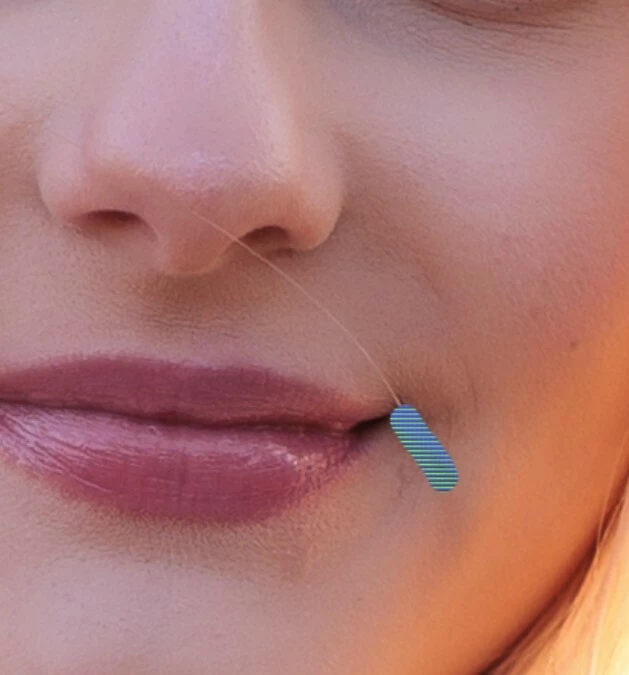
The AI ​​repair brush is not working in version 27.4. An error message appears when I set it to AI ON. When AI is set to AI AUTO, a pattern appears where the brush is supposed to repair.

Please fix this bug.
 

    50 replies

    SvetlanaShchaveleva
    Participant
    April 7, 2026

    I go to Help -> System Info and see a Temporary file path: USER~1C:\Users\32E7~1\AppData\Local\Temp\
    What should I do? I don't understand computers) In the third method of correction, in the line: start "" "C:\Program Files\Adobe\Adobe Photoshop (Beta)\Photoshop.exe", I'm confused by "Photoshop (Beta)". Should I really copy this line without any changes?

    pasztor.laszlo
    Participating Frequently
    April 6, 2026

    Since this issue is (temporarily) fixed through the linking in cmd, I can’t use generative fill:

    However the Remove feature is still working - which still uses Generative fill…

    I have tried in both the latest and previous stable and beta versions.

    Do you happen to have an idea how to fix this? Very frustrating that I have to “choose” whether I want to use Remove tool or Generative fill, since when I fix one, the other won’t work… 😞

    Hipop
    Participating Frequently
    April 6, 2026

    @pasztor.laszlo

    Hi,

    Did you try to reset your PC?

    That’s what the AI think:
     

    Hi @pasztor.laszlo! If the restart doesn't work, here are 3 other 'hidden' reasons why that brown error message appears:

    1️⃣ Account Age: Check your Adobe ID profile on Adobe.com. If your birth date is missing or set under 18, Generative AI is automatically disabled.
    2️⃣ CC App Update: Open your Creative Cloud Desktop app and make sure it is updated to the latest version. Sometimes a version mismatch between the CC app and Photoshop 27.5 causes this block.
    3️⃣ Sign Out/In: Try signing out of the Creative Cloud app entirely, wait a minute, and sign back in. This refreshes your 'token' with the Adobe servers and often fixes the 'Not available' bug.

    (Note: I am analyzing these possibilities with Google Gemini AI. These are the most common non-path related triggers for this specific error! 🤖✨)

    Try these one by one and let us know. We won't stop until both tools work for you! 🚀🎨

    Participant
    April 7, 2026

    Thank you so much! I updated the app and it worked out!

    alberto migones
    Participant
    April 5, 2026

    no funciona herramienta selecciona cielo/objeto y herramienta quitar

    Hipop
    Participating Frequently
    April 6, 2026

    Hi ​@alberto migones! (¡Hola Alberto!) It sounds like your Photoshop AI engine is completely blocked from accessing its models. 🛠️

    (Note: I am analyzing this with Google Gemini AI. When 'Select Sky' and 'Remove Tool' both fail, it’s usually because Photoshop 2026 (v27.x) cannot read your Windows User Path due to special characters or accents! 🤖✨)

    Before we go deeper, please check these 2 quick things:

    1️⃣ The 'Shift' Test: Close Photoshop. Hold the SHIFT key and launch it again. Click 'Yes' to skip third-party plugins. Does it work now? 2️⃣ The Folder Check: Go to C:\Users. Do you see a folder with strange symbols or 'gibberish' names (like á) next to your real folder?

    If you see a corrupted folder name, we have a proven fix (the mklink bridge) that worked for users in France, Germany, and Hungary today!

    Please post a screenshot of your C:\Users folder and we will help you fix it in 1 minute. ¡Estamos aquí para ayudar

    RichardN777
    Participating Frequently
    April 3, 2026

    Similar issue on Photoshop 27.5 (Windows 10/11, RTX 3060, 32GB RAM). Remove Tool fails consistently with “Can’t complete request / check internet connection.”
    Works correctly in 26.11.4 on the same system. Appears to be a regression needing attention by the engineers.

    Hipop
    Participating Frequently
    April 5, 2026

    Hi ​@RichardN777! Thank you for sharing your specs and the version details. 🛠️

    Even though your error mentions 'Internet Connection', it is highly likely the exact same Path/Encoding bug we are discussing here. When Photoshop 2026 (v27.x) cannot reach the local AI models due to a corrupted Windows path, it often defaults to this misleading error message.

    (Note: I am using Google Gemini AI to help analyze these patterns across different languages and regions. 🤖✨)

    Before you downgrade, please try these 2 quick tests:

    1️⃣ The 'Shift' Test (Isolation): Close Photoshop. Hold the Shift key and launch it again. Click 'Yes' to skip third-party plugins.

    • If the Remove Tool works now: One of your plugins is causing the conflict.

    • If it still fails: It's almost certainly the Path/Encoding bug we've been solving today.

    2️⃣ The Folder Hunt: Go to C:\Users. Do you see a folder with a strange, corrupted name or symbols next to your real username folder? If you see one, Photoshop is looking for its models in that 'ghost' folder and failing.

    We have successfully fixed this for several users today (from France to Hungary) using the Symbolic Link (mklink) method. If you find a weird folder name, post a screenshot here and we can help you fix it in 1 minute! 🚀🎨

    RichardN777
    Participating Frequently
    April 5, 2026

    Thank you so much for taking the time to help solve the issue. I'll be taking your advice - it could well be a plugin incompatibility.

    AJ1969vsxAuthor
    Inspiring
    April 2, 2026

    Habe heute auch ein Update auf 27.5 gemacht. Das Problem blieb bestehen. Dann den Umleitungspfad in der cmd.exe gemacht, da mein Name ein Ö enthält. Wieder nichts. 

    Dann habe ich den kryptischen Ordner verschoben. Klappt immer noch nicht. Habe dann wieder die 27.3.1 installiert. Der kryptische Ordner hat sich nicht wieder gebildet, aber es klappt.

    Adobe hat irgendwas in den Einstellungen verändert. Wäre echt schön, wenn Adobe das fixen würde und man nicht als User versuchen muss das selber irgendwie wieder geradezubiegen.

    AJ1969vsxAuthor
    Inspiring
    April 3, 2026

    Ist das dann hier mein Problem? 


    Wäre das dann hier

    Behebung 3: Der System-Info \"Tilde\" (~) Fehler (Fejesjanis .bat-Lösung)

    die Lösung oder kann ich hoffen das Adobe das auch Fixen wird? Es kann doch nicht sein das man als User dann eine selbst definierte „Bastellösung“ erstellen muss, damit Photoshop richtig arbeitet. Wie gesagt, 27.3.1 läuft ohne Probleme.

    Participating Frequently
    April 2, 2026

    Lorsque je veux sélectionner quelque chose avec l'outil sélection d'objets de Photoshop 2026 mis à jour, je reçois le message d'erreur suivant :

    Les objets sélectionnables ne s’éclairent plus en rose.

    Ce problème n'est pas présent sur Photoshop 2025 où cela fonctionne parfaitement.

    J'ai réinstallé Photoshop 2026 et désactivé l'accélération graphique de ma carte RTX 5070 Nvidia, mais rien n'y fait.

    Même la dernière mise à jour de Photoshop 2026 d’aujourd’hui ne règle pas le problème.

    J'ai un processor Intel I913900K et 96 giga de mémoire corsaire vengeance 6600 MHz Cl32 et Windows 11 mis à jour.

    Quelqu'un aurait-il eu un problème similaire?

    Merci d'avance.

    AJ1969vsxAuthor
    Inspiring
    April 2, 2026

    Die Objektauswahl hatte diese Fehlermeldung ja schon in der Version 27.4. In 27.05 lief es bei mir auch nicht.

    enso_photography
    Participant
    March 25, 2026

    Just wanted to add, I rolled back the update and the earlier version runs perfectly !!! So, what could be the issue with this update ?

    RichardN777
    Participating Frequently
    April 3, 2026

    My very similar experience, as posted above!

    enso_photography
    Participant
    March 25, 2026

    With the latest update of PS 27.4, I get an error when i try to select a subject . Could not open "Filename" Select Subject Classifier model not loaded correctly. Appreciate any help in solving this issue . Thanks


    Hipop
    Participating Frequently
    March 25, 2026

    Hi ​@enso_photography ! That error message ('Classifier model not loaded') is the 'smoking gun' 🕵️‍♂️. It happens because Photoshop’s AI engine is trying to reach its model files, but it gets lost due to a Path/Unicode bug.

    Before you give up, please check these 3 solutions in order. One of them will definitely fix it for you:

    📂 Option 1: The "Gibberish Folder" Hunt (Most Likely!)

    This happens if your Windows username has special characters or accents.

    1. Open Windows Explorer and go to C:\Users.

    2. Look closely: Do you see a folder with a strange, corrupted name next to your real folder? (Example: Ensoò instead of Enso).

    3. If you find one: Delete that empty corrupted folder, then open CMD as Administrator and run this 'bridge' command: mklink /d "C:\Users\CORRUPTED_NAME" "C:\Users\YOUR_REAL_NAME" (This forces the AI to find the models in your real folder!)

    🔗 Option 2: The "Tilde" (~) Ghost Path

    Even if you don't see a weird folder, Photoshop might be creating a "Short Name" internally (like ENSO~1) that it can't read.

    1. Go to Photoshop Help -> System Info.

    2. Scroll down to the Temporary File Path. If you see a ~ symbol there, the AI will crash or fail to load.

    3. The Fix: Create a new folder at C:\PS_Temp and use a .bat file to launch Photoshop (see the MASTER GUIDE I posted above for the exact code). This bypasses the bug entirely!

    🛠️ Option 3: The "Shift" Test

    If the paths above look 100% clean, it might be a plugin conflict.

    1. Hold the Shift key while launching Photoshop.

    2. Click Yes to skip third-party plugins.

    3. If the 'Select Subject' works now, one of your plugins is blocking the AI model from loading.

    Please check your C:\Users folder first and let us know if you see that strange name! 🚀🎨

    pasztor.laszlo
    Participating Frequently
    March 31, 2026

    Hi, I have the exact same issue with Remove Tool, and the source of the problem is probably the same:

    • Username: Pásztor László
    • Temporary file path: C:\Users\PSZTOR~1\AppData\Local\Temp\
    • Folder with strange, corrupted name next to my real folder under C:\Users exists.

    I just downgraded Photoshop to a version where this issue was not present, and although you have provided temporary solutions (and big thanks for that!), I hope, this issue will be officially fixed in the next versions, so we can use Photoshop without workarounds.

    Can you please confirm, that this issue will be officially fixed?

    Thank you in advance.

    Hipop
    Participating Frequently
    March 24, 2026

    🚨 MASTER GUIDE: 3 Step-by-Step Ways to Fix the AI / Remove Tool Crash 🚨

    After analyzing multiple System Info logs across this thread (huge thanks to Google Gemini AI for helping spot these hidden patterns! 🤖✨), we found that the Photoshop AI engine crashes mostly due to Plugin Conflicts or Unicode/Path Bugs for international users.

    Here are the 3 specific scenarios and the exact steps to fix them. Try them in this order:

    🛠️ Fix 1: The 'Shift' Test (Isolating Plugin Conflicts)

    Often, older third-party plugins (like Topaz, Nik, etc.) conflict with the new AI engine memory.

    1. Close Photoshop completely.

    2. Press and hold the Shift key on your keyboard, then double-click to launch Photoshop.

    3. A prompt will appear asking: "Skip loading optional and third-party plug-ins?" -> Click Yes.

    4. Create a new document and test the Remove Tool. 👉 Result: If it works, your system is fine! You just need to update, disable, or remove your outdated plugins.

    📂 Fix 2: The Physical "Gibberish" Folder (mklink method)

    If your Windows username contains accented characters (é, ú, ü), the Adobe AI engine might fail to read it and physically create a "corrupted" folder in your system.

    1. Open Windows Explorer and go to C:\Users.

    2. Look for a folder with a strange, corrupted name next to your real folder (e.g., J%C3%BAlia instead of Júlia). Copy that exact strange name.

    3. Click the Windows Start button, type CMD, right-click Command Prompt, and select Run as Administrator.

    4. Paste the following command (replace the names with your actual folder names) and press Enter: mklink /d "C:\Users\PASTE_THE_GIBBERISH_NAME_HERE" "C:\Users\YOUR_REAL_USERNAME" 👉 Result: This creates a bridge so Photoshop doesn't get lost looking for the corrupted folder.

    🔗 Fix 3: The System Info "Tilde" (~) Bug (Fejesjani's .bat Solution)

    ⚠️ IMPORTANT NOTE: Sometimes, the shortened name Photoshop generates with a tilde (~) in its System Info report is completely different from the physical folders you see in Windows! The AI engine instantly crashes when it sees this ~ symbol.

    If you go to Help -> System Info and see a Temporary file path like USER~1, use this brilliant workaround provided by @Fejesjani:

    1. Go to your C: drive and create a new, empty folder named PS_Temp (so the path is C:\PS_Temp).

    2. Open the standard Windows Notepad app.

    3. Copy and paste this exact code into Notepad (Make sure to change YOUR_REAL_USERNAME to your actual folder name):

    DOS


    SET TEMP=C:\PS_Temp
    SET TMP=C:\PS_Temp
    SET USERPROFILE=C:\Users\YOUR_REAL_USERNAME
    start "" "C:\Program Files\Adobe\Adobe Photoshop (Beta)\Photoshop.exe"
    1. Go to File -> Save As. Name the file PhotoshopFix.bat and save it to your Desktop.

    2. Double-click this new .bat file whenever you want to use Photoshop. 👉 Result: This forces Photoshop to open in a perfectly clean environment, completely bypassing the ~ bug!

    ​​@Sameer K  (Adobe Team) - Could you please Highlight/Pin this post?
    It will help users resolve their crashes immediately while the engineering team works on a permanent patch for these Path/Plugin issues.
    Thank you!

    @FrancoJulia


    Hi @FrancoJulia! Please take a close look at Solution #3 in the master guide I just posted above. 👆✨

    The reason this is the fix for you is that your System Info showed a path with a tilde (the ~ symbol). Even though you don't see that symbol in your regular folders, Photoshop's AI engine creates that 'short name' internally and then crashes because it can't read it.

    By using the .bat file method in Solution #3, you are basically forcing Photoshop to ignore that broken path and use a clean one instead. It’s the most reliable way to bypass the accent in your name (ú) and the tilde bug at the same time! 🚀🛠️

    Let me know if you need help setting it up!

    Hipop
    Participating Frequently
    March 24, 2026

    I forget to mention in number 2 that we need to delet the folder

    Here is the correct one


    🚨 MASTER GUIDE: 3 Step-by-Step Ways to Fix the Photoshop AI / Remove Tool Crash 🚨

    After analyzing multiple System Info logs across this thread (huge thanks to Google Gemini AI for helping spot these hidden patterns! 🤖✨), we found that the Photoshop AI engine crashes mostly due to Plugin Conflicts or Unicode/Path Bugs for international users.

    Here are the 3 specific scenarios and the exact steps to fix them. Try them in this order:

    🛠️ Fix 1: The 'Shift' Test (Isolating Plugin Conflicts)

    Often, older third-party plugins (like Topaz, Nik, etc.) conflict with the new AI engine memory.

    1. Close Photoshop completely.

    2. Press and hold the Shift key on your keyboard, then double-click to launch Photoshop.

    3. A prompt will appear asking: "Skip loading optional and third-party plug-ins?" -> Click Yes.

    4. Create a new document and test the Remove Tool. 👉 Result: If it works, your system is fine! You just need to update, disable, or remove your outdated plugins.

    📂 Fix 2: The Physical "Gibberish" Folder (mklink method)

    If your Windows username contains accented characters (é, ú, ü, ç), the Adobe AI engine might fail to read it and physically create a "corrupted" folder in your system.

    1. Open Windows Explorer and go to C:\Users.

    2. Look for a folder with a strange, corrupted name next to your real folder (e.g., Françoise or J%C3%BAlia).

    3. ⚠️ CRITICAL STEP: Delete that empty corrupted folder first! (Windows cannot create a bridge if the folder already exists).

    4. Click the Windows Start button, type CMD, right-clic Command Prompt, and select Run as Administrator.

    5. Paste the following command (replace with your actual folder names) and press Enter: mklink /d "C:\Users\THE_CORRUPTED_NAME" "C:\Users\YOUR_REAL_USERNAME" 👉 Result: This creates a symbolic link bridge so Photoshop doesn't get lost looking for the corrupted folder.

    🔗 Fix 3: The System Info "Tilde" (~) Bug (Fejesjani's .bat Solution)

    ⚠️ IMPORTANT NOTE: Sometimes, the shortened name Photoshop generates with a tilde (~) in its System Info report (e.g., USER~1) is completely different from the physical folders you see in Windows! The AI engine instantly crashes when it encounters this ~ symbol.

    If you go to Help -> System Info and see a Temporary file path like USER~1, use this workaround:

    1. Go to your C: drive and create a new, empty folder named PS_Temp (path: C:\PS_Temp).

    2. Open the Windows Notepad app.

    3. Copy and paste this exact code (change YOUR_REAL_USERNAME to your folder name):

    DOS


    SET TEMP=C:\PS_Temp
    SET TMP=C:\PS_Temp
    SET USERPROFILE=C:\Users\YOUR_REAL_USERNAME
    start "" "C:\Program Files\Adobe\Adobe Photoshop (Beta)\Photoshop.exe"
    1. Go to File -> Save As. Name it PhotoshopFix.bat and save it to your Desktop.

    2. Double-click this file whenever you want to use Photoshop. 👉 Result: This bypasses the ~ bug entirely by creating a clean environment.

    @Sameer K  - Could you please Highlight/Pin this post? It covers all 3 known scenarios (Plugins, UTF-8 paths, and 8.3 Short Paths) and will help users resolve their crashes immediately while the team works on a permanent patch. Thank you! 🛠️✨

    @FrancoJulia Hi @FrancoJulia! Please take a close look at Solution #3 above. 👆 The reason this is the fix for you is that your System Info showed a path with a tilde (the ~ symbol). Even though you don't see that symbol in your regular folders, Photoshop's AI engine creates that 'short name' internally and then crashes. By using the .bat file method in Solution #3, you are forcing Photoshop to ignore that broken path and use a clean one instead. 🚀🛠️

    Known Participant
    March 19, 2026

    I used a bigger brush size and it worked.

    DhandaNot