


Inspiring
February 20, 2026

P: PS v27.4 Remove Tool (GenAI: On) is not working and producing artifacts

  • February 20, 2026
  • 53 replies
  • 2293 views

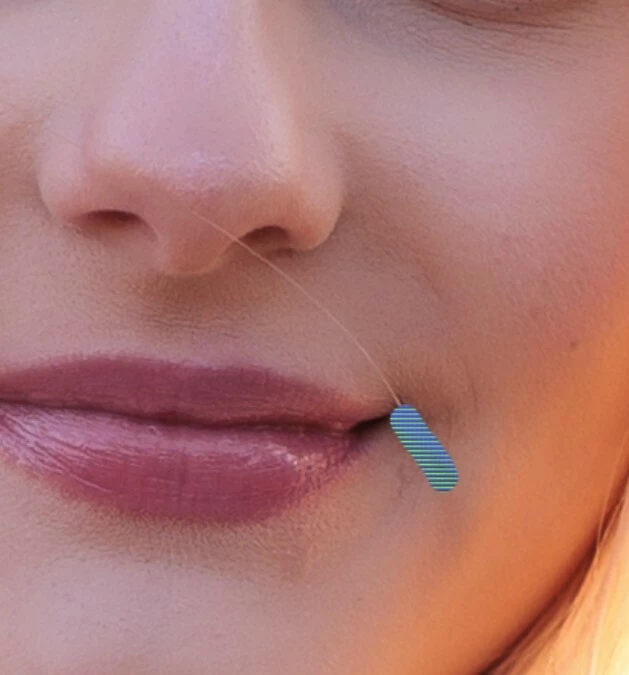
The AI ​​repair brush is not working in version 27.4. An error message appears when I set it to AI ON. When AI is set to AI AUTO, a pattern appears where the brush is supposed to repair.

Please fix this bug.
 

    53 replies

    Sameer K
    Community Manager
    Community Manager
    February 23, 2026

    Hey, ​@Wrivium, & ​@AJ1969vsx. Welcome to the Photoshop Community. I’ll help you figure this out.


    In a recent conversation, we confirmed that 'Run as Administrator'—something as basic as that — helps in a few cases. 

    Just head to the Photoshop installation folder (Default - C:\Program Files\Adobe\Adobe Photoshop 2025)

    Find Photoshop.exe > right-click > use 'Run as Administrator'.


    Let me know how it goes. 
    Sameer K
    (Type '@' and type my name to mention me when you reply)

    Participating Frequently
    February 23, 2026

    Hi ​@Sameer K!

    Unfortunately, there are no changes by running as administrator.
    As I mentioned before, I went back to the previous Photoshop version (27.3.1) because I needed to work and this situation makes it impossible.
    I’ve now updated again to see if there was any improvement, and clearly there isn’t.

    Here’s what happens with the brush. It’s set to “Generate AI off”, but it doesn’t work whether it’s on or off. It creates those gray lines, sometimes gray lines with patterns, and in other photos only patterns, just like it’s happening to ​@AJ1969vsx 
    When the stroke is longer, that error message appears. In the previous version, everything works perfectly.

    Gray lines and error message


    Participating Frequently
    February 23, 2026

    More test.
    This is the brush behavior on automatic:

    Remove Tool - Automatic

    With AI on, it no longer draws lines — the error message just appears:
     

    I’m running the tests with everything set up exactly how I normally use Photoshop. There are no new Windows updates, and I also checked that my graphics card is up to date.
    And it doesn’t have any compatibility issues with Photoshop.


    Participating Frequently
    February 21, 2026

    I have the exact same problem, so I went back to the last version since I need to work.
    But here is my system: 

    Adobe Photoshop Version: 27.3.1 20260130.r.4 dc82f6c  x64 (final, Release)
    Number of Launches: 2664
    Operating System: Windows 11 64-bit
    Version: 11 or greater 10.0.26200.7840
    System architecture: Intel CPU Family:6, Model:14, Stepping:10, AVX2, HyperThreading
    Physical processor count: 6
    Logical processor count: 12
    Processor speed: 3696 MHz
    Built-in memory: 32704 MB
    Free memory: 20964 MB
    Memory available to Photoshop: 25139 MB
    Memory used by Photoshop: 70 %
    Crash Handler: Adobe
    DCX Version: 9.11.1
    SAM SDK Version: 14.3.4
    ACP.local Status:
     - SDK Version: 5.8.2
     - Core Sync Status: Reachable and compatible
     - Core Sync Running: 7.8.10.1
     - Min Core Sync Required: 4.3.66.28
    Live Edit Client SDK Version: v6.1.1
    Adobe Firefly: Please use any generative AI feature to view the latest version.
    OpenColorIO version: 2.4.2
    C2PA library version: Adobe CAI SDK: adobe_api/1.22.3
    NGL Version: 1.42.0.5
    Chalkboard: Disabled.
    Chalkboard Doc Create: Disabled.
    D3D12Warp renderer: Disabled.
    Precise Color Management for HDR Display: Disabled.
    Alias Layers: Disabled.
    Highbeam: Enabled.
    Wintab Digitizer Services
        Spec Version 1.4
        Impl Version 1.39
        Num Devices 1
    PSUserConfig entries:
     - K uSty UseSystemStylus 0
    Image tile size: 1024K
    Image cache levels: 4
    Font Preview: Medium
    HarfBuzz Version: 11.0.0
    TextEngine: ATE 7.10.0 (19249c2)
     ======= GPU
    Native API stable: True
    OpenCL API stable: True
    GPUDeny:               0
    GPUForce:              0
    useGPU:                1
    useOpenCL:             1
    isGPUCapable:          1
    isGPUAllowed:          1
    GPUName:               NVIDIA GeForce RTX 2080 Ti
    GPUVendor:             NVIDIA
    NVIDIA GeForce RTX 2080 Ti  UNKNOWN, NVIDIA
    IsNativeGPUCapable:    1
    IsOpenCLGPUCapable:    1
    HasSufficientRAM:      1
      GPU accessible RAM:                11,027 MB
      Required GPU accessible RAM:        1,500 MB
    UseGraphicsProcessorChecked:   1
    UseOpenCLChecked:              1
    Windows remote desktop:  0
    Windows available feature level:     12.2
    Windows required feature level:      12.0
    Windows has required feature level:  1

    AxelMatt
    Community Expert
    Community Expert
    February 21, 2026

    An error message appears when I set it to AI ON


    @AJ1969vsx What’s the error message? Please post the message word-by-word.

    We need also more informations about your system. Please provide a copy of your 'System Info'. This can be get from the Photoshop menu item Help > System Info. There's a copy button in the System Info dialog. Press this button and paste the info into your next forum post.


    In the meantime you can try to reset the Photoshop preferences. somtetimes it may help.

    .https://helpx.adobe.com/ie/photoshop/using/preferences.html#Manually

    Remember to back up your settings before doing the preference reset: https://helpx.adobe.com/ie/photoshop/using/preset-migration.html

    My System: Intel i7-8700K - 64GB RAM - NVidia Geforce RTX 3060 - Windows 11 Pro 25H2 -- LR-Classic 15 - Photoshop 27 - Nik Collection 8 - PureRAW 6 - Topaz Photo AI
    AJ1969vsxAuthor
    Inspiring
    February 21, 2026