Still stuck at ~60%. Opening a Video File works great. Export not so much. I tried to render a Frame animation. No logs showing up in the created empty .txts. I deleted "Trace Database.txt". it reappears as soon as i open a video file. and looks like (fig.01) Some text is added as soon as i try to render (fig .02)
No Luck so far...
However, i did realise the other day that Media Encoder takes forever to connect to the DLS, related?
I am trying to render a frame animation to video using the File>Export>Render Video... menu option, and ran into this same problem. I am running Photoshop 19.1.0 on my iMac (27-inch, Late 2013) running macOS High Sierra, so I used a slightly different path than the one you described above:— Macintosh HD/Users/<username>/Documents/Adobe/dynamiclinkmediaserver/10.0/
I followed the steps outlined above, and had no problems opening a video in Photoshop (File>Open>VideoName.mov). However, the "dynamiclinkmediaserver Log.txt" file remained empty, and there was no "Trace Database.txt" file in the folder.
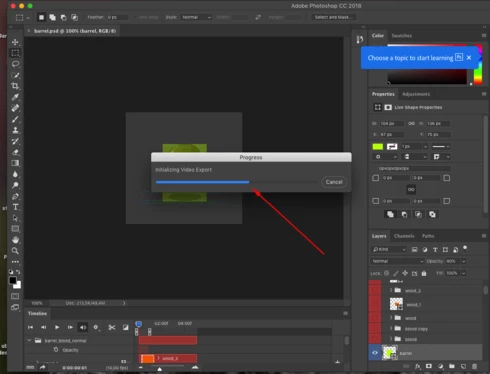
I also tested rendering the video file, and the "dynamiclinkmediaserver Log.txt" file was still blank, and still no "Trace Database.txt" file, but the Progress dialog opened, and then hung at ~50% Initializing Video Export.
I had the same experience using the File>Export>Render Video... path, as well as using the Render Video button in the Timeline pane. I tried exporting a frame animation as well as a video timeline, and got the same response both times.
I have not yet tried a previous version of Photoshop, but that will be my next step before I save each frame as an image, and then do it all in Premiere... Hopefully, this description helps your engineers.
Hey there, opening a video (in my case: Quicktime Container, H264 and Animation codec) did work. Although rendering that video to a video from Photoshop is NOT working. The process is stuck on initializing as mentioned before. So it seems Photoshop can't output any video apart from animated GIFs.
If I want to render a video, the process is stuck while showing: Initializing Video Export. I thought that the 19.1.0 update would fix that, since ppl have been reporting this for a few months now. But still... nothing. I am using both Video Layer and Frames, but not mixed media, everything just drawn right in Photoshop. I work on an iMac 4GHz Intel i7 with 32 GB of RAM on El Capitan. Will there be a fix any time soon?
One of our engineers offered some troubleshooting steps to see if we can get your video render working again. For starters please see what happens if you restart your machine, launch Photoshop and open a video.
If it fails, then: 1. Quit Photoshop 2. Go to Applications and launch TextEdit.app 3. ⌘ N (New Document) 4. ⌘ S (Save) 5. Create an empty .txt file named "dynamiclinkmediaserver Log.txt" at the following location:
Then: 6. launch Photoshop again and open a video. If it fails, check the log file
If the log file is empty: 7. Quit Photoshop 8. Go to: /Users/<username>/Library/Preferences/Adobe/dynamiclinkmediaserver/10.0.0/
9. Look for a file there called "Trace Database.txt" 10. If that file exists, check to see if it is empty 11. Delete that file 12. Launch Photoshop again and open a video
Please give that a try and let us know how it goes.



 AdChoices