


Inspiring
March 4, 2022

P: Webp files from Wix.com creates an error message when exporting image via "Save for Web Option"

  • March 4, 2022
  • 26 replies
  • 12353 views

Photoshop 23.2.1 Mac

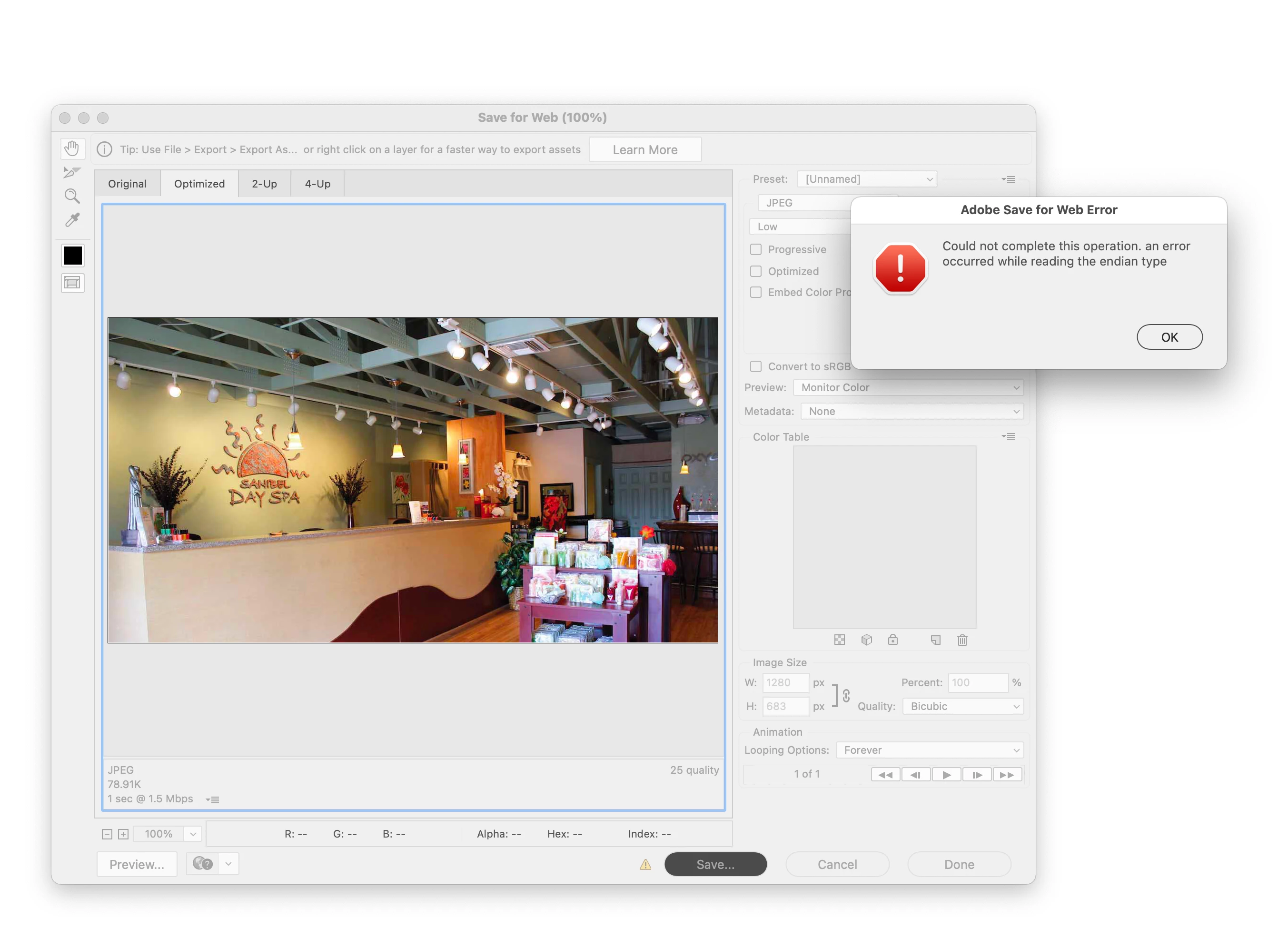
When you open a webp file and try to Export it with the "Save for Web (Legacy)" command, I get this error.

"Could not complete this operation. an error occurred while reading the endian type"

fyi The 'save as' option works.
26 replies

Participant
May 14, 2024

Simply copy and paste?!! PERFECT! Thank you!

Participating Frequently
January 22, 2024

Adobe seems to have a history of failing with webp files.

Although Save for Web might be legacy, Adobe should think harder about why people prefer using it.

This issue only happends for me when using Save for Web, so just export it as a Save As or something to avoid this error.

Participant
November 18, 2023

Same issue here with a .webp image from Shopify. Looks like this has been going on for a while why has there been no solution?

karlr99538928
Participant
March 10, 2023

Issue: Downloading WEBP file from browser > open in photoshop > removing background > saving as transparent PNG > error.

Can't seem to find any way around it in photoshop at the moment, sourcing the images in a different format appears to not be an option.

The only option that I’ve found to keep production moving forward is taking the WEBP file and converting them through an online service in to another image format and then making the necessary edits to export out in the format I want.


Ideally Adobe could include this converting capability into opening WEBP files automatically to save us from this headache!


Karl Roffey - Creative Manager

Participating Frequently
February 8, 2023

@Derrick283184745l7e , no need to resave as jpeg in Preview; this will add an extra layer of lossy compression. After opening the original webp in PS, click "Create new document from current state" (the "plus page" icon in the History menubar). This preserves everything except the metadata and save status, and is non-destructive. Cheers

Participant
February 8, 2023

So I had this issue pop up today. I am working on a mac. Photoshop would not export the file. The work around I found is to open the .webp in preview and export it a jpg. Once exported, that file can be edited and exported in photoshop. It seems that this process strips out that "EXIF metadata". I don't know if this helpful. Happy designing. 

Participant
November 4, 2022

Woops, I somehow missed all the comments before I wrote this. Oh well, I'd still like to be able to get an older version of Photoshop if anyone knows how. Thanks!

Participant
November 4, 2022

I have had this happen to several images from different sources. One annoying work around I found is if you open a new document and pull the image into the new document it will save fine. I tried to go back and install an older version of Photoshop where I was still able to save for web directly from the original image without this error coming up, but all of the versions available on cc are doing this. Any update on when this will be fixed or is there a way for me to get an older version of Photoshop? 

Participating Frequently
September 20, 2022

If anyone is having this issue there is a workaround. Open the image in photoshop an then save it as a .PSD. Close and then reopen the .PSD file and you should be able to export as usual. Works for me every time.

retlaw734
Participant
September 20, 2022

For anyone curious, @default4i2sidghsin2 pointed me to a solution. Instead of File > Export > Save for Web (Legacy) as we've always used. Just use Adobe's new export, File > Export As, and select your file type. I was able to do a jpg just fine. I noticed that under the metadata section it defaults to "none", which may help solve the issue, as someone below was saying that metadata is corrupt in webP files (tho I'm not sure if that's accurate). But we have a solution 👍