

BeratGL
Known Participant
June 9, 2026

Changing Sequence Resolution Causes inaccurate borders & teleportation when adjusting the position.

  • June 9, 2026
  • 2 replies
  • 122 views
  • This is actually a HUGE bug because you can’t change your sequence resolution without corrupting your timeline basically  
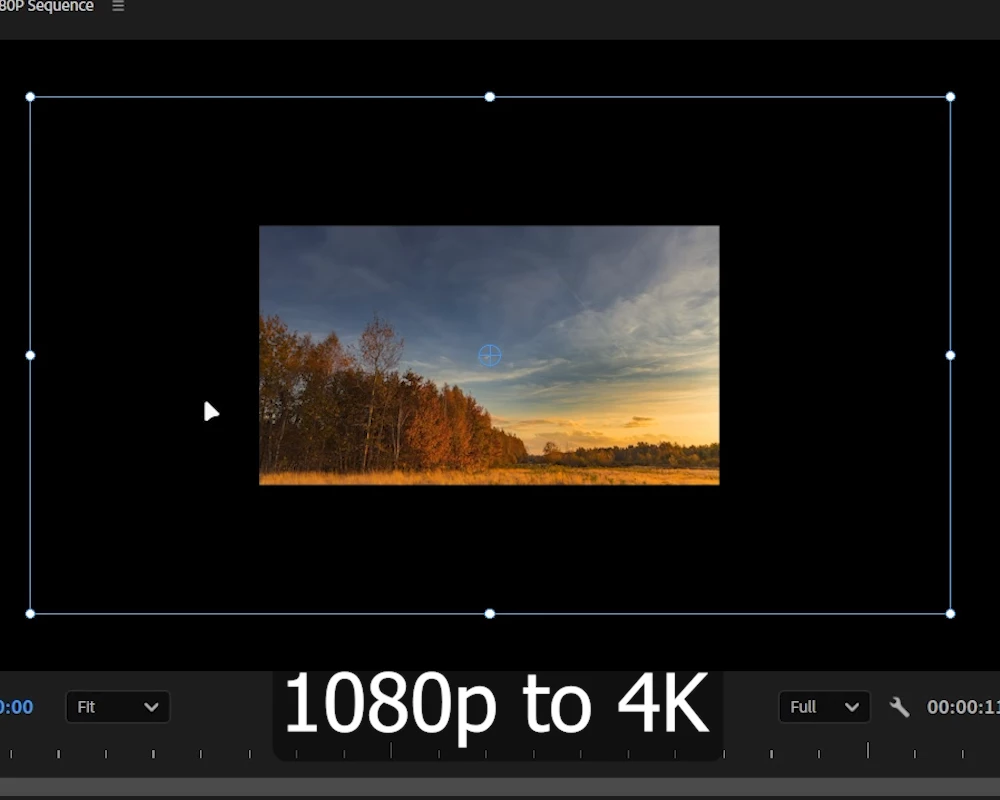


    Border inaccuracy when going from 1080p to 4K sequence resolution
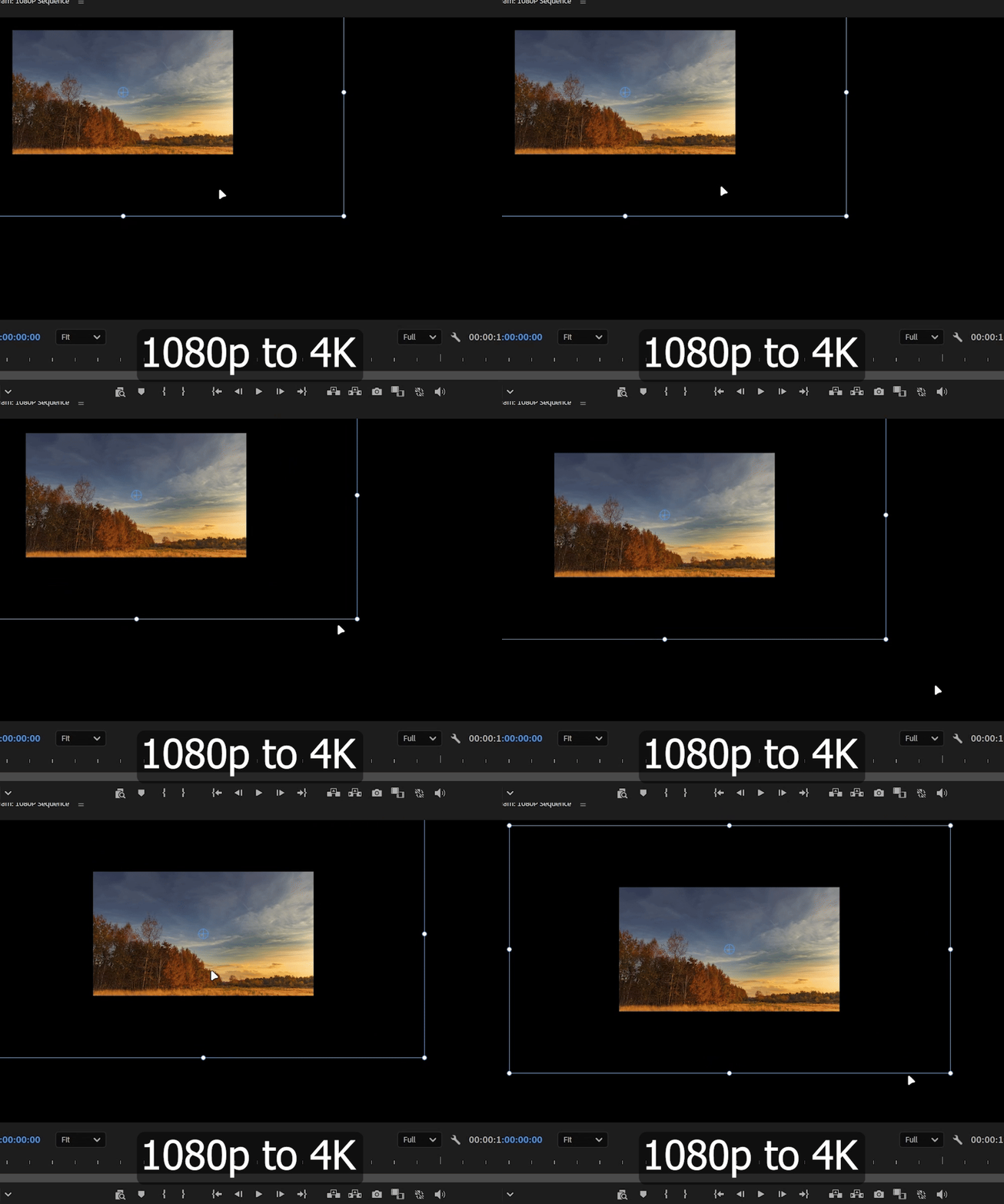
    Teleportation when trying to change position (towards top left corner)
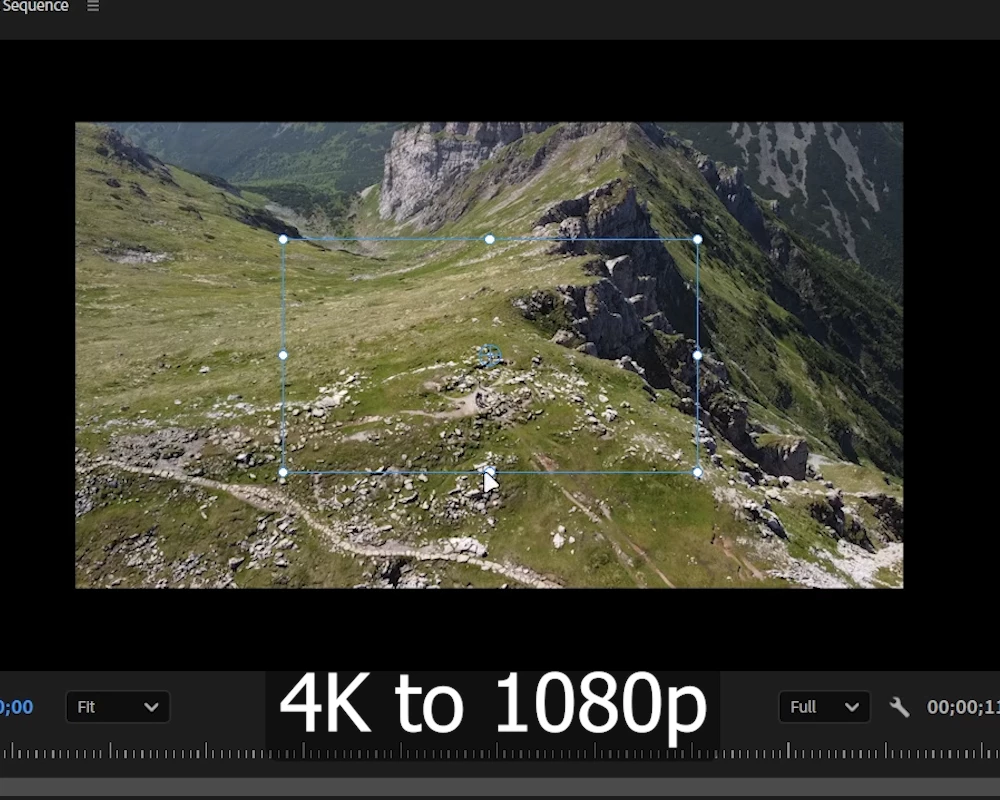
     

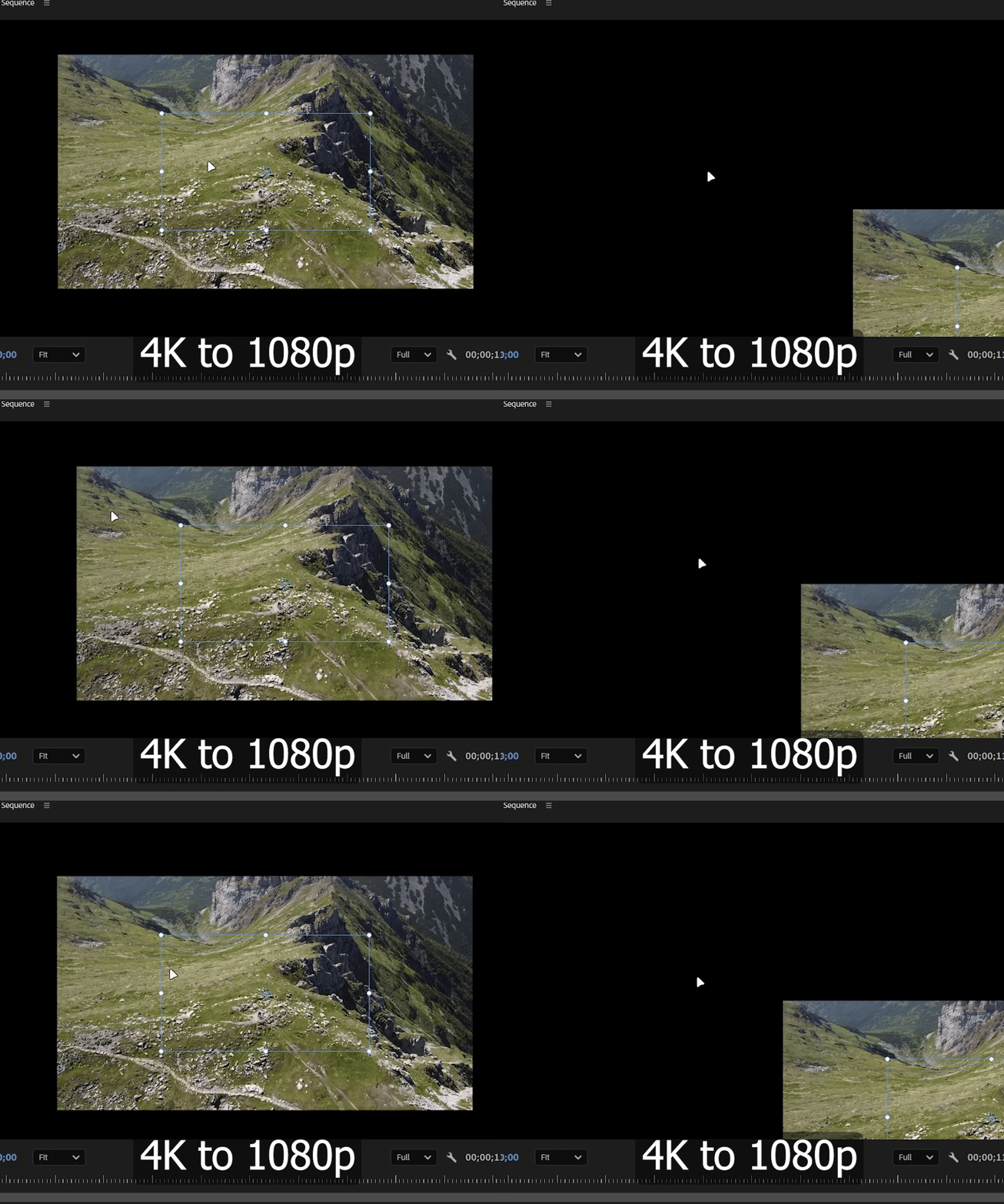
    The borders go inside the video when going from 4K to 1080p (Exact opposite)

    Weirdly enough, if we switch between sequences the bug fixes on its own and premiere behaves as it should.

    2 replies

    Homosolus
    Participant
    July 1, 2026

    oh my god yes.. this is so annoying. Please fix adobe

    KatieToo
    Community Manager
    Community Manager
    June 10, 2026

    Hi ​@BeratGL 

    Welcome back to the Premiere forums! We’re glad you’re here. This is an incredibly helpful screen recording! I see you’re working with QT .mov 4k/1080 and also noticed the C: up top on Premiere, so I venture you’re on a Windows 11 setup, yes? May we get the following further details from you to help, see below: (as part of How do I write a bug report?)

    • Premiere Version: If using Windows, you can find this after launching Premiere and going to Help > About Premiere and it’s right under the Premiere title. 
    • Operating System: confirming Windows 11? 
    • GPU Driver (Windows only): Please let us know your video card driver version. We recommend updating to the most recent version; for NVIDIA users, we strongly recommend the Studio version of the driver.
       

      Helpful Context 

      Comparing when and where the issue occurs helps us narrow down the cause:

    • Does it affect all projects or only some?
    • Does it affect new, empty projects?
    • When did the problem first begin?

    Sorry for the frustration and hope we can help soon! 

    Happy to help,
    Katie


    BeratGL
    BeratGLAuthor
    Known Participant
    June 11, 2026

    Hi ​@KatieToo,

    Premiere Version is 26.2.2 (Build 3)
    Operating System is Windows 11 Pro 25H2
    GPU is RTX 3060 Ti with Nvidia Studio driver ver. 610.47

    This bug was introduced going from 26.0 -->  26.2.2 so it only happens on latest stable release. 26.0 doesn’t have this bug.

    It only affects the sequence that you adjusted the resolution of. You can easily reproduce the bug by changing a sequence’s resolution that already has some footage on. The footage type doesn’t matter it will affect every element.

    Different ways to produce the bug

    • When you have some footage already, go to sequence settings and change the resolution of your the timeline. (1920x1080 to 3840x2160 for example) the bug will happen.
      ​​​​​​​
    • Or open a new 1080p sequence and put a 4K footage on it. (any 4K will do) then press “Change sequence settings” when prompted. the bug will happen.
       
    • ​​​​​​​Or open a new 4K sequence and put a 1080p footage on it. press “Change sequence settings” when prompted. the bug will happen.


    ​​​​​​​The thing i noticed is when we do upscale, border’s are outside of the actual video and when we do downscale borders go inside the video layer. (As i showcased in my report)
     - (1920x1080 to 3840x2160)  →  Outside borders
     - (3840x2160 to 1920x1080)  →  Inside borders

    Also flicker that happens when changing the position happens towards top left when there is an upscale. and happens towards bottom right when there is a downscale.
     - (1920x1080 to 3840x2160)  →  Flickter towards top left when changing position
     - (3840x2160 to 1920x1080)  →  Flicker towards bottom right when changing position

    I hope all this info will be enough for you. You can try to reproduce the same bug because it is easy to reproduce as i said earlier.

    Cheers,


    ​​​​​​​​​​​​​​

    KatieToo
    Community Manager
    Community Manager
    June 11, 2026

    @BeratGL  Thanks for providing those additional details, you’ve been very thorough and helpful on submitting this bug report. We were able to reproduce this occurrence and made the team aware. We will update you once we learn more information on the issue about the bug being fixed.

    Much appreciated,
    Katie