


Inspiring
Oct 11, 2024 4:01 PM UTC
Needs More Info

Clips not being linked correctly after restart

I'm currently editing an aftermovie for our company-party. I've recorded it with 7 cameras (all internal timecode synced). 4 of those are timelapse cameras which are running realtime. They are a GoPro 9, 11, 12 and a Panasonic GH5.


I've imported all footage and sycned it with TentacleSync. Now whenever I reopen the project, the footage of the GH5 and the GoPro 9 is offset. Like its not correctly linked. It's showing the "Danger lines" (see yellow label for the GH5 footage)


Nothing has changed in between reopening the footage. No name changes, no drive letter change, just a simple restart.


All footage (total of 1.34tb) is on a T7 ssd from Samsung. 
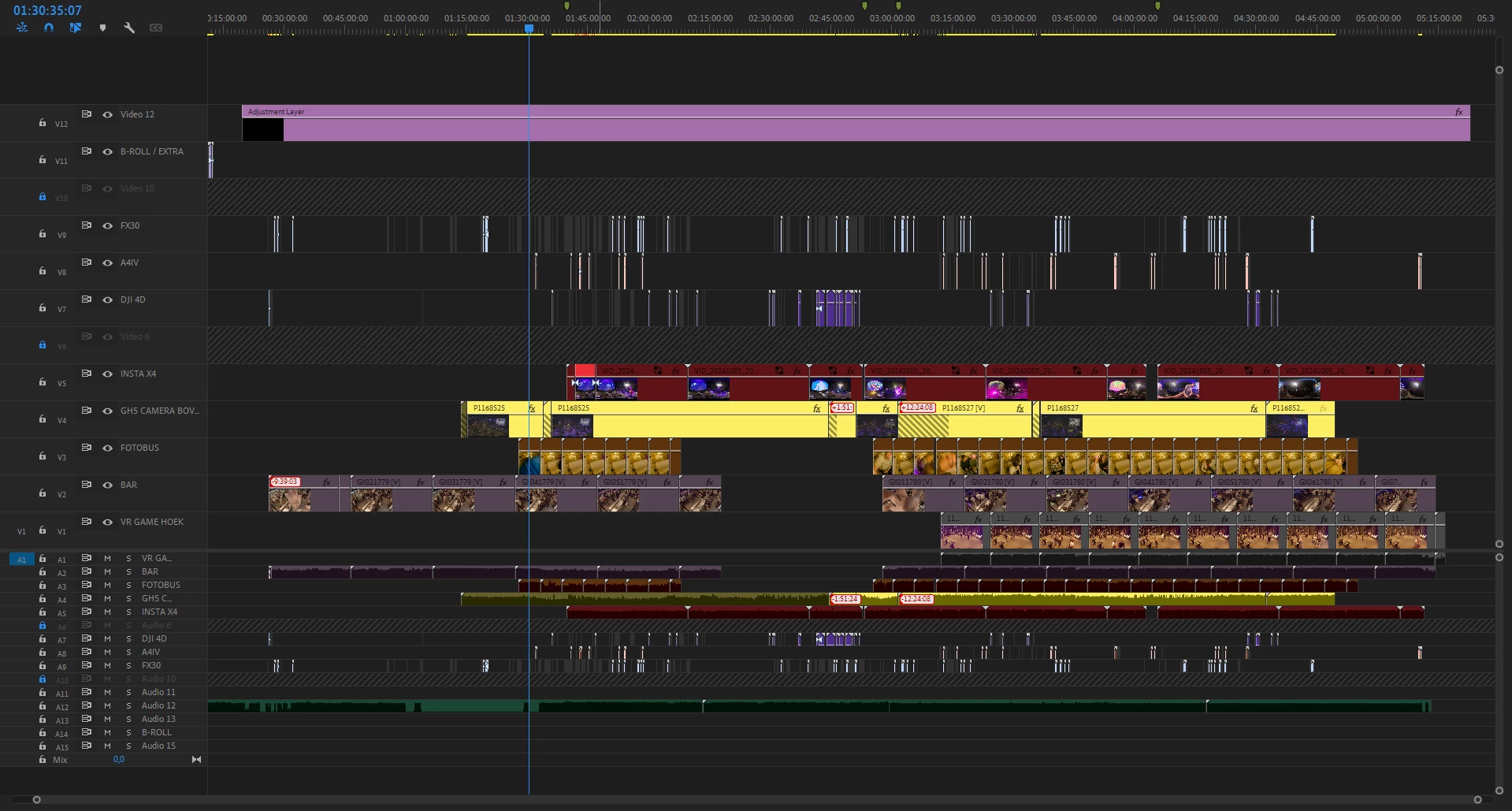
 

Any ideas?


This topic is closed to new replies. Start a new post to keep the conversation going.

11 replies

Inspiring
Oct 15, 2024 9:40 AM UTC

@Kevin-Monahan It seemed  to work, it was just a lot of footage which somehow got corrupted via the Tentacle Sync software. Since it was 1.37tb of footage (across 470 clips) including realtime timelapses it was a lot for Premiere Pro to handle. The usage of Insta360 files also didn't help. I managed to just wait for 30 mins for the footage to load and everything worked.

Translate
Kevin J. Monahan Jr.
Legend
Oct 15, 2024 1:02 AM UTC

Hi @Julian5C10,

Can the team have more info? See, How do I write a bug report?


Try updating the software for a potential fix.


Thanks,
Kevin

Translate
Kevin Monahan - Sr. Community and Engagement Strategist – Adobe Pro Video and Audio
Inspiring
Oct 12, 2024 10:20 AM UTC

Nothing seems to work, not even on my laptop.

Translate
Inspiring
Oct 12, 2024 9:18 AM UTC

@Warren Heaton10841144 The latest, 24.6.1. I'm currently downgrading to 24.6 as it is now just failing to open the project. It is linking the files faster but just freezes everytime I move my mouse.

Translate
Warren Heaton
Community Expert
Community Expert
Oct 11, 2024 10:46 PM UTC

Which version of Premiere Pro is this happening with?


There was an issue with 23.4 where clips would slip to the Media Start (the first frame of the Source Footage) wherever it is used in the Timeline.  It was like 2% funny and 98% frustrating.  


That was fixed, but I am wondering if it is related in some way. 


Translate
Inspiring
Oct 11, 2024 10:11 PM UTC

Since I'm on a deadline I just re-imported the footage and replaced it and also replaced the clips I already used in the edit. Haven't found a solution yet but will update it whenever I find one.

Translate
Inspiring
Oct 11, 2024 9:43 PM UTC

@Warren Heaton10841144 Hey. I just tried this. It seems to work but just replaces the footage already in the timeline. I need to somehow change the source footage because I already used some part of the clips in my edit. Got any more ideas? I'm also testing some more stuff. Seems like the media start property is somehow changed (which it normally doesn't)


Translate
Warren Heaton
Community Expert
Community Expert
Oct 11, 2024 7:02 PM UTC

@Julian5C10 


Hmmm.  That usually resolves it. 

Try this:

1. Create a Bin named something like "Re-imported Source".  
2. Use the Media Browser to import an affected Clip.  This creates a new Source for the Clip.  Keep the re-imported Clip selected.  

3. Locate the corresponding Clip in the Timeline with the missing media indicators (the "danger lines"), then right-click and choose Replace with Clip > From Bin.


This should restore the instance of the Clip in the Timeline with the reimported Source.


Translate
Inspiring
Oct 11, 2024 6:16 PM UTC

@Warren Heaton10841144 I tried that, but no success.

Translate
Warren Heaton
Community Expert
Community Expert
Oct 11, 2024 4:08 PM UTC

This support FAQ should be helpful:

FAQ: What do I do when I see diagonal lines on clip(s) after moving media?


Translate