January 4, 2026

Dropdown menus appear black and do not render properly in Premiere Pro

  • January 4, 2026
  • 7 replies
  • 200 views

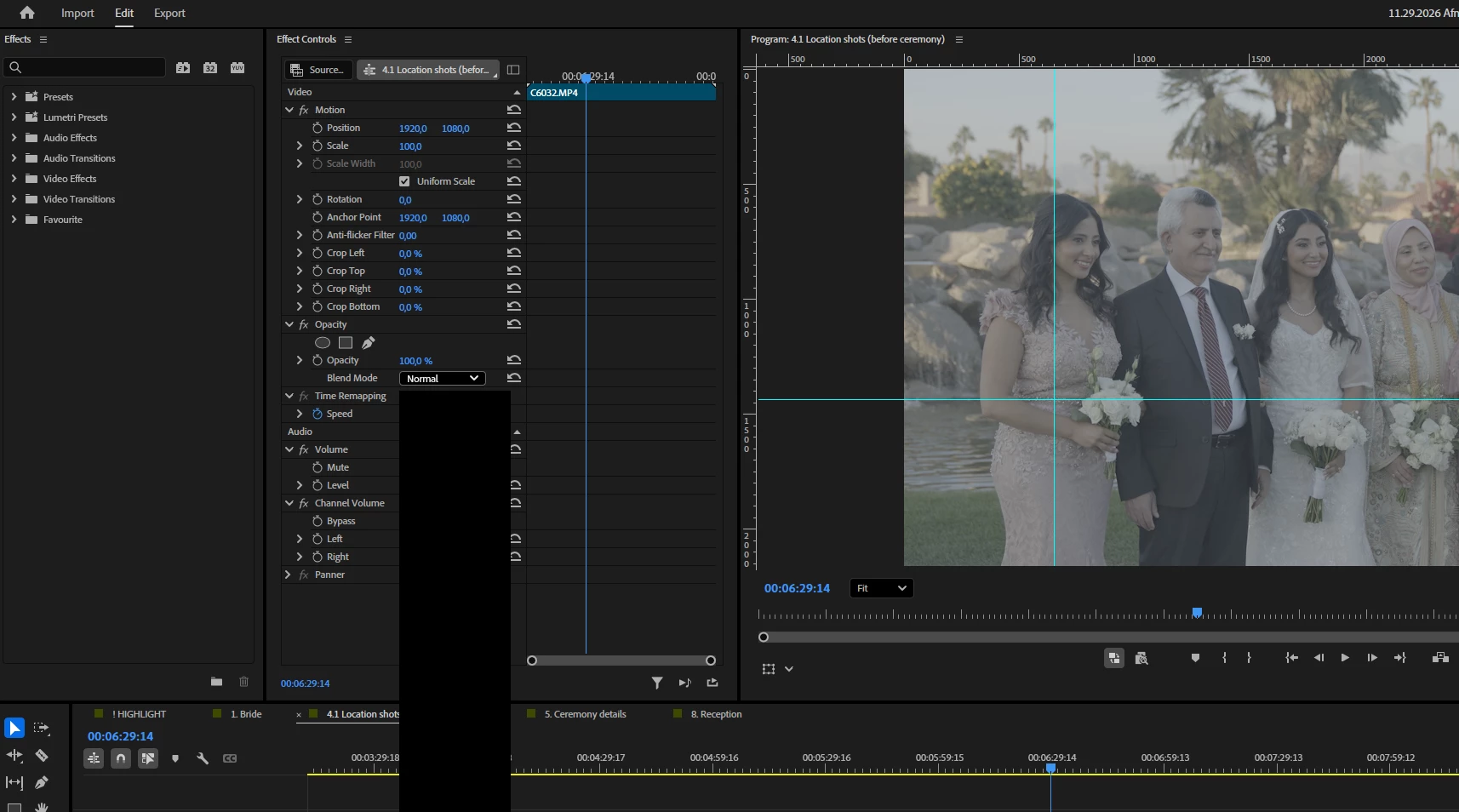
I’m experiencing an issue in Adobe Premiere Pro where dropdown menus do not render correctly.

The dropdown list appears completely black and the content is not visible.

If I open and close the dropdown multiple times, it sometimes starts to display correctly.

This happens consistently and seems to be a UI/rendering issue rather than a workflow problem.

I’ve attached a screenshot to show the issue.

Additional info:

  • OS: Windows

  • GPU: rtx4080m

  • Premiere Pro version: 

    _Lightman__1-1767493520505.png


_Lightman__0-1767493292547.png


7 replies

jamieclarke
Community Manager
Community Manager
January 8, 2026

Hi @Stanislav34757757u21x - Can you enable your integrated GPU and see if that helps your issue.  Can you check your preferences under General and see if "GPU accelerated UI rendering" is checked or unchecked.

January 7, 2026

_Lightman__0-1767827880707.png


January 7, 2026

My integrated graphics card is disabled; I’m using only the discrete GPU.

jamieclarke
Community Manager
Community Manager
January 7, 2026

Hi @Stanislav34757757u21x - Can you let us know what your integrated GPU (iGPU) and dedicated GPU (dGPU) driver version is?  You can find this information in device manager > display > GPU > driver tab 


To isolate if it is a GPU issue can you navigate to Device Manager > Displays and then disable your integrated (iGPU) or dedicated GPU (dGPU) one at a time 

January 7, 2026

_Lightman__0-1767797015544.png_Lightman__1-1767797055223.png


jamieclarke
Community Manager
Community Manager
January 5, 2026

Hi @Stanislav34757757u21x -  Thanks for submitting your bug report. We need a few more details to try to help with the issue.
Please see, How to Report a Problem.


Can you let us know your computer specs and gpu drivers?  

Community Expert
January 4, 2026

Hopefully re-setting preferences will help.

  1. Launch Premiere Pro and hold down any modifier key, such as CommandOptionShift (macOS), or CtrlAlt, or Shift (Windows). Or open it through the Preferences dialog.
  2. If you've opened the Reset options dialog by holding down any modifier key, select the relevant options, press the Continue button to perform the specified actions, and resume the launch process.
  3. Depending on the keyboard modifier (or modifiers) used, the options will be pre-selected in the dialog:

Opt or Alt: Reset app preferences

Shift: Reset plugin loading cache

Opt or Alt + Shift: Reset app preferences and reset plugin loading cache

Cmd or Ctrl + 3: Disable third-party video plugins

  1. If you've opened the Reset options through Preferences, then select your relevant options from the given dialog.
  2. After selecting the OK button, a confirmation dialog will appear, displaying the specific options selected in the previous dialog.
  3. Select OK to confirm, and the next time Premiere Pro is manually restarted, the selected options in the Reset options dialog will be processed.
    1. Launch Premiere Pro and hold down any modifier key, such as CommandOptionShift (macOS), or CtrlAlt, or Shift (Windows). Or open it through the Preferences dialog.
    2. If you've opened the Reset options dialog by holding down any modifier key, select the relevant options, press the Continue button to perform the specified actions, and resume the launch process.
    3. Depending on the keyboard modifier (or modifiers) used, the options will be pre-selected in the dialog:

    Opt or Alt: Reset app preferences

    Shift: Reset plugin loading cache

    Opt or Alt + Shift: Reset app preferences and reset plugin loading cache

    Cmd or Ctrl + 3: Disable third-party video plugins

    1. If you've opened the Reset options through Preferences, then select your relevant options from the given dialog.
    2. After selecting the OK button, a confirmation dialog will appear, displaying the specific options selected in the previous dialog.
    3. Select OK to confirm, and the next time Premiere Pro is manually restarted, the selected options in the Reset options dialog will be processed