



Stan Jones
Community Expert
Community Expert
November 22, 2025

P: 25.6.2 Missing Text Panel; Empty UXP Panels

  • November 22, 2025
  • 80 replies
  • 16179 views

Update 2, 12/13/25: See staff post indicating that this is fixed without updating the PR version:
https://community.adobe.com/t5/premiere-pro-bugs/p-25-6-2-missing-text-panel-empty-uxp-panels/idc-p/15630125#M59800


To test, you only need to open the stock panel: Window -> New Adobe stock. It should load with content. If it does not, and hangs with the spinning circle frozen, post back here. The workarounds should still be working if you have any issues.


Update 12/3/25: This update is based on my tests as of this morning. This does not appear fixed by updating to 25.6.3. This bug report focused on workspaces and the text panel. The list of symptoms is longer. There is another long thread that focuses on failure of export commands:
https://community.adobe.com/t5/premiere-pro-bugs/p-premiere-pro-won-t-export-ui-frozen-need-help/idi-p/15608051


Trigger: For some users, when the Adobe Stock panel is open, whether it is in focus or not, after 10-15 seconds, it fails to load and causes one or more of the symptoms identified. The Stock Panel is open by default in the Essentials, Learning, Editing, and Libraries workspaces, and perhaps others. Once the problem is triggered, you cannot recover without restarting PR. Reloading the project alone does not work.


Symptoms (Incomplete list):

  • The Export mode/dialogue window cannot be accessed using Ctrl+M; File -> Export -> Media; Quick Export; or clicking on the Export tab. File -> Export -> Send to media encoder still works.
  • Text panel is empty, shows as unchecked in the Window submenu.
  • Text panel is missing, shows as unchecked, and clicking it in the Window submenu does nothing.
  • Text panel transcript and captions become unresponsive.
  • “UXP Panel n” (where n is an increasing number as you change workspaces) appear instead of an actual panel (for me this has included the Text and the Adobe Stock panels).


Best Workaround:

  • The most effective and least limiting workaround is to avoid opening the stock panel by modifying your workspaces.
  • Set Window -> Workspace -> "Import Workspace from Projects" OFF. You can set it on, but then each project must be set up correctly.
  • Close the Adobe stock panel in any workspace you use. You can do this in PR even when the problems are present. Do not later use "reset to saved layout" unless you want to redo that process.
  • Or create custom workspaces once you close the stock panel.
  • Note that these workspace changes are in your preferences, so if you reset preferences you lose them.


Other Workarounds:

  • Resetting preferences, creating a new project, uninstalling/reinstalling 25.6.2, and other steps may result in PR “working,” but it may be because you have not loaded the Adobe Stock panel. As soon as you do, it fails.
  • Install PR 25.5.0. This works, but I believe it is not necessary to avoid this bug.
  • Open in the Captions and Graphics workspace and do not change workspace. This works because it does not open the stock panel, but it is unnecessarily limiting.


Original bug report 11/22/25:

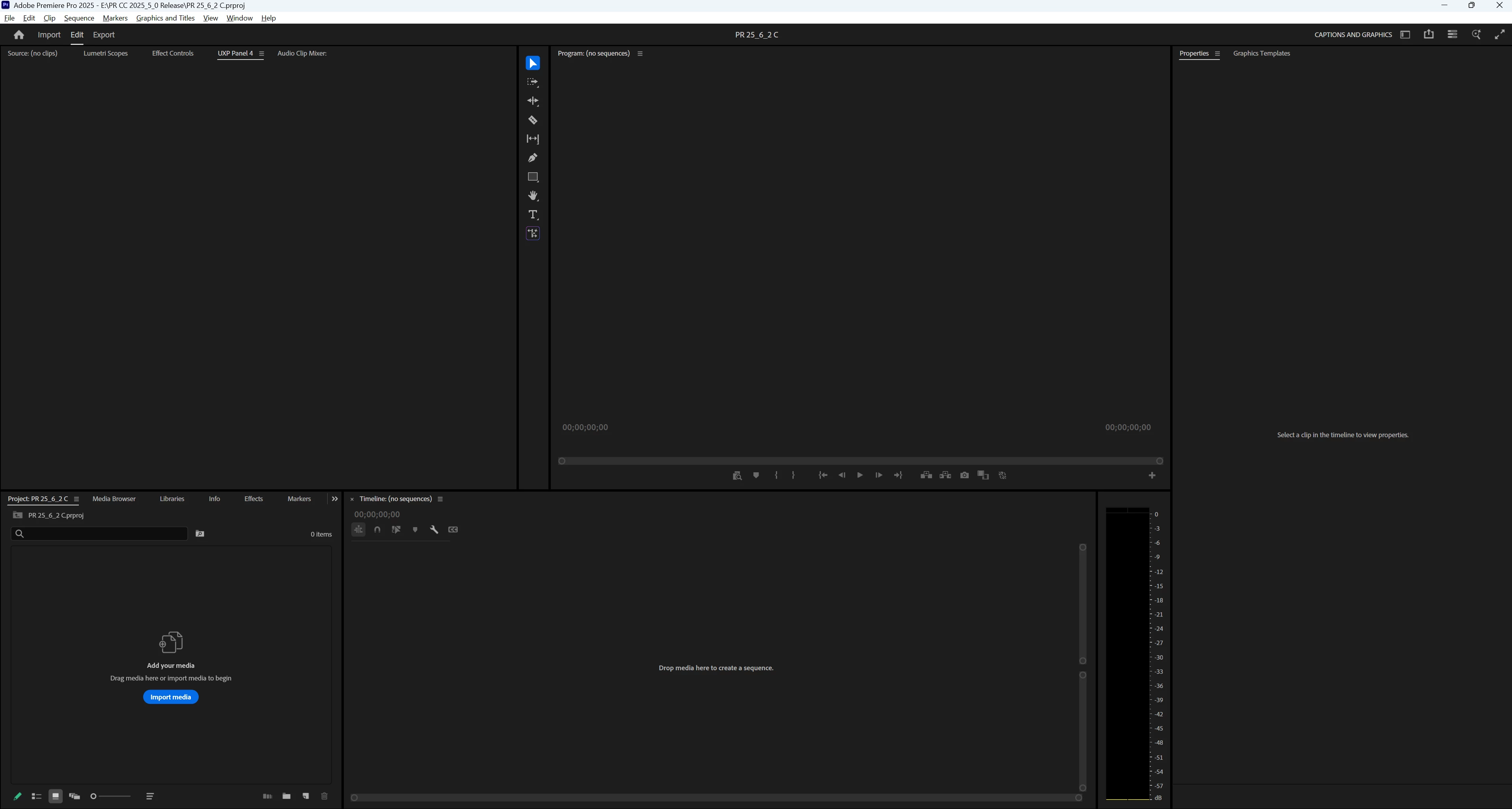
When changing workspaces, the Text panel no longer appears; various empty panels show, e.g. "UXP Panel 3," "UXP Panel 4," etc. I do not see the problem in Beta 26.0.0.36.


I updated to 25.6.2 from 25.6.1. As always, when opening the first time, I reset preferences, cache, and plugin loading cache, and I created a new project. After seeing this problem, I restarted my PC and reset preferences, cache, and plugin loading cache, disabled third-party plugins, and created a new project. Same result. I then repeated that a third time to get more details. I confirmed I am in 25.6.2 Build 1.


"Import workspace" is off. I note that even with disabling plugins, 5 plugins are still available. I will explore that further.


PR opens in the Learning workspace. The Text panel is present, and is checked in the Window menu. I switched to the Captions and Graphics workspace, and the Text panel is still present, unlike each of the previous 2 times. I now switched to the Editing menu. In the panel group with the Project Panel, there is an empty panel "UXP Panel 3." There is no Text panel visible, and the Text panel is not checked in the Window menu. When I switch back to the Captions and Graphics workspace, the Text panel is not present, there is an empty panel "UXP Panel 4" in the Source monitor group, and the Text panel is not checked in the Window menu. (See screenshot.) I switched to the Learning workspace, the Text panel is not present, there is an empty panel "UXP Panel 5" in the Source monitor group, an empty panel "UXP Panel 6" in the Project Panel group, and the Text panel is not checked in the Window menu. 


I closed and reopened PR, and opened the last project. It was (as expected) in the Learning workspace, and the Text panel was present. I changed to Captions and Graphics, then Editing, then Captions and Graphics, and then Learning. The same problems occurred with the exact results.


PR 25.6.2 PR Beta 26.0.0.36.

Win 11 Pro v11 25H2
i7-11700K, RAM: 640 GB. Single UHD monitor. NVIDIA GeForce RTX 3070, Driver: 566.36.


Stan
 

80 replies

December 5, 2025

Thank you Grant27257367s7ek! 

December 5, 2025

Descripción del problema:

Después de actualizar a Premiere Pro 25.6.3 y cambiar mi GPU de una NVIDIA RTX a una AMD RX 9070 XT, el comando CTRL+M dejó de abrir el panel de Exportación cuando estoy en el workspace “Edición”.

Cuando presiono CTRL+M:

  • No se abre ningún panel

  • No aparece error

  • Premiere se queda parcialmente bloqueado (la interfaz se congela durante unos segundos)

Sin embargo, si reinicio Premiere y cambio a un workspace diferente —por ejemplo, “Edición basada en texto”— entonces CTRL+M sí abre el panel de exportación correctamente.
Esto demuestra que el problema depende del workspace y afecta únicamente a “Edición”.


Comportamiento observado después de que el error se reproduce una vez:

Una vez que el bug ocurre por primera vez:

  1. CTRL+M deja de funcionar permanentemente en todos los espacios de trabajo.

  2. Premiere ya no es capaz de abrir el panel de Exportación.

  3. La única manera de recuperar el acceso al panel de Exportación es:

    • Cerrar y reiniciar Premiere, y

    • Cambiar a un workspace distinto antes de exportar (por ejemplo “Edición basada en texto”).

Solo así vuelve a abrirse el panel.

Esto confirma que el panel UXP asociado al workspace “Edición” se queda en un estado inválido o bloqueado.


Pasos para reproducir el bug:

  1. Abrir Premiere Pro 25.6.3 en Windows 11.

  2. Estar en el workspace “Edición”.

  3. Presionar CTRL+M.

  4. El panel de exportación no aparece y Premiere se congela brevemente.

  5. Reiniciar premiere, y cambiar al workspace “Edición basada en texto”.

  6. Presionar CTRL+M nuevamente.

  7. El panel ahora sí aparece correctamente.


Comportamiento esperado:

CTRL+M debería abrir siempre el panel de Exportación, sin depender del workspace activo, y sin requerir reiniciar Premiere.


Soluciones temporales que funcionan:

  • Cambiar de workspace antes de exportar.

  • Reiniciar Premiere después de que ocurre el error.

  • Resetear preferencias al iniciar Premiere (ALT + SHIFT).

  • Borrar la carpeta UXP en:

    C:\Users\[Usuario]\AppData\Roaming\Adobe\Premiere Pro\25.0\UXP

Estas soluciones confirman que el problema está en la interfaz UXP ligada al workspace “Edición”.


Sospecha técnica:

El bug podría estar relacionado con:

  • Fallo específico del panel UXP Export dentro del workspace “Edición”.

  • Archivos UXP corruptos después del cambio de GPU (RTX → RX).

  • Diferentes workspaces cargando configuraciones UXP distintas.

  • Un estado bloqueado del panel que persiste hasta reiniciar Premiere.


Información del sistema:

  • Premiere Pro: 25.x

  • OS: Windows 11

  • GPU anterior: NVIDIA RTX

  • GPU actual: AMD RX 9070 XT

  • Drivers AMD: 25.11.1


Impacto en el flujo de trabajo:

  • CTRL+M es un atajo crítico para exportación.

  • En el workspace estándar (“Edición”), la exportación se vuelve imposible hasta reiniciar Premiere.

  • Es un problema que afecta producción diaria y genera pérdidas de tiempo.


Solicitud:

Solicito que Adobe revise el funcionamiento del panel UXP Export dentro del workspace “Edición”, especialmente su capacidad de recuperarse sin requerir reiniciar Premiere.
Idealmente, el comando CTRL+M debería abrir el panel de exportación independientemente del workspace o estado previo del panel UXP.

Stan Jones
Community Expert
Community Expert
December 5, 2025

@lot 7 media,


Thanks for the additional information. Yes, reset to saved layout is a great tool.


> if i'm in caption and graphics .... i'm in edit.


If you reset the Caption and Graphics workspace, the stock panel is not opened. And the problems you see are puzzling. If you reset the Editing workspace the stock panel is opened (in the Project Panel group). I assume you are not using a custom workspace?


Stan


Participating Frequently
December 5, 2025

** Reposted **

I can confirm, that on a FRESH computer build of OSX Tahoe 26.1 & Adobe Premiere Pro 25.6.3 (Build 2)
BUGS such as unresponsive panels are present. I cannot recommend this build for School Computers labs; Students can’t be expected to trouble shoot the product or use work arounds.

December 5, 2025

This is a big bug. There are several workarounds like closing the Stock Panel. I had to get a project exported so I Rolled back to earlier release of Premiere and was able to regain use of Export and the Text Panel. Hope adobe comes up with a fix. I have not had a chance to load v 25.6.3 but I read that the problems are still happening with this version Has anyone had a luck with 6.3?

R Neil Haugen
Legend
December 4, 2025

When it goes bonkers, ever try closing. holding Shift down during re-launch, and the select dump all cache files?

Everyone's mileage always varies ...
Known Participant
December 4, 2025

if i'm in caption and graphics and i mess up the window configuration by doing some sort of sloppy extend/ shrink of a window and it makes it so i can't see something i need to see, my approach has always been to reset to saved layout.  when i do that now the transcrpt window dissappears, the ux window appears, i have to start a new project, open the ongoing project, everything's cool again, full functionality.  the 'NEW Adobe Stock' workspace isn't toggled in any of these nor is it visible.   BTW this is all happening in real time, i'm in edit.

Stan Jones
Community Expert
Community Expert
December 4, 2025

@lot 7 media,


> If i reset to saved layout in a work space i lose the text panel and the ux thing surfaces.


I hear you re it not being the stock panel for you. But I know from my multiple experiments that the stock panel is in the default space for several workspaces. And I don't know what the other culprit might be.


IF you do that again (reset to saved), look in the Window menu to see if the stock panel is checked. And whether it is checked or not, what workspace are you in that throws the error?


Stan


Known Participant
December 4, 2025

the issue for me (windows .3 build 2) is completely independent of the stock window.  If i reset to saved layout in a work space i lose the text panel and the ux thing surfaces. fortunately my go to fix (open a new project then open your current project) resets everything.


I only mention this because the stock panel is getting all the focus but i'm miles away from the stock panel in my workflow.


December 4, 2025

Closing the new Adobe Stock panel, saving the Premiere file, quitting, and reopening the project helped.  Once the Adobe stock tab was closed and I restarted, I was able to export projects again.