





P: 25.6.2 Missing Text Panel; Empty UXP Panels
Update 2, 12/13/25: See staff post indicating that this is fixed without updating the PR version:
https://community.adobe.com/t5/premiere-pro-bugs/p-25-6-2-missing-text-panel-empty-uxp-panels/idc-p/15630125#M59800
To test, you only need to open the stock panel: Window -> New Adobe stock. It should load with content. If it does not, and hangs with the spinning circle frozen, post back here. The workarounds should still be working if you have any issues.
Update 12/3/25: This update is based on my tests as of this morning. This does not appear fixed by updating to 25.6.3. This bug report focused on workspaces and the text panel. The list of symptoms is longer. There is another long thread that focuses on failure of export commands:
https://community.adobe.com/t5/premiere-pro-bugs/p-premiere-pro-won-t-export-ui-frozen-need-help/idi-p/15608051
Trigger: For some users, when the Adobe Stock panel is open, whether it is in focus or not, after 10-15 seconds, it fails to load and causes one or more of the symptoms identified. The Stock Panel is open by default in the Essentials, Learning, Editing, and Libraries workspaces, and perhaps others. Once the problem is triggered, you cannot recover without restarting PR. Reloading the project alone does not work.
Symptoms (Incomplete list):
- The Export mode/dialogue window cannot be accessed using Ctrl+M; File -> Export -> Media; Quick Export; or clicking on the Export tab. File -> Export -> Send to media encoder still works.
- Text panel is empty, shows as unchecked in the Window submenu.
- Text panel is missing, shows as unchecked, and clicking it in the Window submenu does nothing.
- Text panel transcript and captions become unresponsive.
- “UXP Panel n” (where n is an increasing number as you change workspaces) appear instead of an actual panel (for me this has included the Text and the Adobe Stock panels).
Best Workaround:
- The most effective and least limiting workaround is to avoid opening the stock panel by modifying your workspaces.
- Set Window -> Workspace -> "Import Workspace from Projects" OFF. You can set it on, but then each project must be set up correctly.
- Close the Adobe stock panel in any workspace you use. You can do this in PR even when the problems are present. Do not later use "reset to saved layout" unless you want to redo that process.
- Or create custom workspaces once you close the stock panel.
- Note that these workspace changes are in your preferences, so if you reset preferences you lose them.
Other Workarounds:
- Resetting preferences, creating a new project, uninstalling/reinstalling 25.6.2, and other steps may result in PR “working,” but it may be because you have not loaded the Adobe Stock panel. As soon as you do, it fails.
- Install PR 25.5.0. This works, but I believe it is not necessary to avoid this bug.
- Open in the Captions and Graphics workspace and do not change workspace. This works because it does not open the stock panel, but it is unnecessarily limiting.
Original bug report 11/22/25:
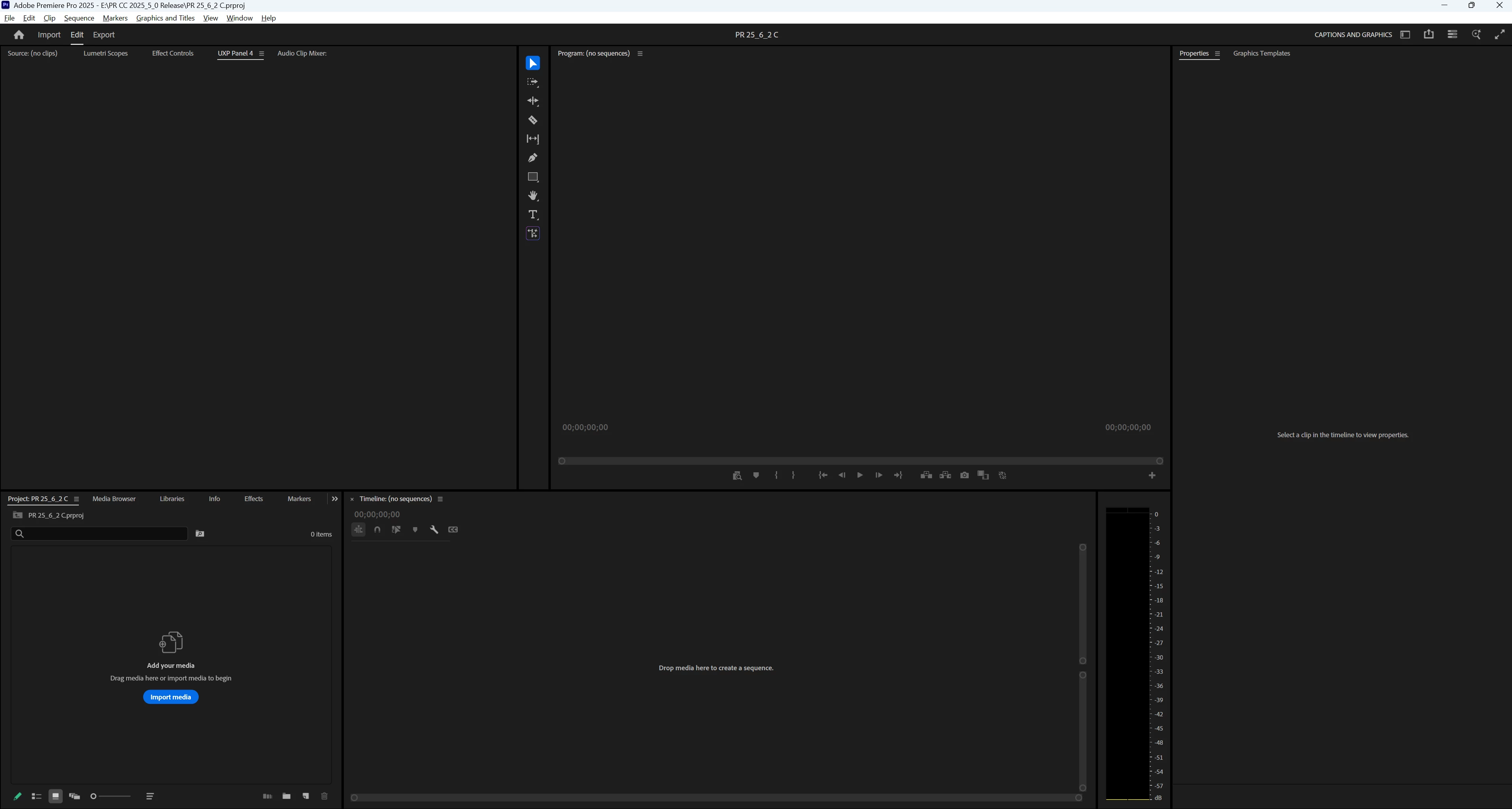
When changing workspaces, the Text panel no longer appears; various empty panels show, e.g. "UXP Panel 3," "UXP Panel 4," etc. I do not see the problem in Beta 26.0.0.36.
I updated to 25.6.2 from 25.6.1. As always, when opening the first time, I reset preferences, cache, and plugin loading cache, and I created a new project. After seeing this problem, I restarted my PC and reset preferences, cache, and plugin loading cache, disabled third-party plugins, and created a new project. Same result. I then repeated that a third time to get more details. I confirmed I am in 25.6.2 Build 1.
"Import workspace" is off. I note that even with disabling plugins, 5 plugins are still available. I will explore that further.
PR opens in the Learning workspace. The Text panel is present, and is checked in the Window menu. I switched to the Captions and Graphics workspace, and the Text panel is still present, unlike each of the previous 2 times. I now switched to the Editing menu. In the panel group with the Project Panel, there is an empty panel "UXP Panel 3." There is no Text panel visible, and the Text panel is not checked in the Window menu. When I switch back to the Captions and Graphics workspace, the Text panel is not present, there is an empty panel "UXP Panel 4" in the Source monitor group, and the Text panel is not checked in the Window menu. (See screenshot.) I switched to the Learning workspace, the Text panel is not present, there is an empty panel "UXP Panel 5" in the Source monitor group, an empty panel "UXP Panel 6" in the Project Panel group, and the Text panel is not checked in the Window menu.
I closed and reopened PR, and opened the last project. It was (as expected) in the Learning workspace, and the Text panel was present. I changed to Captions and Graphics, then Editing, then Captions and Graphics, and then Learning. The same problems occurred with the exact results.
PR 25.6.2 PR Beta 26.0.0.36.
Win 11 Pro v11 25H2
i7-11700K, RAM: 640 GB. Single UHD monitor. NVIDIA GeForce RTX 3070, Driver: 566.36.
Stan
 AdChoices