



Stan Jones
Community Expert
Community Expert
November 22, 2025

P: 25.6.2 Missing Text Panel; Empty UXP Panels

  • November 22, 2025
  • 80 replies
  • 16179 views

Update 2, 12/13/25: See staff post indicating that this is fixed without updating the PR version:
https://community.adobe.com/t5/premiere-pro-bugs/p-25-6-2-missing-text-panel-empty-uxp-panels/idc-p/15630125#M59800


To test, you only need to open the stock panel: Window -> New Adobe stock. It should load with content. If it does not, and hangs with the spinning circle frozen, post back here. The workarounds should still be working if you have any issues.


Update 12/3/25: This update is based on my tests as of this morning. This does not appear fixed by updating to 25.6.3. This bug report focused on workspaces and the text panel. The list of symptoms is longer. There is another long thread that focuses on failure of export commands:
https://community.adobe.com/t5/premiere-pro-bugs/p-premiere-pro-won-t-export-ui-frozen-need-help/idi-p/15608051


Trigger: For some users, when the Adobe Stock panel is open, whether it is in focus or not, after 10-15 seconds, it fails to load and causes one or more of the symptoms identified. The Stock Panel is open by default in the Essentials, Learning, Editing, and Libraries workspaces, and perhaps others. Once the problem is triggered, you cannot recover without restarting PR. Reloading the project alone does not work.


Symptoms (Incomplete list):

  • The Export mode/dialogue window cannot be accessed using Ctrl+M; File -> Export -> Media; Quick Export; or clicking on the Export tab. File -> Export -> Send to media encoder still works.
  • Text panel is empty, shows as unchecked in the Window submenu.
  • Text panel is missing, shows as unchecked, and clicking it in the Window submenu does nothing.
  • Text panel transcript and captions become unresponsive.
  • “UXP Panel n” (where n is an increasing number as you change workspaces) appear instead of an actual panel (for me this has included the Text and the Adobe Stock panels).


Best Workaround:

  • The most effective and least limiting workaround is to avoid opening the stock panel by modifying your workspaces.
  • Set Window -> Workspace -> "Import Workspace from Projects" OFF. You can set it on, but then each project must be set up correctly.
  • Close the Adobe stock panel in any workspace you use. You can do this in PR even when the problems are present. Do not later use "reset to saved layout" unless you want to redo that process.
  • Or create custom workspaces once you close the stock panel.
  • Note that these workspace changes are in your preferences, so if you reset preferences you lose them.


Other Workarounds:

  • Resetting preferences, creating a new project, uninstalling/reinstalling 25.6.2, and other steps may result in PR “working,” but it may be because you have not loaded the Adobe Stock panel. As soon as you do, it fails.
  • Install PR 25.5.0. This works, but I believe it is not necessary to avoid this bug.
  • Open in the Captions and Graphics workspace and do not change workspace. This works because it does not open the stock panel, but it is unnecessarily limiting.


Original bug report 11/22/25:

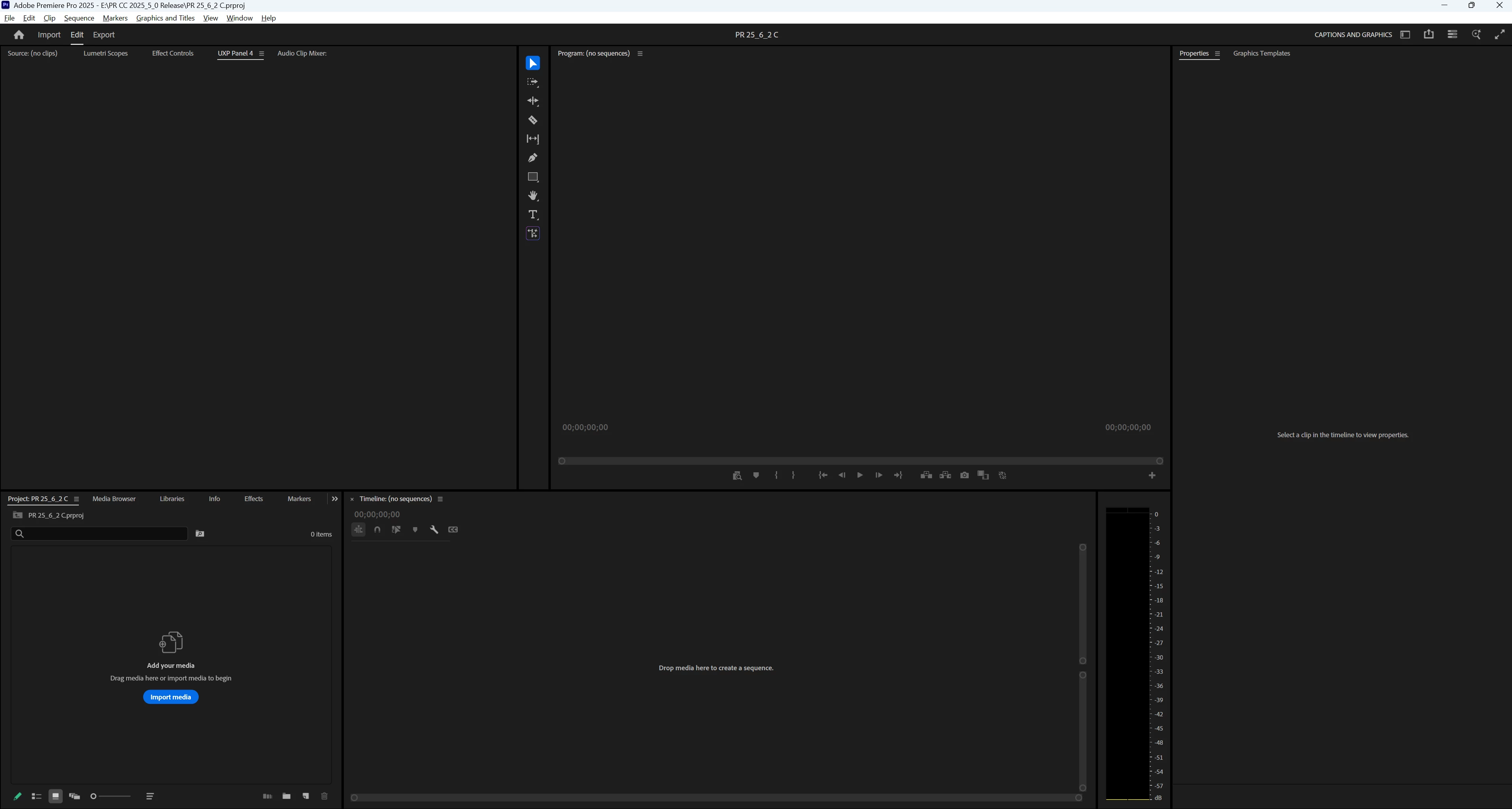
When changing workspaces, the Text panel no longer appears; various empty panels show, e.g. "UXP Panel 3," "UXP Panel 4," etc. I do not see the problem in Beta 26.0.0.36.


I updated to 25.6.2 from 25.6.1. As always, when opening the first time, I reset preferences, cache, and plugin loading cache, and I created a new project. After seeing this problem, I restarted my PC and reset preferences, cache, and plugin loading cache, disabled third-party plugins, and created a new project. Same result. I then repeated that a third time to get more details. I confirmed I am in 25.6.2 Build 1.


"Import workspace" is off. I note that even with disabling plugins, 5 plugins are still available. I will explore that further.


PR opens in the Learning workspace. The Text panel is present, and is checked in the Window menu. I switched to the Captions and Graphics workspace, and the Text panel is still present, unlike each of the previous 2 times. I now switched to the Editing menu. In the panel group with the Project Panel, there is an empty panel "UXP Panel 3." There is no Text panel visible, and the Text panel is not checked in the Window menu. When I switch back to the Captions and Graphics workspace, the Text panel is not present, there is an empty panel "UXP Panel 4" in the Source monitor group, and the Text panel is not checked in the Window menu. (See screenshot.) I switched to the Learning workspace, the Text panel is not present, there is an empty panel "UXP Panel 5" in the Source monitor group, an empty panel "UXP Panel 6" in the Project Panel group, and the Text panel is not checked in the Window menu. 


I closed and reopened PR, and opened the last project. It was (as expected) in the Learning workspace, and the Text panel was present. I changed to Captions and Graphics, then Editing, then Captions and Graphics, and then Learning. The same problems occurred with the exact results.


PR 25.6.2 PR Beta 26.0.0.36.

Win 11 Pro v11 25H2
i7-11700K, RAM: 640 GB. Single UHD monitor. NVIDIA GeForce RTX 3070, Driver: 566.36.


Stan
 

80 replies

December 3, 2025

So, I have spent enough time trying to reproduce and work around this problem. Not worth it anymore - I have real work to get done ... it is definitely a bug introduced recently and therefore I assume it will be fixed quickly.


Thanks for the suggestions and speculations, esp @StanJones.  But, my advice to anyone with this problem... revert to 25.6.1 (a simple process in the Creative Cloud dashboard -- look for the 3-dots in your PR section.) Turn off auto-updates for PR until the next update is announced, which I trust the powers-that-be will make known in this post.

Known Participant
December 2, 2025

This is definitely a bug.  But while it's looked at by Adobe i found a work around.    Create a new project. Skip the media import screen.  Open window dropdown and click text.  A text window will open up.  Don't close it.  Open the project where the bug is. Your text will appear in that floating window. It seems to have full functionality. But it disappears if you go to another workspace.  Any port in a storm, right? 

Known Participant
December 2, 2025

That describes my issue exactly Dani. just updated today to 25.6.2

December 2, 2025

Hi @Stan Jones  Thans you for the answer. But yes unfortunalety is a bug, after of open and close the program, the program let me to use the window and use the transcript function. I'm not really sure what's the problem. It's like a intermittent problem. 

caroline_edits
Community Manager
Community Manager
December 1, 2025

Hi Roisin! Did you try the Cleaner tool that was shared in the link above?


If you are still stuck after using the Cleaner tool, you could try rolling back one version. Here's an article on how to do that: https://adobe.ly/3Ktt5UJ


Hope it helps,

Caroline

December 2, 2025

Hey, what worked for me was opening up premiere holding option and clearing the app preferences & media cache!

Thanks

Stan Jones
Community Expert
Community Expert
December 2, 2025

@róisín_4914 @caroline_edits,


This is an old thread. I now believe that the current issues are not actually helped by resetting preferences nor doing a reinstall. I also suspect that, as one user reported, a reinstall with the cleaner did not fix the issues.


See my post for my latest beliefs about what is happening and a workaround:
https://community.adobe.com/t5/premiere-pro-bugs/p-premiere-pro-won-t-export-ui-frozen-need-help/idc-p/15616420#M59095


Stan


December 1, 2025

I am having the same issue. I just downgraded my Adobe Premiere to Version 25.6.1 and everything works fine.


I think the issue is in the latest update

Stan Jones
Community Expert
Community Expert
December 1, 2025

@tbaum42,


When you first open the project, right-click the wav file in the project panel and pick Transcribe (or re-transcribe). When the dialogue opens, what choices do you have for audio track? Does it transcribe?


First, without opening the Progress panel, you can just watch the progress dashboard icon. It will show progress and then a checkmark if it completes.


Edit to make it clear that the right click is for the wave file in the project panel.


Stan


November 30, 2025

Many thanks @stanjones for the reply. I tried your suggestion but unfortunately no luck.


I changed to the CG workspace, restarted PR with my project and the Text window appeared, and auto-started to transcribe the only non-muted audio track I have.  I saw the cascaded progress bars for only 5 seconds and then it stopped with the message in the center of the panel: "Transcribe Source Clips".


See https://gyazo.com/0ddff30eb3c9bc92ded85a1bfa258bf9 


As you said... Frustrating.  

Stan Jones
Community Expert
Community Expert
November 30, 2025

@tbaum42,


This is a frustrating bug that I believe has many symptoms and probably multiple triggers. Because a) I spend a lot of time in the Captions and Graphics workspace and b) that workspace starts with the Text panel active, my preferred workaround is to open a new or existing project in that workspace. For me, changing workspaces is guaranteed to create the symptoms, so I avoid changing workspaces. I also avoid closing or opening any other panels, but I have not tested that much. Resetting preferences sets "Import workspace from project " off, so that this what I am using.


Even if my project is showing the errors, I change to the CG workspace, and exit PR. When I reopen PR and the project, it is in the CG workspace, the Text panel is active, and I see none of the various symptoms. I was able to work in the same project, transcribe, create captions, export through PR. Ctrl+M did not work, but File -> Export -> Media did. Ctrl+M sometimes doesn't work for me, so I don't worry about that. In this set of tests, I did start by resetting preferences, cache, and plugin loading cache, and I created a new project. I previously removed third-party plugins, have not reinstalled them, and Film Impact is the only extension showing.


> ... on a new project I had been working on for a week.


Maddening; all is well until you trigger this process. Once you see it, just save your project and exit. Restart PR, open the project, and, if you've stayed in the CG workspace, see if all is well.


> The text/transcript panel initially listed the audio (dialogue) tracks and clicking the blue Transcribe BUTTON correctly launched the process (cascading progress bars), but stopped after a minute without producing the transcription. ...Now, when I open the panel I don't even get the track listing or the blue Transcribe button.


I suggest not even worrying about all those symptoms. I have found no way to recover that PR session. Just restart and get back to work. Of course, if my workaround isn't working for your workflow....


> I tried resetting workspaces as suggested (in many ways). No help.


Resetting preferences or workspaces do not, in themselves seem to fix this.


Let us know if my suggested workaround helps you.


Stan


November 30, 2025

Same problem here. Text>Transcript panel is missing the Transcript button and the panel is pretty empty.

PR 25.6.2

Win 11 w/latest updates


This started yesterday when I went to make a transcript on a new project I had been working on for a week. The text/transcript panel initially listed the audio (dialogue) tracks and clicking the blue Transcribe BUTTON correctly launched the process (cascading progress bars), but stopped after a minute without producing the transcription. 


Now, when I open the  panel I don't even get the track listing or the blue Transcribe button. 


I tried resetting workspaces as suggested (in many ways). No help.


So  I tried opening an old project (1 year+). The Text panel prompted me with the auto-transcribe question. I clicked it and let it finish -- all was OK. The window filled with the transcription.


I then re-opened my current project and no similar prompt. No listing of audio tracks. No blue Transcribe button.


The track I want is confirmed Enabled / UnMuted / Dialogue. See image > https://gyazo.com/969b542563909f7f1eee0a8112c3db4a