

AndrewTheGreat
Known Participant
January 14, 2026

Render in Place stopped working for certain formats - 25.6.3, 25.6.4

  • January 14, 2026
  • 14 replies
  • 240 views

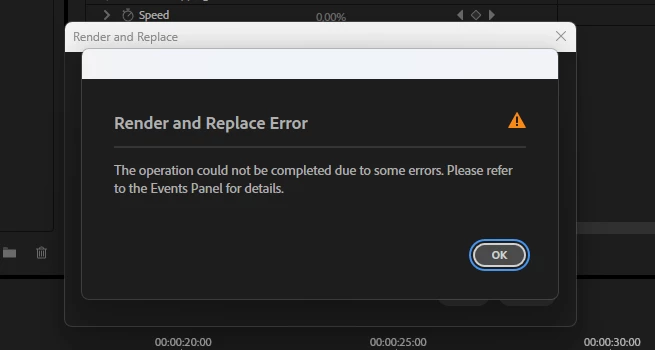
Another day - another bug. This is what I started to see when trying to render and replace an AE comp inside Premiere Pro to something with an alpha channel because I need transparency:
AndrewTheGreat_0-1768419464672.png


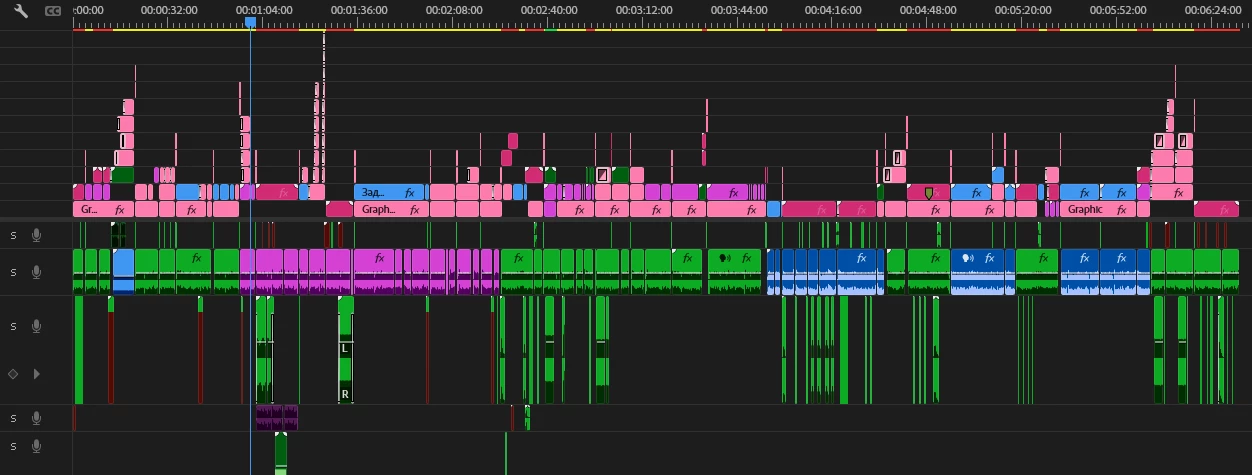
Now imagine a Pr sequence with as many AE comps in it as this (the rose ones):
AndrewTheGreat_1-1768419532718.png

Imagine how insanely slow the timeline is. And you cannot render and replace the comps. Pre-caching is not an option because I trim the comps, I move them, I apply transitions to them and everytime the cache resets. And you cannot render and replace nests. Not at all, sir.


Steps to reproduce - make a complicated project with dozens of AE comps (made via Dynamic link of course). Try to render and replace them with a codec that supports an alpha channel. Profit.


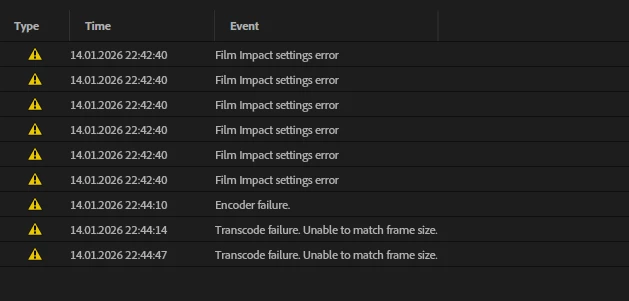
A disgrace board below (I'm not mentioning the Film Impact problem...):
AndrewTheGreat_2-1768419916244.png


Again, in Davinci Resolve, that apparently have better programmers, you can render and replace just anything. How can that be that a small australian company nailed it and the dear big fat Adobe can not?! I don't understand this...


Was not a problem in 25.3 by the way.

14 replies

Victor5CD3
Inspiring
January 22, 2026

Andrew, I've run several tests, but I'm not sure if I followed a more technical standard, as I'm not a programming engineer. In my tests, the first versions, from 25.6 to 25.6.3, presented export problems, crashes, and black screens. With the latest Nvidia Studio driver, from January 5th, version 25.6.4, I didn't have export problems, but performance dropped, becoming slower and consuming more processing power. However, at least it doesn't crash anymore. I also experienced all the problems described above before version 25.6.4, but Adobe Premiere is like a lottery; it can work well for one person and have bugs that hinder the work of another. The current trend is the new Nvidia RTX 50 series video cards and new hardware with many features, but Premiere is still not 100% functional with them. All my contacts in Adobe support try to evade the problem and say it's the codec, whatever it is, but the biggest problem is Adobe Premiere. Even after implementing these new features, the program still has errors. The problem isn't with the camera manufacturer or the codecs; it's Adobe that needs to optimize its program to function correctly. Most average users, like myself, own popular cameras on the market that use these codecs, such as: Sony ZV E10, the A6 and A7 series, .mov, .mp4, and AVCHD; Canon XA and Cinema EOS camcorders; Panasonic DSLR cameras, Mirrorless R series, EOS R50V, and AG and XC series camcorders; and GHS series DSLR cameras. These companies have been using these video codecs in the manufacturing of their cameras for years, and it's the editing program that needs to adapt to the use of these codecs, not them being the limiting factor, as Adobe claims. I'm testing DaVinci Resolve, and it handles various types of codecs very well. The Blackmagic team doesn't blame the codec; The format I use most here is .mp4, and it works very well in DaVinci

Build CPU Ryzen 5700X,64 GB ram,Nvidia geforce 5060 Ti 16 Gb,SSD nvme 1tb + ssd sata 2Tb HD Disc 2Tb Win11 24h2
AndrewTheGreat
Known Participant
January 22, 2026

Hi, @Victor5CD3 Yes, codecs are not to blame because this happens with them totally different in different containers. These here are just two cases, but I've been having this issue since I started to work in Pr 25.6.3. It may have started even earlier, but I was working in Davinci for half a year before that, so I cannot confirm it happening earlier. I have an 4080 videocard so it's not VC specific either.

Stop trying to edit and EDIT!
Victor5CD3
Inspiring
January 22, 2026

Something is not right with Adobe Premiere. I've also experienced these same errors, in addition to the poor performance issues I'm having with my new video card. From the responses I've received from Adobe, they seem to want to blame the problem on the video codecs of the cameras; that's the impression I'm getting. I edited for many years with codecs like AVCHD and had zero problems in older versions of Premiere. After the implementation of these new features in Adobe Premiere, it has never been the same. I hope the Adobe team fixes these problems and optimizes Premiere to work well with the new hardware and effects that require artificial intelligence. But it's really bad for us editors; these problems seem to be coming in sequence, one is solved, another appears.

Soon a support moderator will report that the problem is the .MOV codec hahaha, that's very complicated, they're going to outsource again, the problem will be the video codec!!

Build CPU Ryzen 5700X,64 GB ram,Nvidia geforce 5060 Ti 16 Gb,SSD nvme 1tb + ssd sata 2Tb HD Disc 2Tb Win11 24h2
AndrewTheGreat
Known Participant
January 22, 2026

@AidanEdits 

Choosing a different location seems to work. I tried the same disk but a different folder, then just the Downloads folder. At least during my tests it didn't happen. BUT! Rendering and replace just removes the effect when I include it. It renders the video as is, without any effects, once this render error has happened at least once. I thought first it was Mocha but I tried Warp stabilizer and again:

AndrewTheGreat_0-1769091345001.png


To doublecheck it, just tried to render and replace the Mocha-included clip from a completely different source clip I got today. This is what happened:


Also, here's the download folder where I saved the renders. See they are numerous while I rendered and replaced only once.

AndrewTheGreat_0-1769092017902.png


Stop trying to edit and EDIT!
Inspiring
January 22, 2026

Seems like you've mostly tried everything. The only thing consistent across your screenshots is that you are saving Next To Original Media. I doubt this is the issue, but couldn't hurt trying to save the render to a different location. 

AndrewTheGreat
Known Participant
January 21, 2026

Hi, @jamieclarke 

It does not work with "Include Video Effects" unchecked either. I'm using Mocha 2026, here are my sequence settings (they are based on the footage). It may render with GoPro with alpha in some projects (right now it does render, a couple of days ago it failed), Apple Prores 444 whaich also has an alpha channel support stopped rendering at all.

Снимок экрана 2026-01-21 214516.png

AndrewTheGreat_0-1769021240654.png


And here's what I got just now (the same happened with other effects, with no effects included, with other footage, in other projects) - the screen just went black with no alpha at all:

Note that its a Preset Source, not the sequence where you can choose to embed effects. The issue is totally reproduceable with any footage. And I cannot update to 26.0 since my company does not use it, so no possible fixes there.


Stop trying to edit and EDIT!
jamieclarke
Community Manager
Community Manager
January 21, 2026

Hi @AndrewTheGreat - Does this work when you uncheck "Include Video Effects"? What version of Mocha are you using? What are your sequence settings, are they different than your media?

AndrewTheGreat
Known Participant
January 19, 2026

Another update - this is Render and Replace with "Include effects" checkbox with Mocha object removal. The Events and the yellow warning window showed Encoder error.

AndrewTheGreat_0-1768823023475.png


The sequence preset won't work. But the sequence preset is the only one that allows embedding effects into renders. 

AndrewTheGreat_0-1768823340574.png


Stop trying to edit and EDIT!
AndrewTheGreat
Known Participant
January 15, 2026

Nope. It has nothing to do with AE comps. This is just a video, a timeremapped one, and here we are again:

AndrewTheGreat_0-1768494794871.png


AndrewTheGreat_1-1768494821958.png


And it started after I had tried to render it into Apple Prores 422 HQ - it ended up rendering a totally different part of this clip.


Stop trying to edit and EDIT!
AndrewTheGreat
Known Participant
January 15, 2026

@AidanEdits 

A good finding, thanks. Though my errors happen without unrendering, just at some point when trying to render a comp after saving it in AE, closing AE and going back to Pr. One more thing I noticed - when this happens if you go to your processes, you'll see there an AE process although the program was closed. 

Stop trying to edit and EDIT!