

AndrewTheGreat
Known Participant
January 14, 2026

Render in Place stopped working for certain formats - 25.6.3, 25.6.4

  • January 14, 2026
  • 14 replies
  • 240 views

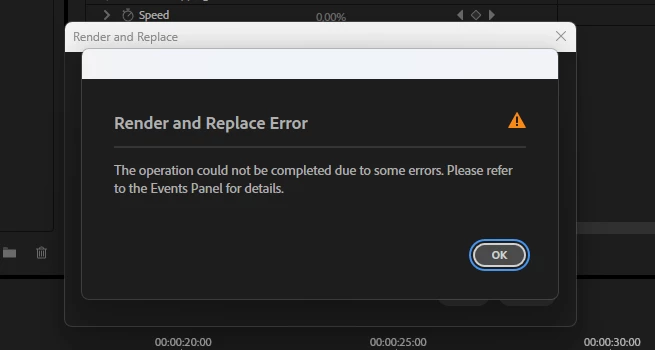
Another day - another bug. This is what I started to see when trying to render and replace an AE comp inside Premiere Pro to something with an alpha channel because I need transparency:
AndrewTheGreat_0-1768419464672.png


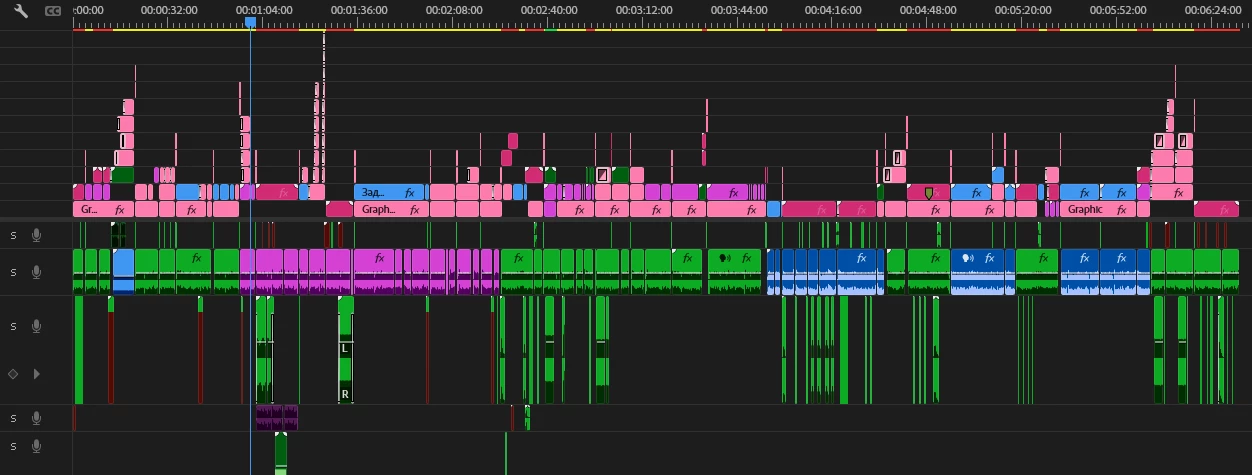
Now imagine a Pr sequence with as many AE comps in it as this (the rose ones):
AndrewTheGreat_1-1768419532718.png

Imagine how insanely slow the timeline is. And you cannot render and replace the comps. Pre-caching is not an option because I trim the comps, I move them, I apply transitions to them and everytime the cache resets. And you cannot render and replace nests. Not at all, sir.


Steps to reproduce - make a complicated project with dozens of AE comps (made via Dynamic link of course). Try to render and replace them with a codec that supports an alpha channel. Profit.


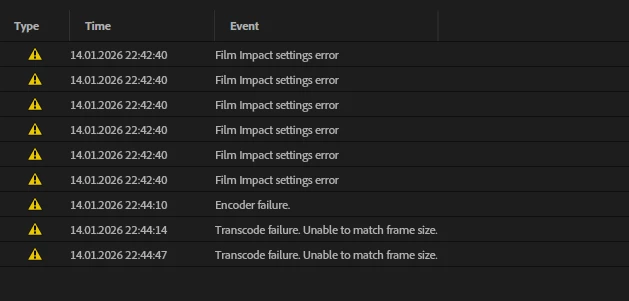
A disgrace board below (I'm not mentioning the Film Impact problem...):
AndrewTheGreat_2-1768419916244.png


Again, in Davinci Resolve, that apparently have better programmers, you can render and replace just anything. How can that be that a small australian company nailed it and the dear big fat Adobe can not?! I don't understand this...


Was not a problem in 25.3 by the way.

14 replies

Inspiring
January 15, 2026

I was able to recreate the issue, although I'm not certain it's exactly the same as your situation. These are the steps that led me to the same error message you recieved:

  1.  Created linked AE comp in a Pr timeline
  2.  Made some adjustments in the AE comp. Saved.
  3.  In Pr, Rendered and Replaced the layer to DNxHD w Alpha/Pro Res 4444 w Alpha/Go Pro Cineform w Alpha. This was succesful. 
  4.  Right clicked on the new Rendered layer and chose "Restore Unrendered" (or just hitting ctrl+z to bring back the AE comp works the same). Here is where the issue happens.
  5.  Now, if I try to Render and Replace the linked AE comp again, it does not work and I get the Error message shown in the post.


Solution:

If I open the linked comp in AE and hit Save (don't even have to make any changes), back in Pr I could now again Render and Replace without issue. But, if I then decide to Restore Unrendered, in order to Render and Replace again I need to first go back into the AE Comp and Save. If you Render and Replace in Premiere, then go to AE and make changes to the AE Comp, then go back to Pr and Restore Unrendered so that you can re-render with your changes, your changes WILL appear in Pr, but Render and Replace won't work until you go back into AE and hit Save again after restoring. 


I am not sure if this is a bug or if this is just a side effect of how Dynamic Link handles projects after rendering and replacing. It seems that using Render and Replace on an AE linked comp temporarily "disables" the link between Premiere and that specific AE comp. The problem is that the link is not being automatically reestablished when the linked comp is brought back with Restore Unrendered or Undo. The link is only reestablished manually by saving the AE project in AE after it has been restored in Pr, which appears to send a wake up call to the Dynamic Link manager, reminding it that the link needs to be reestablished. Again, this is just my experience testing with a couple Linked Comps. Your project is quite a bit more complex and there could be more at play. 


As for Nests, no they cannot be Rendered and Replaced which is a feature I have been hoping would be added for years... Would be super helpful. 

AndrewTheGreat
Known Participant
January 15, 2026

Another case of Render and Replace which might be somehow related to mine. Or might not. Still worth checking: https://www.reddit.com/r/premiere/comments/1qd1xhq/render_and_replace_not_working_as_before/

Stop trying to edit and EDIT!
AndrewTheGreat
Known Participant
January 15, 2026

Hi, dear @jamieclarke 

Is an AE comp different in size when it's created via sending a video\adjustment layer\text layer (as a dummy) to AE via dynamic link? Guess not.

As for the 26.0 for Film Impact - as I replied in another topic - my company isn't gonna update to 26.0 due to incompatibility with 25. Why do we have to suffer this bug?

Stop trying to edit and EDIT!
jamieclarke
Community Manager
Community Manager
January 14, 2026

Hi @AndrewTheGreat - The Film impact settings error is fixed in premiere beta version 26.1.1 and will be included in Premiere version 26.0 release.  I haven't seen the transcode failure unable to match frame size before.  Are your frame sizes different?