
Participant
March 13, 2025

Transcript not accepting edits

  • March 13, 2025
  • 8 replies
  • 723 views

I am working on version 25.1.0.


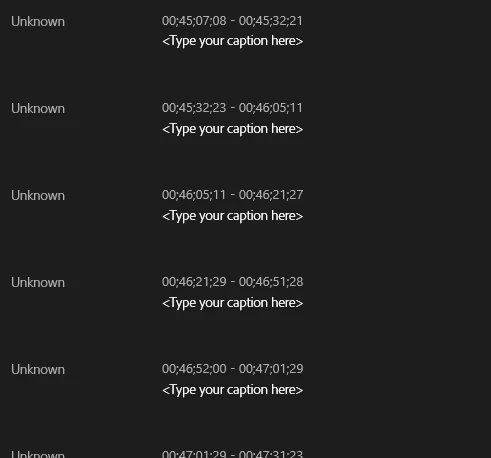
I have video files that include technical language that require editing of the transcript to ensure correct captioning. I am having continued issues when I "enter" into the text transcript, update the language, and then "esc" out of the text box only for the transcript to never update and show the edit made or for it to take an extended period of time (more than should be standard). I can't move on until I can verify that the edit was indeed made and that is taking up so much time needlessly. It has progressed to whenever I finish a caption and escape out of the text editor, box all of the transcript changes to <Type your caption here>. If I close out of the Text window and re-open, it will regenerate the transcripts, but this is tedious when I have hours of content to comb through. Going into and out of the text editing workflow of the transcript is painfully slow, often requiring multiple selections before it changes. As I am playing the video and working through the transcript for accuracy, it will also randomly change to the <Type your caption here> and all the captions will disappear. 


Any help would be appreciated on a workaround for this to ensure the edits are updating in a timely fashion.


8 replies

Participating Frequently
February 3, 2026

The issue shown here is not the an issue with the transcript but with captions. I’m having issues editing the transcript, well before the captions are created. You either can’t double-click to get into edit mode, or you get into edit mode make the changes and then click away to find that your edits didn’t take or reverted to the original trannscript. I’ve tried clearing cache and starting Premiere without any sucess. Come on Adobe, let’s fix this issue.

Stan Jones
Community Expert
Community Expert
March 17, 2025

@Kaitlyn29158949b09e,


Thanks for your continued responses.


What is the file size of the original, full video?


It is common for an editor to take a single file and edit it down to the parts they want. Your video is just very long. And I've suspected, but been able to demonstrate to my satisfaction, that the lagging performance of some transcript/text-based-editing work is the demands of long sequences.


Highly compressed files (i.e. zoom recordings) are very CPU intensive to edit. Converting them is often useful. I just brought my hour and a half zoom recording into AME and exported as ProRes. It only took 8 minutes, but is, of course, much larger. The original file is 300MB, but the ProRes file is 57 GB!


So an additional test for you is to take your large file into AME, in the settings change to Quicktime, Video ProRes HQ, set the out point to 15 minutes, and export. My 15 minute came out to 230 MB, and yours should be similar.


Create a new test project and see if that edits better. If we find a method that works better, then we can look at how you can take advantage of the work you have done, and how to use smaller files for the rest of the project.


Stan

Participant
March 17, 2025

@Stan Jones 


Thanks for your continued help. I will test shorter sequences today at some point and let you know. From what I see, the file I am working with is about 5 hours, 44 minutes. There are breaks in the video/file where I have removed fillers, breaks, and other edits, but I am assuming that is still considered one sequence. I guess I am doing the opposite of most projects, I'm trying to take one large file and break it into smaller files as opposed to bringing in multiple elements to create one new project. 

Stan Jones
Community Expert
Community Expert
March 14, 2025

@Kaitlyn29158949b09e,


Your terminology is fine. I still can't get my head around the "<Type your caption here>" appears in the Transcript tab! You get this in the Caption tab when you delete a caption's content. When you delete a whole segment of a transcript, it just removes the time code/segment.


I tested with an hour and a half zoom recording, and I can't get it to lag or misbehave.


This is a single 8 hour video? How long is your sequence?


Try this test. Clear the cache again, restart your computer, and create a new, test project. Import single, clip, no more than 10 minutes long. In the project bin, right-click and pick Transcribe. Then drag it to the new icon to create a matching sequence. Switch to the Text panel/transcript tab. Edit one entry. Any lag? A second one. If it doesn't immediately have a problem, repeat 10 times or so.


Transcripts (and captions) are stored in the project file. I do not know whether there is some kind of intermediate storage/cache between saves when you are editing that text. But large project may be an issue for the lags you are seeing.


@Kerstin Ebert @Alexander_DVA How could the <Type your caption here> appear in the transcript tab? Any thoughts on the  problems here?


Stan


Participant
March 14, 2025
Participant
March 14, 2025

Hey Stan,


Thanks for the reply. I am a new PP user so some of my terminology isnt quite right! I am editing the text within the Transcipt area within the Text panel. I am essentially taking a 6 hour or so video of a Zoom recording and cutting it up into smaller sections, removing minimal content as I go. I am only generating captions once I have worked through one of the sections and nested it, not sure if that is the best way to go about it but one that seems to be working ok for me so far. Unfortunately I am having to go through the entire transcript to look for errors, the text generation in Premier is ok but does have errors that need to be corrected. There is not one set of terms that can be widely searched for because there are so many and they vary greatly. I did clear the cache this morning twice which hasn't produced a change, it is still extremely laggy. I am on Windows 11, version 24H2. It has now changed to switch to <Type your caption here> after every edit I make within the Transcript area of the Text panel, very frustrating.


I will take a look at your additional workaround and put in a report to Adobe. Thanks!

Stan Jones
Community Expert
Community Expert
March 13, 2025

@Kaitlyn29158949b09e,


You appear to be editing captions, not the transcript; correct?


And when you said - "enter" into the text transcript, update the language, and then "esc" out of the text box - I think you are editing in the Text panel, not the Program Monitor; correct?


I agree with Kevin on clearing the cache.


How long is your sequence? How many captions do you have?


General suggestion: edit the transcript for terminology, unless you are keeping only a fraction of the material. And in that case, I would still edit the transcript (source media transcripts in sequence view), and before creating captions. You can use search and replace. And you can edit source transcripts with ONLY the Text panel open. If you need captions for editing (I do that), edit the transcript for terms/spellings, delete the caption tracks, and regenerate them after all editing. Then edit captions for timing etc.


There is a history of sluggish/lagging performance with transcripts and captions. I have not updated my old list of workarounds, because there was improvement for most users with newer versions. But then new reports of lagging.


Please report your operating system.


Here's my old list:

https://community.adobe.com/t5/premiere-pro-discussions/captioning-sucks/m-p/14369682#M537007


In addition to those, there's a more recent report that closing the Effect Controls panel helps.

And your video driver is involved in displaying text, so be sure it is up to date.


Stan


Kevin-Monahan
Community Manager
Community Manager
March 13, 2025

Dear @Kaitlyn29158949b09e,

Welcome to the forum! Thanks for your question. I'm Kevin from Adobe Support, a moderator here.


The trouble you are having is not normal. I am wondering why you are having performance issue with this task. I have a few troubleshooting ideas for you to try, if you are willing. The first thing I would try is to delete the media cache, as it may have become corrupt when you did something like update the application. Press Shift at launch for the Reset Options dialog box. Delete the media cache from there, please. Is the application behaving better now? Let us know.


The other thing you could try is to edit the text in the Text panel instead of the Timeline. It might be snappier. Try that after deleting the media cache.


The only things I can think of is that your computer might need to be more powerful depending on the project needs. I don't know what kind of computer you have; more knowledge about your CPU, GPU, RAM, and HDs might help. Another piece of info is about the media. What kind of media are you editing? Better yet, format that info out in a reply, based on what the team needs here: How do I write a bug report?


I hope the team or community can assist shortly. I apologize for the less than stellar performance of your subtitling function.


Thanks,
Kevin


Kevin Monahan - Sr. Community and Engagement Strategist – Adobe Pro Video and Audio