
Inspiring
July 25, 2023

Upgrade Caption to Graphic does not work with Presets with Type: Scale

  • July 25, 2023
  • 18 replies
  • 4080 views

Hello,

I am experiencing an issue involving Upgrade Caption to Graphic.


Watch this video to see the bug:


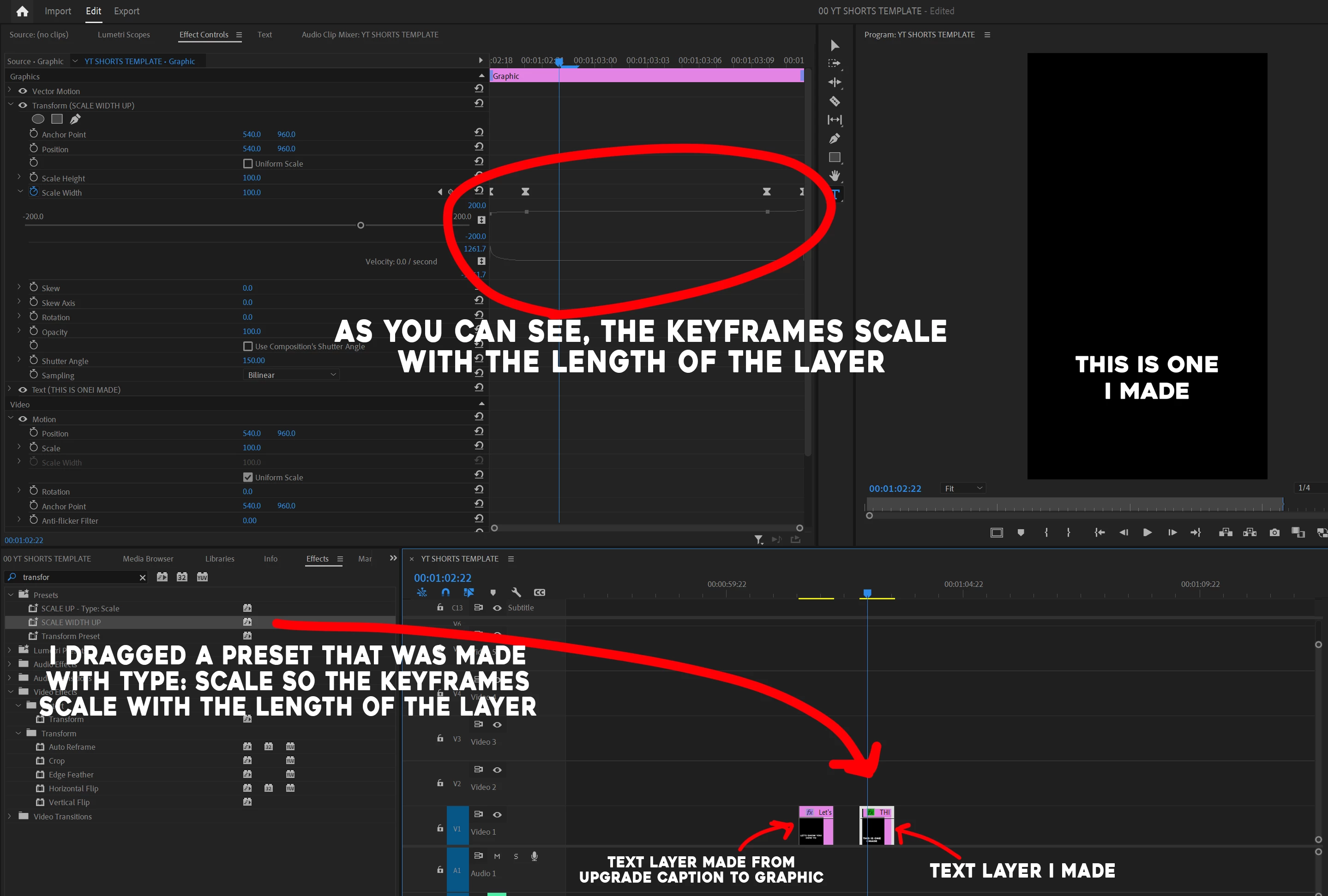
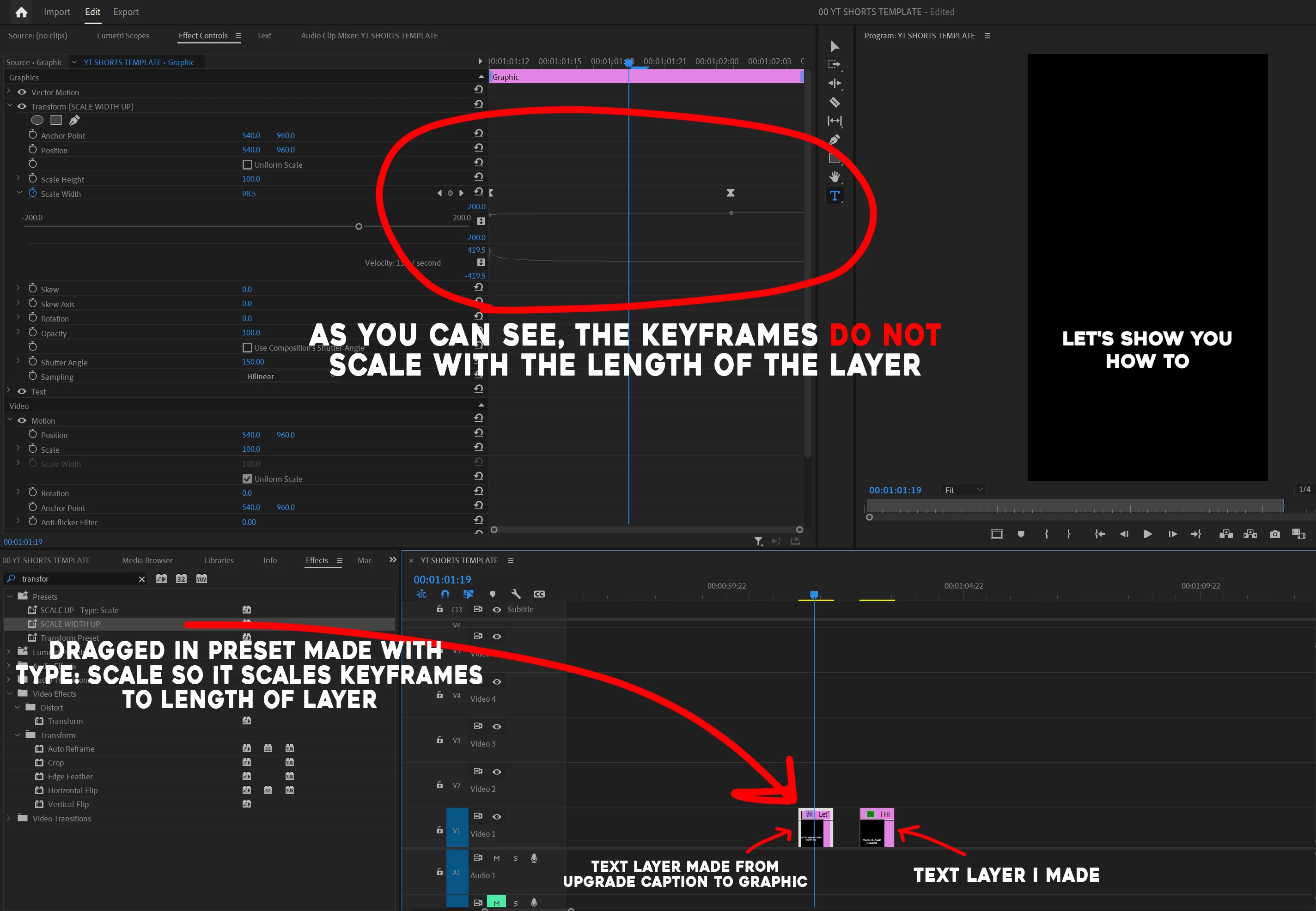
I have created a simple preset that scales the width up and I set the Type: Scale so that the keyframes automatically adjust to the layer length. However, when I apply the preset to the Upgraded Caption to Graphic text layers, the preset does not scale. To test, I created a new text layer and applied the same preset and the preset worked (scaled accordingly) I will attach 2 photos to show the difference. Please fix this as soon as possible becuase this is not allowing me to use Automatic Captions if none of my animations work.


The photo below is showing how the preset should work. This is a text layer I made without automatic captions and upgrade caption to graphic.
 

The photo below is showing that the preset is not working on Upgrade Caption to Graphic text layers.
 

Is anyone else experiencing this issue? Please let me know what can be done. Thanks!


-Kyler

This topic has been closed for replies.

18 replies

jamieclarke
Community Manager
Community Manager
October 30, 2024

Updating Status to Fixed in 24.0

Stan Jones
Community Expert
Community Expert
September 3, 2023

@jstrawn KYLER HOLLAND,


My testing is a bit slow. I enjoyed our 10 days in Colorado a bit too much. So for now, a general comment: I have been tracking, and working on improving, several workflows in this area for some time. A lack of some features has been a problem, improved greatly by the Upgrade Caption to Graphic. Bugs were another problem, including the one in this thread - not having a preset with Anchor to Out - as well as problems with the Create Captions Presets - also with recent fixes. This opens possibilities that I will be testing. The entire captions workflow change introduced in PR 2021, speech-to-text, and text-based editing have introduced important features. And with each of those, more feature possibilities, inevitable bugs, and new directions. Users do get confused, and we can second-guess UI decisions, etc. Overall, however, I give very high marks to staff for continuing to move this forward very effectively. I like the early introduction of major features in Beta, and the responsiveness of staff to suggestions. Shout out and FYI to the several of you I have flagged on various posts: @TeresaDemel @AnnikaKoenig @Kerstin Ebert @Alexander Riss @NicoBecherer  @Fergus Kousha @Francis-Crossman17221443 @Kevin-Monahan @Trent Happel 


> ...you can make the box small in the Program Mon before upgrading the Caption.


This is the approach I'm testing, and described in my earlier post in this current thread:

https://community.adobe.com/t5/premiere-pro-bugs/upgrade-caption-to-graphic-does-not-work-with-presets-with-type-scale/idc-p/13973907#M12680


Maximize formatting (centering etc) and styling (font/font size etc) before upgrading to graphic. The attempt is to limit odd sizes and positions from the upgrading. Many users then use the Transform effect and nesting to make adjustments over multiple items. I also tried making very specific adjustments to the bounding box via EGP Caption Track Styles, but put that on the back burner since simply centering it all (with varying box sizes) and then using the Transform Effect avoided this.


My context is often looking at how much of an effect, such as pop-in captions, can be accomplished without having to manually do one graphic at a time. You can't paste attributes for text without pasting the text itself. Is that true?


Feature issues: toggle paragraph vs point text? Paste attributes to a graphic without pasting the actual text? Admittedly, for all the text-related focus I have, I have a lot to learn about Mogrts. Can you apply a mogrt to multiple text graphics, keeping the text?


Is some of this already possible?


jstrawn, Thanks for the reminder about "Program Monitor Snap." I had it turned off.


Stan


jstrawn
Community Manager
Community Manager
September 1, 2023

@KYLER HOLLAND  I'm very happy to hear that the original problem that you reported is fixed for you in the latest Beta build. You can expect it to be fixed in the next public release as well.

When a Caption segment is upgraded to a Graphic, we respectt the text-in-box size and location that the caption had. If you want a smaller text box, then you can make the box small in the Program Mon before upgrading the Caption. You can resize the text box after the fact too, but as you noticed, the Anchor Point will be in the upper left at that point so the text box will not be resizing in a symmetrical way. That is because we make upgraded captions have the same Anchor Pointtas newly created text-in-a-box layers do... with the AP in the upper left. If you want to add something like a Scale Up animation, you'll need to center the Anchor Point inside the text box first. Snap In Program Monitor can help you do that, btw.

I know that's probably not ideal for your workflow, but those are my thoughts on the matter, which is what you asked for, right? 🙂 

Stan Jones
Community Expert
Community Expert
September 1, 2023

I'll test this when I get a bit of time.


> On upgraded captions to graphics, the box is much bigger than regular text layers thus offsetting the Anchor Point. When we apply presets such as scale up, the upgraded captions do not scale from the center of the text layer. Any thoughts on this?


I would start by looking at my comment above where I suggest setting the caption track style to center etc, so it is easier to  animate/position after the upgrade to graphic. You can use the transform effect to move on screen. Since the box is centered, you can use the non-text scale etc.

https://community.adobe.com/t5/premiere-pro-bugs/upgrade-caption-to-graphic-does-not-work-with-presets-with-type-scale/idc-p/13973907#M12680


Stan


Inspiring
August 31, 2023

@jstrawn + @Stan Jones It looks like the latest build of Beta has fixed the issue with applying presets to upgraded captions to graphics. However, now the issue lies within the bounding box of the text layers. On upgraded captions to graphics, the box is much bigger than regular text layers thus offsetting the Anchor Point. When we apply presets such as scale up, the upgraded captions do not scale from the center of the text layer. Any thoughts on this?

Inspiring
July 31, 2023

@jstrawn + @Stan Jones 


Thank you for the support on this. This is great news. Please keep me updated on next steps. I will try out the Vector motion and see if it will work!

jstrawn
Community Manager
Community Manager
July 31, 2023

Update: I have talked to the Graphics team about this and we have identified problem with upgraded captions. I created an internal report for this and a fix is forthcoming. You can try it in a Beta build if you don't want to wait for the next major release. Note that the fix won't affect existing Graphics that were upgraded from Captions. You will have to upgrade things again to benefit from the fix.

Also, you should consider using Vector Motion for animating Position instead of the Transform Effect. Vector Motion was specifically designed and implemented to work well with Pr Graphics.

jstrawn
Community Manager
Community Manager
July 31, 2023

Thanks for that video, @KYLER HOLLAND, that helps so much. It does look to me like some unexpected behavior is going on there, but I need time to run this by the Graphics team to see what it should be doing. If we can identify a bug there, I will report it internally and try to get it fixed. Even if there technically is no bug, there still may be a feature enhancement request we could make from your report. I'll let you know how that goes.

In the meantime, you should know about "Responsive Design - Time" which will protect your intro and outro and scale the in-between keyframes as needed. Give me some time think about a way to maybe proliferate that to other Graphics without having to make a mogrt and re-apply it everywhere.

@Stan Jones There was a lot there to parse. The only reason I said Kyle could skip the steps about upgrading to Graphic and comparing to Pr is because I wanted to save him some writing time. I already understood what he did for those parts and did not need detailed steps for those things.

Stan Jones
Community Expert
Community Expert
July 30, 2023

Re workarounds. I'm stumped, but here are some options I'm working with for single word "pop-in" style captions.


Create captions to create single words. You can maximize this with max 7 characters, min dur 1.2 seconds, single line.


Then style them while they are still captions as Center Middle Zone, center/middle paragraph alignment, and any non-animated font properties.


Once upgraded to graphics, they are centered etc. Use the Transform effect, as you are, but yes, limited to Anchor In  preset. Many of the pop-in styles tend to do that anyway. Now select all the caption to graphics, and nest. Then use the nest's properties to move it where want on your screen (e.g. back to lower middle captions position).


For this workflow, this avoids the bounding box and anchor point issues. 


I realize now that I ran into this Anchor Out doesn't work, but I just thought I wasn't using it correctly.


Stan


Stan Jones
Community Expert
Community Expert
July 30, 2023