
Participant
June 4, 2026

When trying to export a video, when i click on 'location', premiere does not respond. i have to end task.

  • June 4, 2026
  • 1 reply
  • 17 views

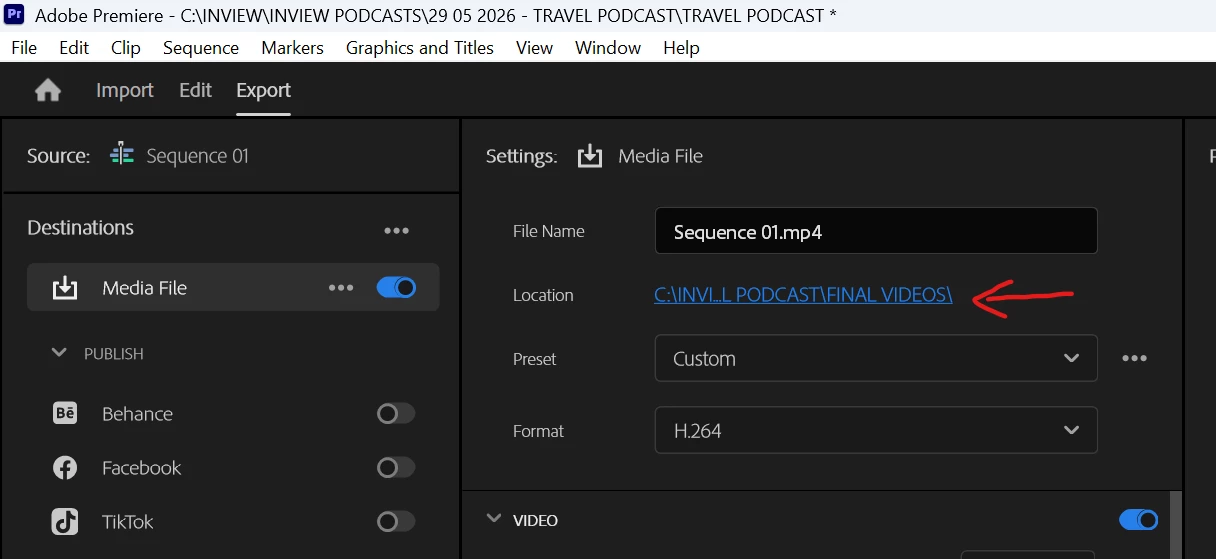
When i click on the export panel and click on the ‘location’ link, premiere does not respond (i hear the windows chime) and i cannot escape, click on anything or close. i have to end task premiere. this only happens randomly so not every time.


    1 reply

    KatieToo
    Community Manager
    Community Manager
    June 4, 2026

    Hi ​@BishR 

    Welcome to the Premiere Pro forums! We are glad to see you here. Thanks for including that screenshot. We need a few more details to try to help with the issue. Please see, How do I write a bug report?

    I see from your screenshot that the location your export is going to as “C:”, usually on Windows that’s your main PC drive, so confirming if that’s the case here? It appears that this happens when you export directly from Premiere, and I wonder if anything changes if you send it to Media Encoder. Does it experience the same location hang up there?

    Sorry for the frustration and hope we can help soon!

    Appreciate your post,
    Katie

    BishRAuthor
    Participant
    June 4, 2026

    Hi Katie! Yes C drive is my main drive.


    Sorry ,as I’m not a Premiere expert - could you please advise how to send it to media encoder? Would this be an extra step before exporting my video?
    I have been exporting direct to my C drive for the past few years with no issues. It’s only in the past week that this issue has started.

    For context I have plenty of space left on my C drive (1TB remaining)


    Thanks

    KatieToo
    Community Manager
    Community Manager
    June 4, 2026

    @BishR Thank you for confirming that, appreciate it.

    Of course, I can explain how to send your export to Media Encoder. It’s another way to export from Premiere. You can export either directly inside Premiere like you’re used to doing, or through Media Encoder. Two paths, both for exporting. Media Encoder also lets you do batch exporting of multiple videos, also.

    And if you can fill out the details from earlier on this, it would provide us more specifics on your system and version of Premiere, etc. in assisting you with How do I write a bug report?

    If you’d like to go ahead and test exporting in Media Encoder, here’s how.

    First, you want to check if you have it installed, just like you did to install Premiere from the Adobe Creative Cloud Desktop app. Normally when you download Premiere on Creative Cloud, it prompts you to download Media Encoder, so you may have it even if you prefer directly exporting. 

    After you install or confirm you have it installed, select the sequence or clip you want to export in the Timeline or Project panel. 

    You can export to Media Encoder in the following ways:

    • To send a clip or sequence to Media Encoder from Export mode, select the Send to Media Encoder button.
    • To send a clip or sequence directly to Media Encoder choose File > Export > Send to Adobe Media Encoder.


    I’ll also pass you along to this Adobe HelpX article with visuals and more about sending exports to Media Encoder that you might find useful.

    Happy to help,
    Katie