
Inspiring
September 25, 2011
Open for Voting

P: Allow use of Drive Letters A: and B:

  • September 25, 2011
  • 72 replies
  • 4752 views

In the import dialogue in Lightroom 3 on Windows the drive letters A: and B: does not show up. I have A: assigned to an HDD and B: assigned to an SSD where I like to save my DNG files. (It was a VERY long time ago since those drive letters were reserved for floppy drives).
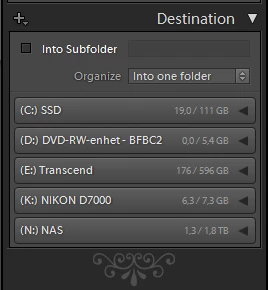


My suggestion is to make all drive letters assigned to an attached storage device visible as a destination in the import dialogue.

72 replies

Known Participant
July 30, 2021

You can import to any drive, including A: or B: by using the right-hand area of the top Import panel's "Select Destination" arrow and selecting "Other Destination". Then input the drive you want to import to, including, probably, the destination folder. You have to do the latter here because there is no way to select a destination folder using this procedure. So make or name that folder in your operating system, and select it when you are setting up the Destination drive as above.

I Imported from my camera card and from my newly named A: drive to my B: drive.

After you do this keep a lookout for your destination drive to show up on these panels. My B: drive appeared in the Source column and then disappeared. So it's still flaky, but I've been able to use Import normally with Raw, JPG and DNG imports this way. Seems neater in results, and quicker than setting up a mount point.

johnrellis
Legend
July 29, 2021
johnrellis
Legend
July 29, 2021

Windows has allowed drive letters A and B to be assigned to arbitrary disks since at least Windows XP.  LR Classic can easily import from A & B -- see my previous post. It's just a silly bug that LR Classic doesn't list A & B in the Import window's Source column.

The ill-fated redesign of the Import window in LR 6.2.1 fixed this bug, but when Adobe backed out of the fiasco in LR 6.3, the bug came back :-<

In LR Desktop (Cloud), you can easily do Add Photos for pics residing on A and B.

JP Hess
Inspiring
July 28, 2021

I don't believe this is a limitation imposed by Adobe, but rather a limitation imposed by the Windows operating system. Whether or not it can be overridden with the  "assign" command is something you might consider exploring.

Inspiring
July 28, 2021

I have a 'Left of centre field' HDD set up.
Adobe Lightroom doesn't recognize (A:), I'll also assume (B:), for import. Could this be adjusted since we are no longer booting from 3.5" floppy disks?

Inspiring
December 17, 2017
UPDATE:  It's 2017, and this still hasn't been fixed.  (Adobe Photoshop Lightroom CC, 2015.12)

 I just added a couple of massive (by today's standards) 8TB drives and assigned them A:\ and B:\ for all my glorious photo-storing and editing needs.  Alas, Lightroom is still broken as far as this goes.

NOBODY USES FLOPPY DRIVES ANY MORE.

FEW PEOPLE EVEN USE CDS OR DVDS ANY MORE.

UPDATE THE DRIVE LIST ON IMPORT FUNCTIONALITY!
Inspiring
August 5, 2017
Thank you!  This was very helpful! I store all my images on a G-Technology RAID system with the Drive Letter A (First one suggested when I installed it).  The A Drive and all images show up in my library, but I could not import FROM or TO the A Drive. The explanation above did work for me.  I don't like it but at least it works.
Lightroom needs to be able to import FROM and TO any drive elther that the user selects!!!   Please fix this Adobe!
johnrellis
Legend
July 26, 2017
It's been possible to assign A and B to any drive since at least Windows XP.  Nothing in the Windows API prevents LR from determining if there's a drive assigned to A and B.
Rob_Cullen
Community Expert
Community Expert
July 26, 2017
It is possible that Adobe will never change this while Microsoft continue to 'Hard-wire' the A & B drives as 'protected' drives in the Windows operating system.
Regards. My System: Windows-11, Lightroom-Classic 15.0, Photoshop 27.0, ACR 18.0, Lightroom 9.0, Lr-iOS 10.4.0, Bridge 16.0 .