


Inspiring
September 25, 2011
Open for Voting

P: Allow use of Drive Letters A: and B:

  • September 25, 2011
  • 72 replies
  • 4752 views

In the import dialogue in Lightroom 3 on Windows the drive letters A: and B: does not show up. I have A: assigned to an HDD and B: assigned to an SSD where I like to save my DNG files. (It was a VERY long time ago since those drive letters were reserved for floppy drives).
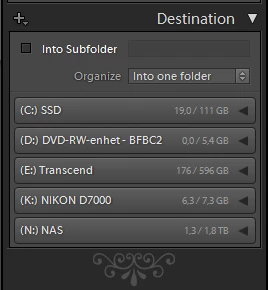


My suggestion is to make all drive letters assigned to an attached storage device visible as a destination in the import dialogue.

72 replies

ssprengel
Inspiring
December 19, 2012
The hidden driveletter$ shares are built-in. No need to create them, but obviously mount-points can also be used.
johnrellis
Legend
December 19, 2012
johnrellis
Legend
December 19, 2012
Agreed. I suspect the original LR developer just wasn't aware of this.
johnrellis
Legend
December 19, 2012
See my reply at the beginning of this thread for a workaround that doesn't require creating shares.
Inspiring
December 19, 2012
At least on windows os, it is possible to query "hard disks", and then to decide whether to list the associated drive ("A" and "B", too).
Floppy drives won't be touched.
i see no reason, not to list "A" and "B"
and support the suggestion, to display them in
SOURCE and DESTINATION.
ssprengel
Inspiring
December 19, 2012
If your answer is only "Why?" then an explanation could be that A FEW PEOPLE still use LR on a system with floppy drives, who's letters were traditionally assigned to A: and B:. In the course of LR's operation I suspect that it enumerates the drives on the system reasonably frequently and if A: and B: were part of that list, then someone with a floppy on their system would have their floppy drives spin on and spin down every so often and it would become intolerable. Adobe not showing A: and B: is the lesser of two evils, although if they had a setting to show or hide A: and B: that would probably remove the annoyance for the few people who would be affected.

A way to get around this and access your B: drive might be to use a UNC path that refers to the hidden share for each drive letter on your location machine, subject to your having sharing turned on and such. In other words try something like this to access your photos on the B: drive:
\\localcomputername\b$\whateverrootfolder\
You can also use the same notation to Update Folder Location or Locate Missing Folder if LR thinks the photos are on B:\whatever currently.
Inspiring
December 18, 2012
My backup hard disk is mapped to drive letter "B:"

This doesn't show in the sources pane on the import dialog.

Though it is a hard disk.


Why?

Inspiring
November 2, 2012
I tried changing the drive letter from B: to one further down in the alphabet rather than the mount point approach. Located my catalog on the new drive letter but apparently all the pics in the catalog that were on B: aren't found (no surprise) and to re-import in order to re-associate the catalog entries to the new drive letter wasn't worth the effort. I had no idea that my W7 64 would have to deal with something from the 1980s, i.e. a B: restriction. Adobe: let us decide where we put the content! I changed it back to B:
Participating Frequently
August 23, 2012
I just ran into this. I'm running out of drive letters!!!
Inspiring
June 14, 2012
I use B: for Backups - Duh!

Why on earth would Adobe do this? What If I had an LS-120 drive (antique ☺) on drive A: or B:?

Lightroom also sucks at network attached storage.

I hope whoever is in charge of the storage interface for adobe gets out of middle school soon.