



Christian.D.Hunt
Participant
May 30, 2026
Open for Voting

De-AI Adobe Suite.

  • May 30, 2026
  • 21 replies
  • 513 views

Forced AI is generating a resurgence of open source tools. Adding an “Non-AI” or “AI Free” option to installations and apps would be highly advisable. 

Furthermore, a lot of individuals are already running with limited hardware and resources, and these AI features are burning up computer resources rendering simple tasks like cropping a jpeg almost impossible. 

For the longest time the only thing preventing me, as well as a lot of other users, from switching to a Linux OS has been the power of the Adobe tools. However, as Adobe keeps up with this forced usage and installation of AI they will start to lose more users to programs like Davinci and Darkroom. 
    Pinned Reply By Srishti Bali

    Hi ​@timc34852236 


    Thank you for sharing your feedback. We appreciate you taking the time to share your thoughts, and I've merged your comment into an existing conversation on this topic so it can be reviewed alongside similar feedback.

    That said, Photoshop doesn't currently have a global "AI Off" or "AI-Free" setting.

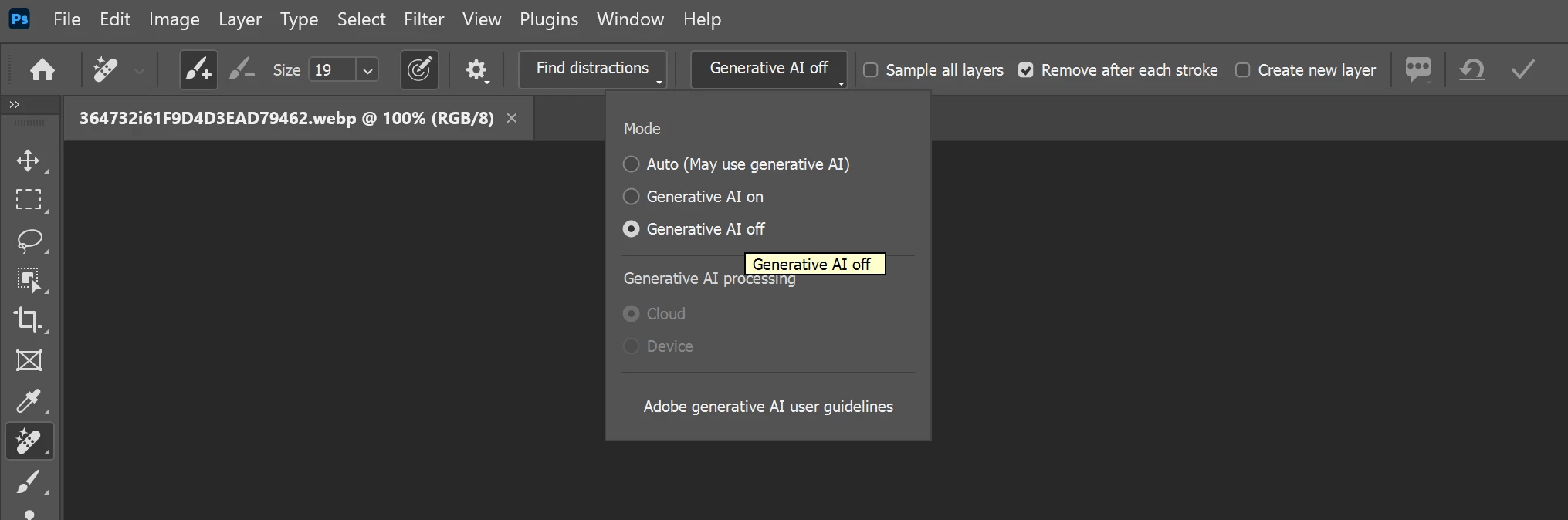
    However, for certain tools that support both AI-assisted and traditional workflows, you can choose not to use Generative AI. For example, with the Remove Tool:

    1. Select the Remove Tool.
    2. In the Options bar at the top of the workspace, locate the Mode or Generative AI setting.
    3. Set it to Generative AI Off to use the non-generative removal method instead.


    Please note that this setting is tool-specific, not application-wide. Features such as Generative Fill, Generative Expand, and Generate Image are AI-based features, but they are optional and can simply be left unused if you prefer a non-AI workflow.

    21 replies

    D Fosse
    Community Expert
    Community Expert
    May 31, 2026

    Avoiding generative AI in Photoshop is easy. For any tool that can optionally use AI, there is a switch in the options bar to disable it. For the obligate AI tools, just don’t use them. Generative AI is in any case sent to Adobe’s servers and the result returned to your machine. It doesn’t require computer resources at all beyond an internet connection.


    Cropping does not use AI in any form. That’s apparently a different problem - what it sounds like, actually, is corrupt preferences. Corrupt preferences tend to look like bugs and be mistaken for that.


    Advanced functionality is mainly executed by the GPU nowadays, and that’s where the main development has been in later years. That’s also where you’ll first see latent problems surfacing in an update with new Photoshop code. An older, underpowered or misconfigured GPU will quickly struggle and give various diffuse problems. For instance, laptops with dual graphics is a common issue.


    If you post the full Help > System Info from Photoshop we might be able to say more.


    Christian.D.Hunt
    Participant
    May 31, 2026

    Avoiding generative AI in Photoshop is easy. For any tool that can optionally use AI, there is a switch in the options bar to disable it. For the obligate AI tools, just don’t use them. Generative AI is in any case sent to Adobe’s servers and the result returned to your machine. It doesn’t require computer resources at all beyond an internet connection.


    Cropping does not use AI in any form. That’s apparently a different problem - what it sounds like, actually, is corrupt preferences. Corrupt preferences tend to look like bugs and be mistaken for that.


    Advanced functionality is mainly executed by the GPU nowadays, and that’s where the main development has been in later years. That’s also where you’ll first see latent problems surfacing in an update with new Photoshop code. An older, underpowered or misconfigured GPU will quickly struggle and give various diffuse problems. For instance, laptops with dual graphics is a common issue.


    If you post the full Help > System Info from Photoshop we might be able to say more.


    First, I wasn’t asking for an AI simp to keep promoting the slop. This is the page to post Adobe ideas. All the “Experts” constantly pushing people to “just don’t use it” ignores the whole point of why people are asking.

    Second, I work in IT, I have been using Adobe for 17+ years, I know how it is supposed to run, however watching event viewer and running tasks I watch Adobe attempt to run it’s AI garbage any time the system is run and anytime my user tries to do any simple tasks. 

    I will not be moving this to a “I need help section”, because I am not “looking for help”. I am proposing a de-slopped version of Adobe so they stop losing users. 

    - Chris
    D Fosse
    Community Expert
    Community Expert
    May 31, 2026

    I’m actually no big fan of AI myself, don’t touch it, and believe it does far more harm than good. We’re on the same page there. If AI can cure cancer that’s fantastic, but I honestly don’t think it should be let anywhere near images and creative work. If you look around the forum main page of today, you’ll see someone else proposing a master switch to disable all AI - which I expressed support for and have voted for.


    But my point was that if you have performance issues, this isn’t the reason. 


    The way you’re describing it, “burning up computer resources rendering simple tasks like cropping a jpeg almost impossible“ - that’s not AI in any shape or form. There’s no AI in cropping a jpeg. That’s something else, and I tried to point to some possible root causes.