


freshsisyphus
Participant
December 23, 2014
Open for Voting

P: Support more accurate 16 bit/channel display even when zoomed out below 66.67% magnification

  • December 23, 2014
  • 54 replies
  • 1815 views

It is rather abysmal that photoshop still has this critical bug, given that is has been reported for years now. It is a software for professional imaging yet you cannot work on an image at print resolution and have accurate color displayed on the screen.
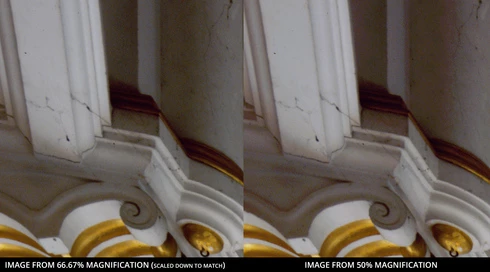


Steps to reproduce:
-For full effect, open an image with dark shadows you would like to lighten
-Again, to dramatize, we are going to add two curve adjusment layers
--Make one curve to set your black and white points and your gray balance
--Make another curve to open up the dark shadows
-You should see that at 66.67 magnification you will get the true colors while at 50% below colors suddenly change, meaning you cannot look at the image as a whole and make color adjustments. This applies to any image that is more than 4/3 your screens total resolution, which, for a 1080p monitor that is beyond the average, would be 3MP. Yes, that is three megapixels as in DSLRs of 14 years ago.

Perhaps you could have an option to 'render proxy at this magnification' which would render a 16bit cache level at a specified magnification at which curves et al could be calculated from there on.

Shame on you for not having addressed this despite pleas from multiple professional fields for so long.

54 replies

Known Participant
January 3, 2019
Thanks for your reply, Mr Tranberry.
Legend
January 3, 2019
I have a couple of images that look TOTALLY different at 50% and 100%. I mean, major content changes. I was tearing my hair out over it last night, in fact. I'll post samples on this thread when I get home tonight.

Add my vote for this being a problem, as I always work in 16-bit.
Legend
January 3, 2019
OK. Gotcha. Correct. As Chris pointed out earlier, the current implementation, where pyramid levels above the base (that is, the 50%, 25%, levels) of a 16 bit document are in 8 bit. The thinking at the time was that zoomed out representations are previews (inaccurate for a number of reasons including interpolation, etc) and  speed/performance was more important than accuracy. It might be something we can revisit as compute power increases and we refactor and improve our drawing code.
Known Participant
January 3, 2019
Sorry, I should clarify that the banding only appears as a result of adjustment layers.

In my example, I used two simple curves layers as shown below. This is perhaps an extreme example in order to make the banding very obvious, but I've noticed banding in my regular projects and found it totally confusing.


I agree with the poster above who noted that most people who work in 16-bit mode would settle for a performance reduction in order to see the image in full quality. If nothing else, I think there should be an option in the prefs to enable "true 16-bit view mode" or something.

To me, the point of using 16-bit mode is that it lets you "go crazy" with adjustment layers without having to worry about banding. Though I will add that the problem of banding wouldn't exist in 8-bit mode if Photoshop didn't round down its calculations to 8-bit for every layer. It would be nice to have that option too: "16-bit calculations in 8-bit mode, to reduce banding"
Legend
January 2, 2019
I'm not seeing the kind of banding you're seeing. Here's a 16-bit image shown at 50% and I'm not seeing the kind of banding you're seeing:


I'd suspect there's something else wrong like a bad color profile or a bad graphics driver. It may help if we could see your Photoshop System Info. Launch Photoshop, and select Help > System Info... and copy/paste the text in a reply.
Known Participant
January 1, 2019
I recently began using 16-bit mode and just couldn't work out why the quality of my images was so poor.

After a lot of confusion and testing, I finally figured out that Photoshop doesn't display the image properly UNLESS you zoom in close on a photo!

I find it simply INCREDIBLE that this is not considered a bug! How can photographers work in 16-bit mode when we can't even see what we're doing? THIS NEEDS FIXING IMMEDIATELY!

Please see my screen grab of the problem:


Charles Lanteigne
Participating Frequently
March 29, 2018
Are there workarounds for this?! I'd be willing to take a hit in performance or practicality, because the alternative is that I can't rely on what I'm seeing.

I am dismayed that this would be considered merely a "feature request", when in fact it's the most basic core feature: showing me my image properly! At the very least this should be clearly indicated so the user knows he is looking at an approximation.
Inspiring
November 29, 2017
This is also an issue with some of the tools, such as the healing brush, you'll get artifacting if you're working on a smooth gradient. Goes away when you zoom in past 66.7%.
Participant
September 19, 2015


There is a problem with rendering 16-bit images on different zoom levels. See the picture for example:


Can someone confirm the problem?

Steps to reproduce:

  1. Create an empty RGB image in 16-bit color mode.
  2. Add any gradient layer
  3. Add a curve layer. Set the right point to Input 255, Output 4
  4. Add another curve layer. Set the right point to Input 4, Output 255
  5. Change zoom level - zoom in. The gradient should look fine.
  6. Now zoom out - at some point the 8-bit banding wil appear.


Configuration:

Adobe Photoshop Version: 2015.0.1 20150722.r.168 2015/07/22:23:59:59 CL 1032107 x64
Operating System: Windows 7 64-bit
Version: 7 SP1System architecture: Intel CPU Family:6, Model:10, Stepping:9 with MMX, SSE Integer, SSE FP, SSE2, SSE3, SSE4.1, SSE4.2, AVX, HyperThreading
OpenGL Drawing: Enabled.
OpenGL Allow Old GPUs: Not Detected.
OpenGL Drawing Mode: Advanced
OpenGL Allow Normal Mode: True.
OpenGL Allow Advanced Mode: True.
NumGLGPUs=1
NumCLGPUs=1
glgpu[0].GLVersion="3.0"
glgpu[0].GLMemoryMB=2304
glgpu[0].GLName="Intel(R) HD Graphics 4000"
glgpu[0].GLVendor="Intel"
glgpu[0].GLVendorID=32902
glgpu[0].GLDriverVersion="10.18.10.3958"
glgpu[0].GLRectTextureSize=16384
glgpu[0].GLRenderer="Intel(R) HD Graphics 4000"
glgpu[0].GLRendererID=354
glgpu[0].HasGLNPOTSupport=1
glgpu[0].GLDriver="igdumdim64.dll,igd10iumd64.dll,igd10iumd64.dll,igdumdim32,igd10iumd32,igd10iumd32"
glgpu[0].GLDriverDate="20140930000000.000000-000"
glgpu[0].CanCompileProgramGLSL=1
glgpu[0].GLFrameBufferOK=1
glgpu[0].glGetString[GL_SHADING_LANGUAGE_VERSION]="1.30 - Build 10.18.10.3958"
glgpu[0].glGetProgramivARB[GL_FRAGMENT_PROGRAM_ARB][GL_MAX_PROGRAM_INSTRUCTIONS_ARB]=[1447]
glgpu[0].glGetIntegerv[GL_MAX_TEXTURE_UNITS]=[8]
glgpu[0].glGetIntegerv[GL_MAX_COMBINED_TEXTURE_IMAGE_UNITS]=[96]
glgpu[0].glGetIntegerv[GL_MAX_VERTEX_TEXTURE_IMAGE_UNITS]=[16]
glgpu[0].glGetIntegerv[GL_MAX_TEXTURE_IMAGE_UNITS]=[16]
glgpu[0].glGetIntegerv[GL_MAX_DRAW_BUFFERS]=[8]
glgpu[0].glGetIntegerv[GL_MAX_VERTEX_UNIFORM_COMPONENTS]=[4096]
glgpu[0].glGetIntegerv[GL_MAX_FRAGMENT_UNIFORM_COMPONENTS]=[4096]
glgpu[0].glGetIntegerv[GL_MAX_VARYING_FLOATS]=[64]
glgpu[0].glGetIntegerv[GL_MAX_VERTEX_ATTRIBS]=[16]
glgpu[0].extension[AIF::OGL::GL_ARB_VERTEX_PROGRAM]=1
glgpu[0].extension[AIF::OGL::GL_ARB_FRAGMENT_PROGRAM]=1
glgpu[0].extension[AIF::OGL::GL_ARB_VERTEX_SHADER]=1
glgpu[0].extension[AIF::OGL::GL_ARB_FRAGMENT_SHADER]=1
glgpu[0].extension[AIF::OGL::GL_EXT_FRAMEBUFFER_OBJECT]=1
glgpu[0].extension[AIF::OGL::GL_ARB_TEXTURE_RECTANGLE]=1
glgpu[0].extension[AIF::OGL::GL_ARB_TEXTURE_FLOAT]=1
glgpu[0].extension[AIF::OGL::GL_ARB_OCCLUSION_QUERY]=1
glgpu[0].extension[AIF::OGL::GL_ARB_VERTEX_BUFFER_OBJECT]=1
glgpu[0].extension[AIF::OGL::GL_ARB_SHADER_TEXTURE_LOD]=0
clgpu[0].CLPlatformVersion="1.2 "
clgpu[0].CLDeviceVersion="1.2 "
clgpu[0].CLMemoryMB=1195
clgpu[0].CLName="Intel(R) HD Graphics 4000"
clgpu[0].CLVendor="Intel(R) Corporation"
clgpu[0].CLVendorID=32902
clgpu[0].CLDriverVersion="10.18.10.3958"
clgpu[0].CUDASupported=0
clgpu[0].CLBandwidth=1.80273e+010
clgpu[0].CLCompute=126.832
Participant
September 19, 2015


why aren't 16-bit previews possible? i use layer adjustments and i end up seeing a lot of color banding mainly in the sky that is gone when i flatten the file. the problem is it sometimes appears that there is a color cast when there really isn't. it makes color correcting very tedious. i would think that PS could display what the file will look like when flattened, but keep the layers, no?