


Known Participant
March 14, 2013
Open for Voting

Photoshop: Disable "Could not use the move tool because no layers are selected." Message

  • March 14, 2013
  • 43 replies
  • 28039 views
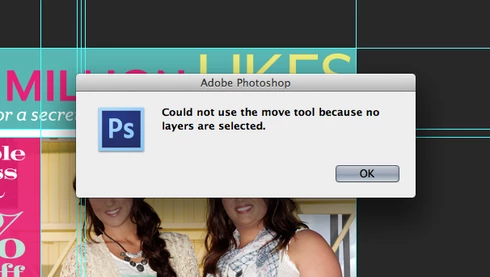
Get rid of the "Could not use the move tool because no layers are selected." message that pops up when you click anywhere with no layer selected. Or, at the very least, make an option to disable this dialog. In an effort to improve the Adobe cross-platform experience, please disable this pop-up message. I actively use Illustrator and Photoshop together literally every day and in Illustrator, you click off of an object to deselect it. If I do the same thing in Photoshop, I get the redundant dialog. I don't need Photoshop to deselect layers when clicking elsewhere on the canvas, but I do need it to stop showing a message every time I click, either on purpose or on accident, without a layer selected. Seriously, if I click and nothing happens, I know it is because I don't have a layer selected - I don't need a stupid window to pop up every single time to tell me no layer is selected.

Please... make it stop. Thank you.
43 replies

Participant
November 6, 2025

we just want the do not show option!!!

Jools808080
Known Participant
April 10, 2025

@jimuelle_lorenz_1142this solution would suggest that there is a setting that allows you switch off this warning. I went through the settings in the latest PS version and couldn't find such an option. As such, I suspect resetting your settings simply set your Selection tool options back to the default "Auto-Select: Layer On".

Participant
April 8, 2025

Hello. I found a solution for this. I've had this same exact issue whenever I click ANYWHERE on my workspace, and it just pops up for no special reason at all, it just does. 


You will have to delete the SETTING FILES of your photoshop. It's just like resetting your workspace. 

How to do this is 


once you click on the app to open it/once you run photoshop, immediately

press and hold Alt+Control+Shift (Windows) or Option+Command+Shift (Mac OS)


a pop up window will say "Delete all Setting Files?" or something like that. Just click Yes.

Once you've done it, the error box should be gone. Let me know if this helped.

Participant
March 28, 2025

I'm back here in 2025 and this pop-up still happens. Adobe, Adobe....

Maybe eventually their AI will wise up and mention its a terrible feature, too.

Participant
February 28, 2024

I've been using photoshop regularly for almost 15 years and I've just now started having this error pop up and its making me crazy. I don't know how you all have lived with it this whole time and I feel lucky that I haven't. I'm just commenting here in hopes that I will be notified if this issue is ever/finally resolved. I spend at least 15 minutes of my day just canceling this box. Its a ridiculous waste of time.


Jools808080
Known Participant
February 28, 2024

I can't believe that after 11 years of using PS, I still have to put up with this sh*t around 100 times a day. Thanks for nothing, Adobe. Adding insult to injury is that you can't even close the pop-up with Esc. This is such a horrible UX design blunder. How has this only 15 upvotes in 11 years... at least (and I can't believe I am saying this) it is now possible to close the dialog with Enter. This used to not be possible... so I guess little tings, eh?

Inspiring
May 23, 2021

OMG make this go away, this dialog is making me sick. Totally useless and disrupting my workflow

paulmzAuthor
Known Participant
October 29, 2020

*HaithamDowia I don't see how deleting all of your user settings makes a persistent notification from showing. Sorry - this does not appear to be a solution.

Inspiring
October 29, 2020
do like what in this pic
Inspiring
June 17, 2020
wow.. you was help me
Thanks bro!