
AndrewTheGreat
Known Participant
February 1, 2024
Open for Voting

Can Adobe FIX Zoom level in the Program monitor, please?

  • February 1, 2024
  • 13 replies
  • 1251 views

I'm using a FullHD display and working with with 4k footage. When I need to animate a mask a part of which goes out of the screen, the only way of doing so is setting a smaller zoom level.
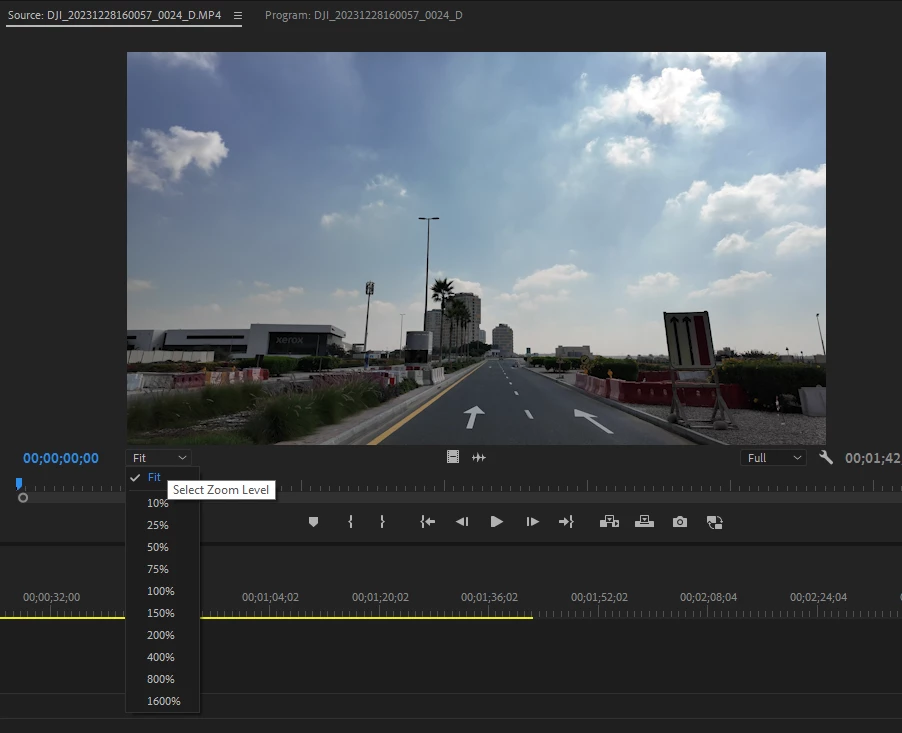
The problem is that 75-50-25% IS WAY bigger than the program monitor screen is, even the 25% makes it look like that (cropped):
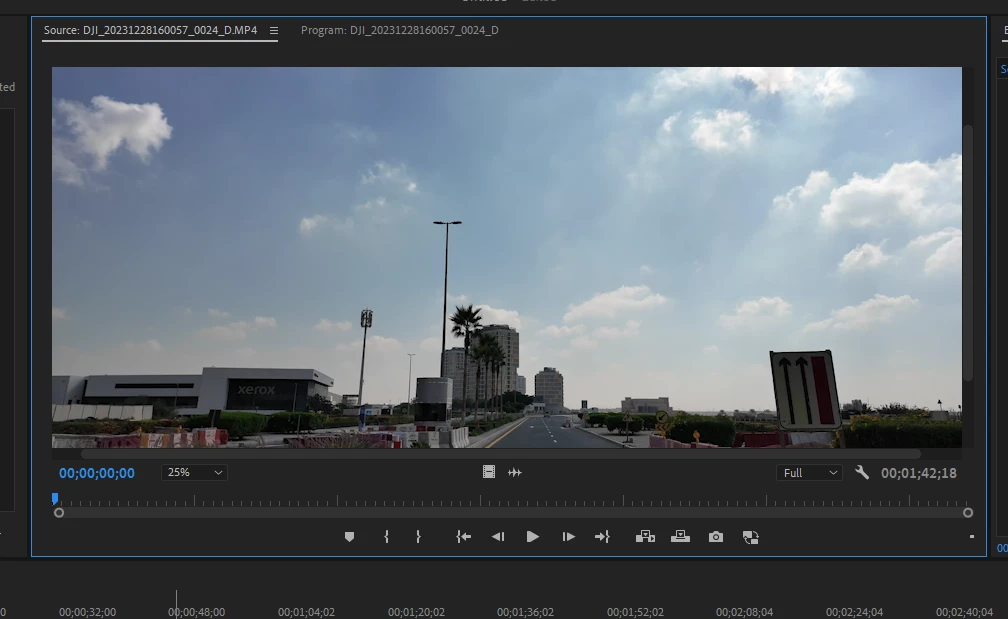
So why is 100% not actual 100% of the screen but rather a multiply by two? Isn't it logical to make FIT a 100% zoom level and the rest of the numbers - higher or lower from that number? And to say the least, why cannot Adobe make it changeable by just typing the necessary number should it be 1123or 19 or change via the mouse scroll like it is in Ae...

So the only ways for me is either go fullscreen every time which is completely not convenient or go by 10% like that:
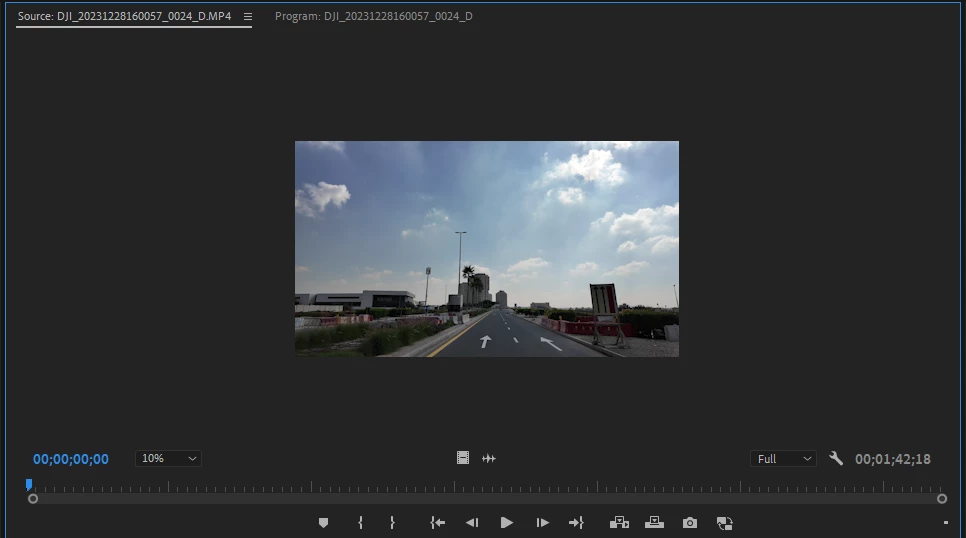
Have you tried masking at 10%, Adobe? This is so exciting!


13 replies

Legend
February 4, 2024

It's true that you can't move individual points if they are outside the panel, but you can move the whole mask. And if you maximize the panel, you should have lots of space on the sides if working on an ultrawide monitor. See image. I do agree that it could be simpler, like in After Effects. I'm just offering a pretty good workaround for those who may not know about it.


AndrewTheGreat
Known Participant
February 4, 2024

@Jarle Leirpoll 

You cannot move it if it's outside the box

Stop trying to edit and EDIT!
Ann Bens
Community Expert
Community Expert
February 3, 2024

You can make nodes outside the frame without dragging.

Legend
February 3, 2024

Even though it's not possibloe to create a mask point outside the frame, you can create it inside the frame and then drag it out of the frame. I use this method all the time.

AndrewTheGreat
Known Participant
February 3, 2024

@Ann Bens This is not convenient and quick, to constantly go full screen since you don't have an access to different properties or FX you need to change realtime.

Stop trying to edit and EDIT!
Remote Index
February 2, 2024

... And one additional note.


As ever, Adobe documentation on this displays none of the detail that mattchristensen has outlined.


"In the Program Monitor, percentage values refer to the image size specified by the sequence settings."


Note: that doesn't really explain much, does it?


Why not just say "pixel for pixel, with no scaling, meaning one pixel of the sequence image is displayed as one pixel on the hardware display"?


@mattchristensen 

@Kevin-Monahan

(documentation issues)


R Neil Haugen
Legend
February 2, 2024

As a user, I do not find logical making anything about basing a scaling for a monitor that changes sizes on "100%", being fit to any particular size you've set the program monitor to.


I've been used to 100% always meaning pixel to pixel. In several apps.


The scaling percentage used in the program monitor is entirely sensible to me ... it's a percentage of whatever size the program monitor is at at that moment.


I run 9 custom workspaces, and the program monitor varies between barely visible to 1/4 of the screen.


I would love having more settings available to choose when wanting a smaller image to use as you are doing though.

Everyone's mileage always varies ...
Remote Index
February 2, 2024

mattchristensen, @mattchristensen 


It seems you've missed the point of the original post.


100% means "show me every pixel, with no scaling". Each pixel of the frame maps to a pixel on your display. This is very useful if you need to check for dead pixels or other small artifacts that may disappear when the frame is scaled down [...] Given that 100% has a clear and useful meaning, I don't think we'll be changing that.


A few observations:


1. 100% means "show me every pixel, with no scaling".

Why doesn't it mean "I can see 100% of the frame"? (This seems to me an obvious, intuitive interpretation that users will make).

A clearer communication of your sense is "pixel for pixel", where 100% leaves room for interpretation (particularly if I have to start interpolating what 25% means etc., ... in the context of a nearby "playback resolution" option for 1/2 and 1/4 etc. (Pick a lexicon!) This is typical Adobe inconsistency which lends itself to user frustration.

For these reasons, I take issue with your statement "that 100% has a clear and useful meaning". It seems you've come to this conclusion without actually talking to or listening to users.


2. This is very useful if you need to check for dead pixels or other small artifacts that may disappear when the frame is scaled down.

Given that the original post was about frustration while masking ... a designer should ask themselves:

- How often do users check for dead pixels / artefacts vs. other functions that this particular element is used for?

- Is there a useful way to address the problem of masking which has been raised?

The original poster asked you: Have you tried masking at 10%? I'll ask an additional question: do you understand the masking problem that has been raised?


3. The post asks "Isn't it logical to make FIT a 100% zoom level and the rest of the numbers - higher or lower from that number?" In other words, the poster is frustrated with the current design choice (which you have explained) and suggesting another design choice (which you have not addressed).


Ann Bens
Community Expert
Community Expert
February 2, 2024

If you set the PM full screen you can set the zoom level way higher without loosing the frame.

Kevin J. Monahan Jr.
Community Manager
Community Manager
February 2, 2024

Hi @AndrewTheGreat,

I'll move this to the Ideas forum. I hope that's OK.


Thanks,
Kevin

Kevin Monahan - Sr. Community and Engagement Strategist – Adobe Pro Video and Audio