
AndrewTheGreat
Known Participant
February 1, 2024
Open for Voting

Can Adobe FIX Zoom level in the Program monitor, please?

  • February 1, 2024
  • 13 replies
  • 1251 views

I'm using a FullHD display and working with with 4k footage. When I need to animate a mask a part of which goes out of the screen, the only way of doing so is setting a smaller zoom level.
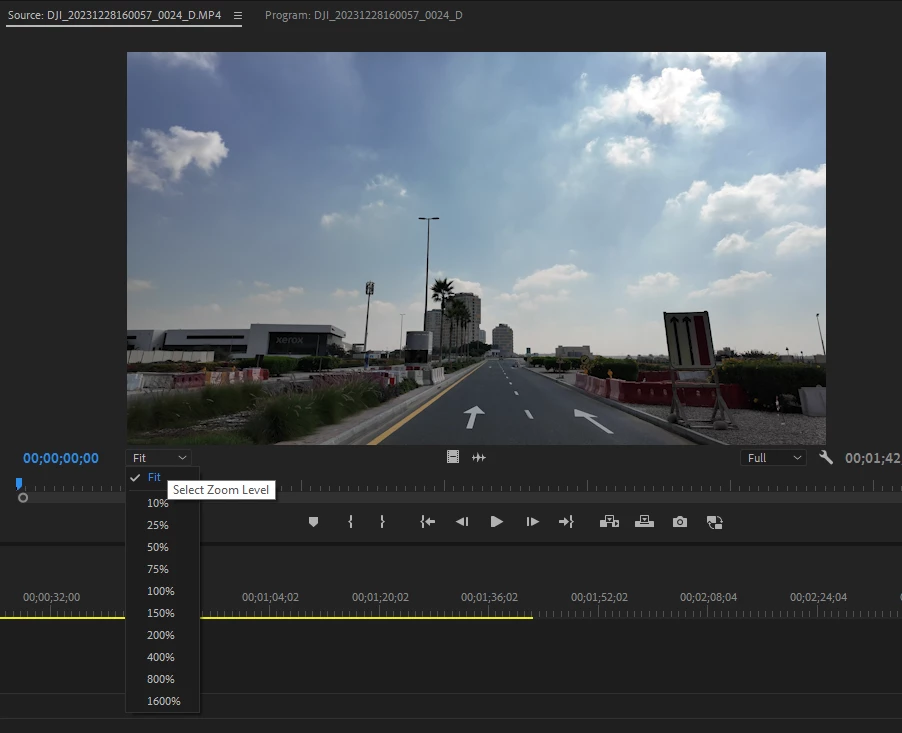
The problem is that 75-50-25% IS WAY bigger than the program monitor screen is, even the 25% makes it look like that (cropped):
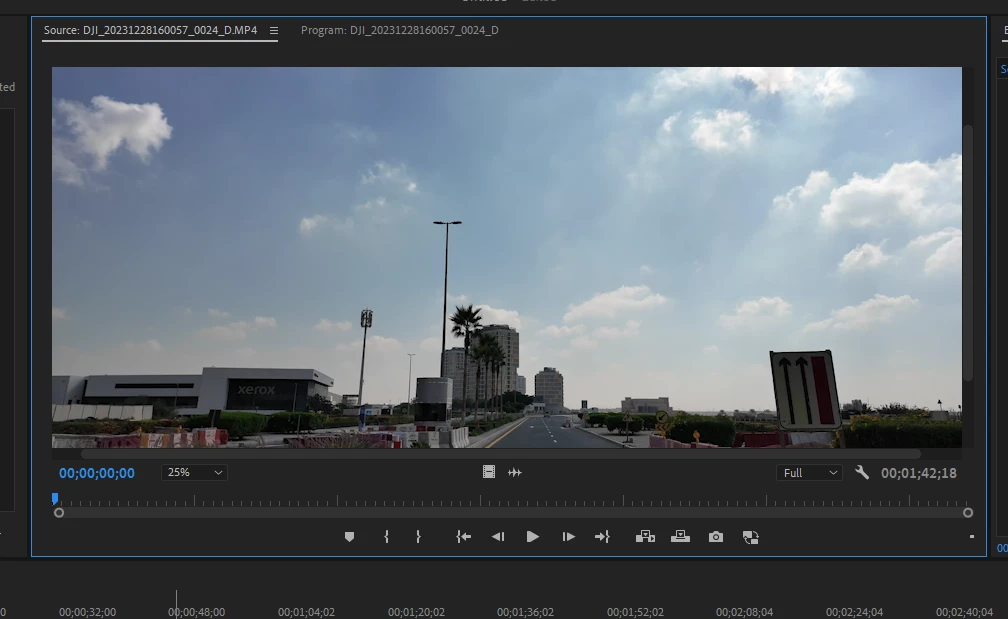
So why is 100% not actual 100% of the screen but rather a multiply by two? Isn't it logical to make FIT a 100% zoom level and the rest of the numbers - higher or lower from that number? And to say the least, why cannot Adobe make it changeable by just typing the necessary number should it be 1123or 19 or change via the mouse scroll like it is in Ae...

So the only ways for me is either go fullscreen every time which is completely not convenient or go by 10% like that:
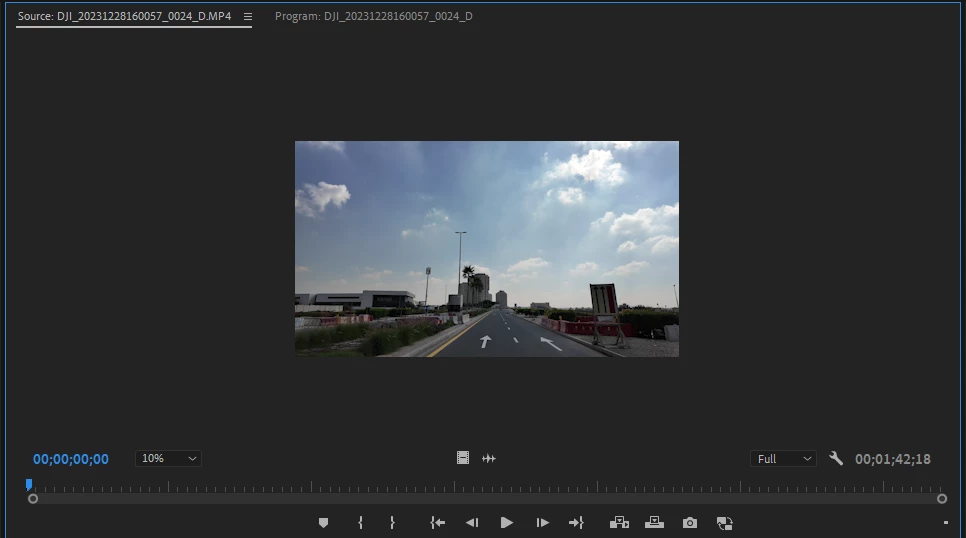
Have you tried masking at 10%, Adobe? This is so exciting!


13 replies

mattchristensen
Legend
February 1, 2024

Sorry for providing an explanation and not a solution. Given that 100% has a clear and useful meaning, I don't think we'll be changing that. But for your situation @AndrewTheGreat would it help to have more zoom options below 50%? Like maybe 38% and 18%?

AndrewTheGreat
Known Participant
February 2, 2024

mattchristensen, hi, yes no explanations needed, but a solution is. I (and all my collegues and friends using Premiere Pro professionally) agree upon the idea that a more accurate zooming should be added in a product Premiere Pro is . Actually the solution I mentioned above - having a 100% zoom as the FIT option - would be the perfect solution but if it cannot be added in Premiere Pro due to the facts mentioned by you then may be - some more options below 50%, like 5% increments. I'd suggest introducing an additional tab in the Preferences menu where a person can choose the 5 default zoom levels available in the Zoom level menu of the Program monitor, so that if I don't use 400-800-1600% (and I never do) I can change them to those I use frequently, thus this menu will not grow in size still retaining all the necessary levels.

Stop trying to edit and EDIT!
mattchristensen
Legend
February 1, 2024

In the Program Monitor, the percentage refers to the percentage of the sequence frame size, not your display. If you are working with a 4K sequence (3840x2160) and an HD display (1920x1080), then putting the view at 100% means the sequence is zoomed larger than your display can even show.


Another way to think of it is that 100% means "show me every pixel, with no scaling". Each pixel of the frame maps to a pixel on your display. This is very useful if you need to check for dead pixels or other small artifacts that may disappear when the frame is scaled down.


This can also be complicated by Windows or macOS's display scaling. Premiere Pro will render using the actual pixels on your screen, not the virtual "points" that are generated by display scaling.

Participant
February 1, 2024

Seconded, similar problem!