


Participant
January 31, 2020
Open for Voting

How to change menu color section in Premiere Pro [windows 10]?

  • January 31, 2020
  • 21 replies
  • 15803 views

I have been trying to figure out how to change the color of the menu background (Please see image)

I have set my Windows 10 to dark theme, and I can't find what option to change it. 

Is it through Windows or is it within Premiere Pro?

Thank you in advance.
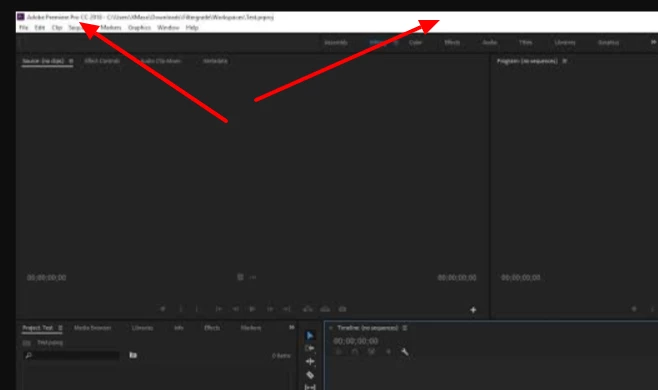
 

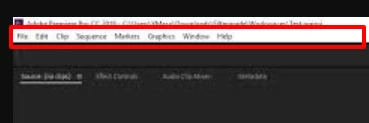
This section in particular:
 

Title edited by Mod

21 replies

Participant
November 16, 2024

I can't believe this hasn't been fixed YET!!! I can't describe in words how annoying that white bar is when everything else is black. This isn't hard to do at all, Adobe. Photoshop, for instance, has had this crucial UI element for years. What are you waiting for? For all of us to cancel our subscriptions and migrate to DaVinci Resolve

michalisc83068561
Participant
October 16, 2024

on 15/10/2024 adobe update premiere to v.25 and proudly talked about the new modern look. I think they missed the spot where the double white title bar is still there since 1991...
 Someone in the team needs to understand a simple thing: Monitors change every year, they get larger, they get higher rez, they get brighter. At the moment, OLED monitors are the peak of tech but they are also sensitive. The very bright bar on top PERMENTANTLY BURNS the monitor. So please LISTEN: turn EVERYTHING DARK. You are destroying your customer's very expensive monitors. Also, have some consistency between your applications. Follow the photoshop example and fix the UIs of all the rest. For crying out loud, do the basics first.

Inspiring
October 1, 2024

After four years later still this is not solved!

Kevin-Monahan
Community Manager
Community Manager
October 1, 2024

See if it's solved in Beta, @macklad - There's a new UI working there. Let us know!


Thanks,
Kevin

Kevin Monahan - Sr. Community & Engagement Strategist – Pro Video and Audio
Inspiring
October 16, 2024

Hey kevin, sadly its still there. 

Participant
May 10, 2024

Win11 to. Ps -- normal, Pr and LrC are white

Lavanther
Participant
February 20, 2024

Hello there,

I was having the same issue too, so this is what I did:

  • open settings
  • Accessibility > Contrast themes

Here you can select "Night sky" and you can also edit it to make it look however you want (I only use it when I use premiere pro so the "Alt + lest shift + print screen" shortcut really helps, it takes like a sec to load) and then in the app you can press "ctrl + backslash" to remove the title bar.


(I really don't know if there is a better way or not but this works for me)

Participant
November 3, 2023

This was better handled in Photoshop. You can even quickly change graphical interface using the keys 'Shift+F1' or "Shift+F2".

Participant
April 30, 2023

Yes, It is annoying, Adobe should be consistent, PS/AI/ID all match the dark menu bar, Only Premier + AE has this problem.

de_vorno
Participant
July 28, 2023

Surely there's a fix for this issue?

Participant
May 23, 2021

So far the closest I can get it is by hitting ctrl and backslash within Premiere to hide the top part, and then auto-hiding the windows taksbar. If anybody finds a fully working solution, please let me know! 

Participant
March 4, 2021

Solution:

  1. Go to Windows 10 Settings
  2. Personalisation > Colours
  3. Pick a colour (I use dark purple)
  4. Scroll to the bottom and check the box titled: Title bars and window borders
  5. Done.


Participant
May 23, 2021

While this does solve the same problem for other software, unfortunately it doesn't fix the problem in Premiere.

R Neil Haugen
Legend
February 4, 2021

That section is actually part of your Windows 'personalization' setup/options.


Neil

Everyone's mileage always varies ...
Participant
May 23, 2021

Usually you would be correct, as this does fix the problem for most software.
Unfortunately it doesn't work with Premiere, the ribbon remains glaringly white even after changing it.

(For anybody curious to test it, hit the Windows key (or click Start) and type "Settings".
Then type "Colours" and click "Choose accent colour." Scroll down and make sure the box that says "Title bars and windows borders" is ticked, and make sure you have selected a dark colour pallete in the "Windows colours" box.)