

New features in Acrobat Reader mobile iOS.
Besides performance and stability enhancements, the updates include the following new features:
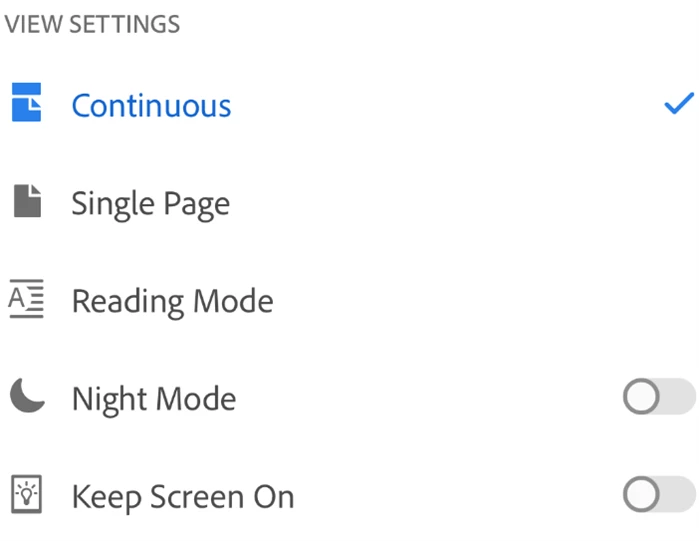
1. There is an addition to Accessibility's Visual features. Apart from Night Mode, Reading in Low light, inverting colors you can now Keep screen ON. [iPhone and iPad only]
Here’s how:
You can keep your screen on to prevent the device from dimming while reading a PDF document. Every time you open a new document, the keep screen on feature is disabled by default. To enable the feature:
- Open a document.
- Tap the view settings icon.
- Enable Keep Screen On.
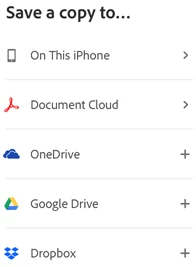
2. Share & review! You can now save a copy of shared PDF documents along with their comments. Here’s how:
[iPhone and iPad only]
Save a copy of shared files along with the review comments, if any. To do so:
- Open a file from the Document Cloud in Viewer.
- Tap

- Tap Save a copy.
- Choose a destination from the given options and tap Save.
3. You can now Insert new pages or Extract pages from a PDF file using Acrobat's organize feature.
Insert pages
- Log in to Document Cloud and open a non-shared PDF.
- Tap
 and then tap
- Tap

- Tap Another file and select a file to insert. Alternative, tap Blank page to insert a blank page.
- Select an insert position and tap Insert
Extract pages
- Log in to Document Cloud and open a non-shared PDF.
- Tap
 and then tap
- Select one or more pages to extract and tap

- Tap Another file and select a file to insert. Alternative, tap Blank page to insert a blank page.
- Select an insert position and tap Insert.
The extracted page/pages are saved to the Document Cloud.
Hope you liked these new addition. Have further suggestions in mind? Join the conversation here. We are listening!
To discover a host of other great features – Go straight to: Want to make simple edits of PDF on iPad/Tablets? We’re here to help! | Work with PDF forms on Acrobat Reader Mobile
& You can do more in Adobe Reader Mobile if you have an Acrobat Pro DC subscription.
File app integration with Adobe Acrobat Reader Mobile App-iOS


 AdChoices