

Save a copy of scans on your device or to other storage locations
Easily save a copy scanned PDF on your device locally or to other storage locations.
Now you have an option in Adobe Scan on Android to save the PDF locally or to other locations like third-party cloud storage. The option appears once you scan the document and save it to the Document Cloud.
The options to save the file to other locations than the Document Cloud are:
Copy to device: It saves a copy of the file on the device locally that you can access anytime.
- In the Adobe Scan application, go to the Home icon on your device to navigate through the scanned documents list.
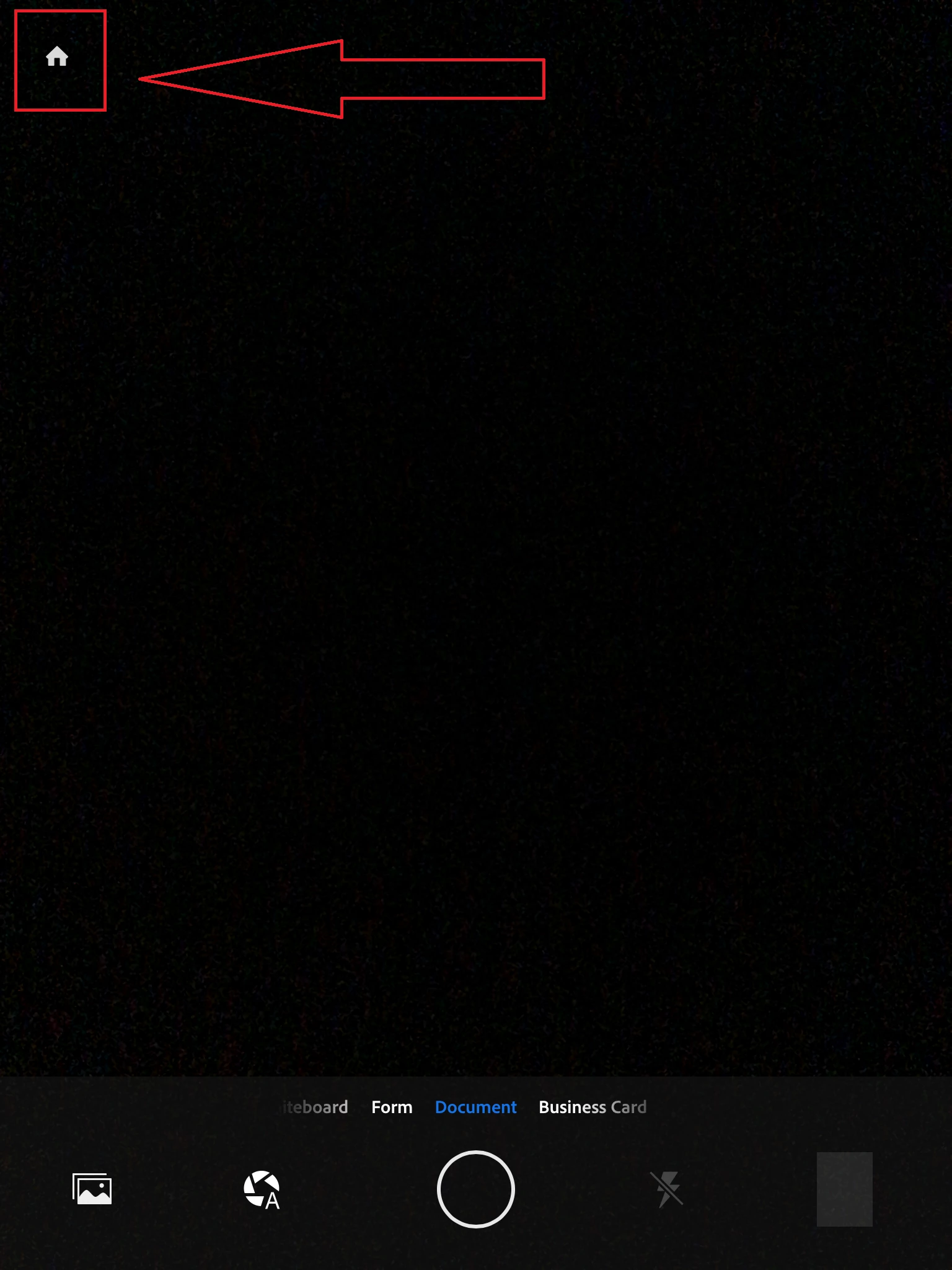
- Open or select the file that you wish to save locally from the list of files in Adobe Scan.
- Click on the three dots for More options provided either at the right-hand side of the file or at the bottom of the screen (when the file is open).
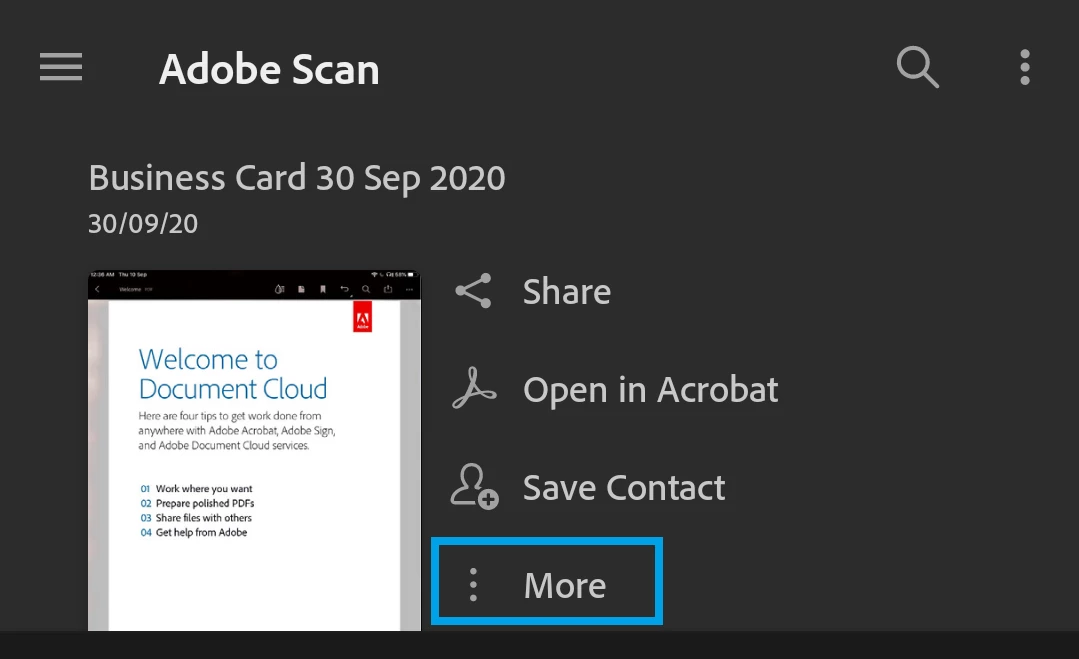
- Tap on the "Copy to device" option.
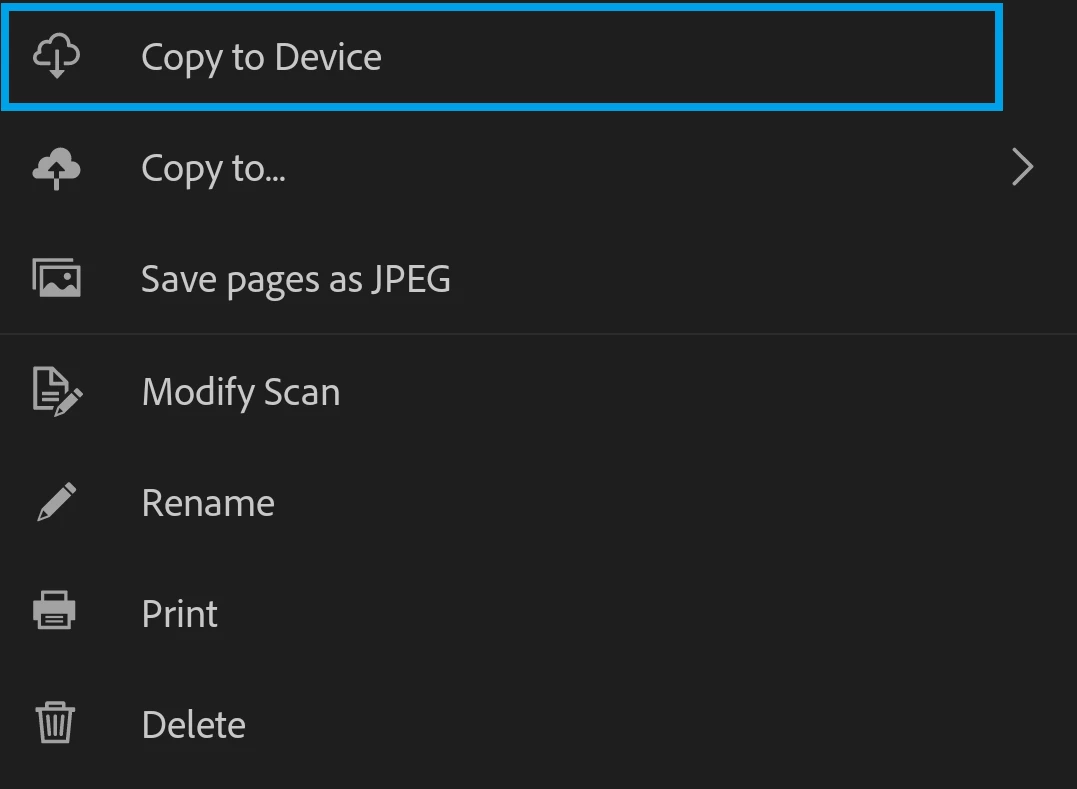
It will save a copy of the file to local storage on your device. You may check the Download folder on your device to access the saved file.
Copy to: It gives you an option to add files on third-party cloud storage. You will only get the options only for the third-party application available/ installed on the device like Google drive, One Drive, or Dropbox.
- Open or select the file that you wish to save on third-party cloud storage in Adobe Scan.
- Click on the three dots for More options provided either at the right-hand side of the file or at the bottom of the screen (when the file is open).
- Tap on the "Copy to…" option.
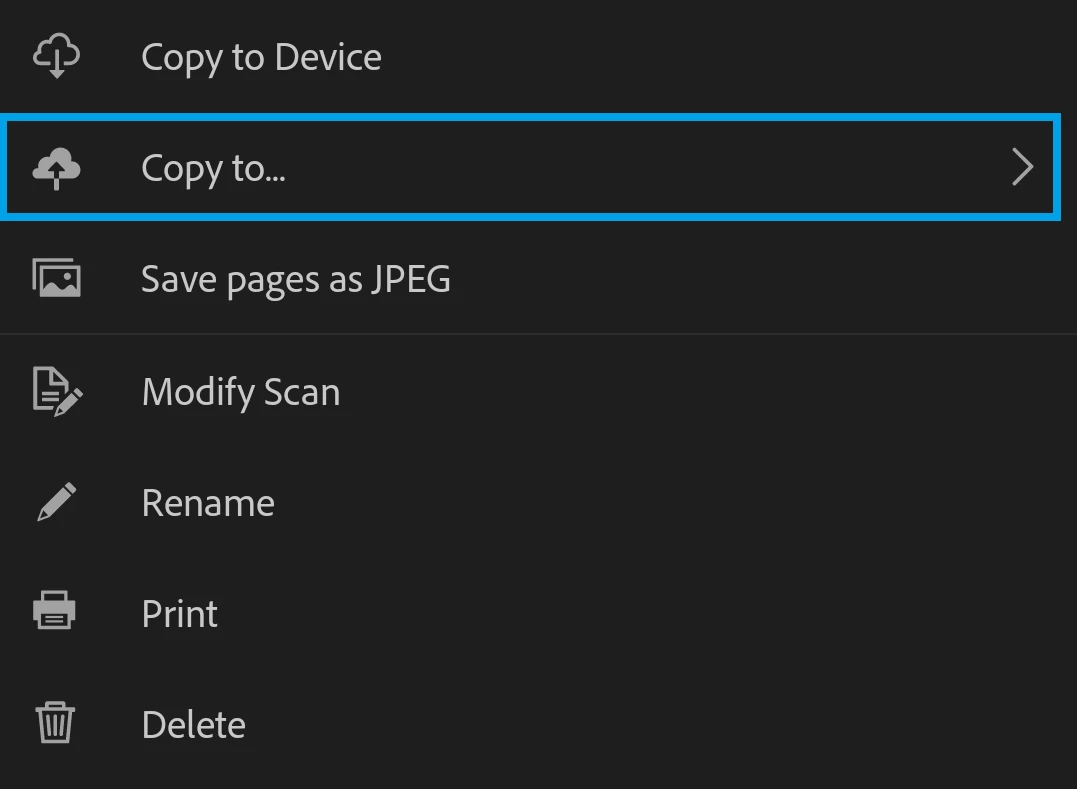
- Select the required location.
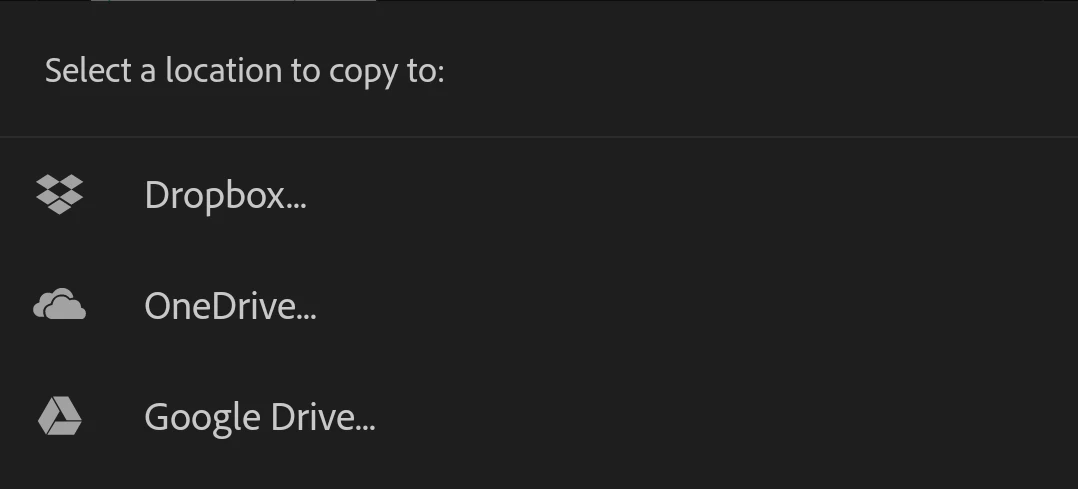
Share a copy: You can also use this option to save a copy of the file on other locations on your device or third-party cloud storage.
- Open or select the file that you wish to save on third-party cloud storage in Adobe Scan.
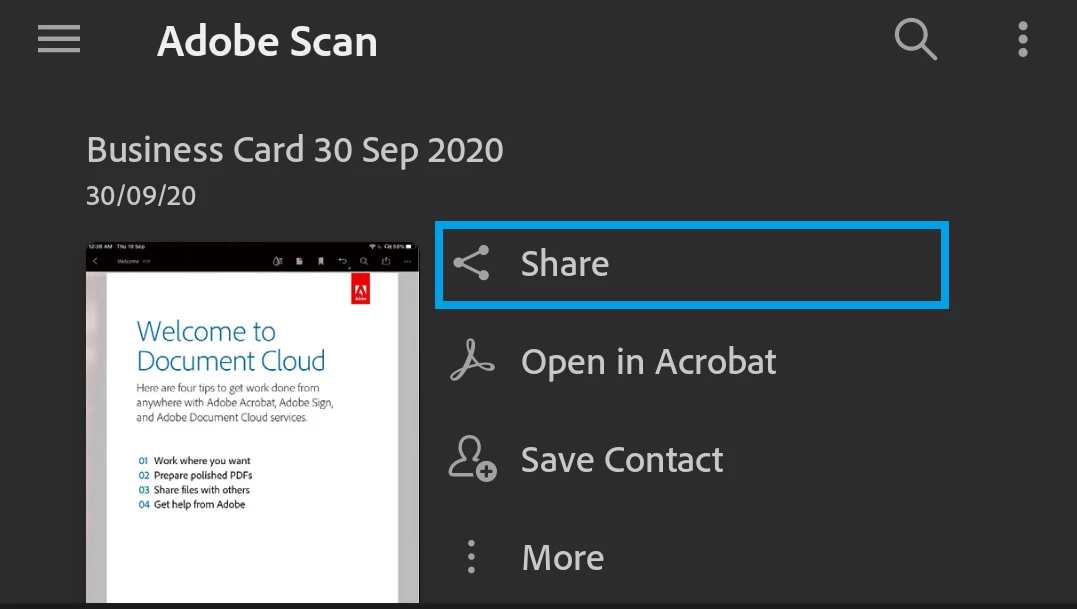
- Tap on the Share icon provided either at the right-hand side of the file or at the bottom of the screen (when the file is open).
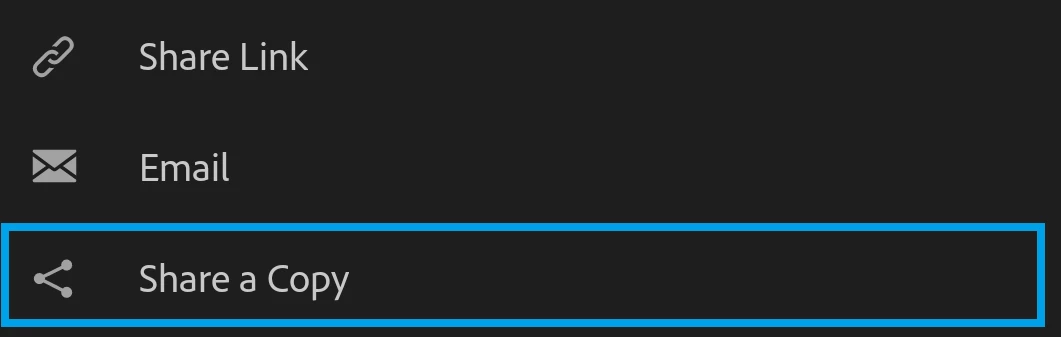
- Tap on Share a copy
- Select the required location or application from the list of options appear.
Did you find it helpful? If yes, share your experience with us: Join the conversation here. We are listening!
To discover a host of other great features – Go straight to: Know more about “Accessibility” features of Adobe Scan Mobile App | Now save a scan as an image on a mobile device


 AdChoices