

Top new features and changes in October 2019 release of Adobe Scan app.
With the latest release of Adobe Scan app, we have some amazing new features available which enable you to do more.
- High Contrast Dark Mode display.
The new Adobe Scan app supports both Light and Dark modes. Dark mode’s high contrast display will improve readability in low light environments as well as extend battery life.
- Using Android, enable the light and dark mode by these easy steps:
- Tap
 > Preferences.
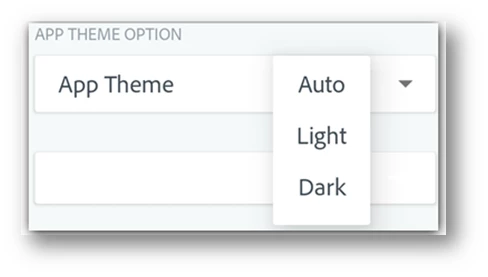
 - In the App Theme box, tap the drop-down arrow.
- Choose one of the following:
- Follow System: The default for Android 10 and later.
- Light: The standard theme usually displayed by Auto.
- Dark: The default when the Battery Saver is active.
- Tap
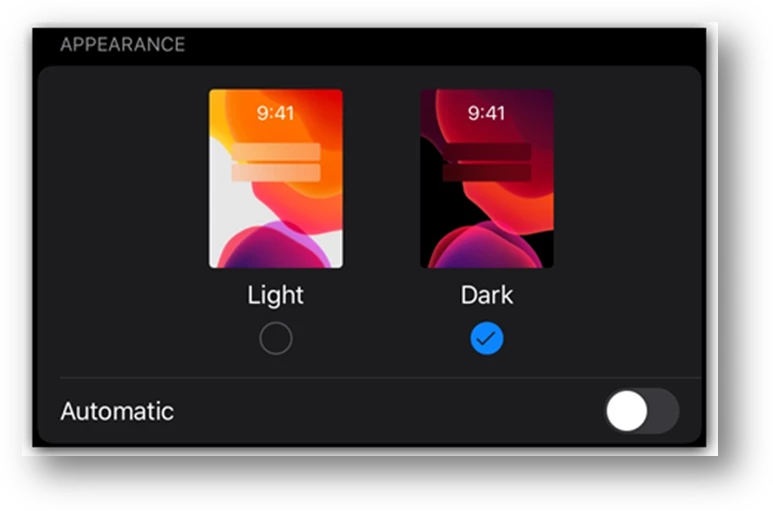
- Using iOS, enable dark mode’s high contrast display to improve readability in low light environments as well as extend battery life.
- Go to your device’s settings screen.
- Tap Display and Brightness.
- Choose light or dark mode.
- New Clean up tool.
Erase creases, folds, stains, smudges, stray pen marks and more with an industry-first cleanup tool in Adobe Scan.
With the swipe of your finger, you can erase unwanted artifacts, fuzzy images, or any other unwanted content. The “erase” action is essentially filling a selected area with a color you select (thus hiding that area).
- For an existing scan, enter the modify scan mode:
- On any thumbnail on a file list, tap
 overflow and then tap
  , or
, or - In an open file, tap
 in the bottom menu.
- Navigate to the page you want to modify.
- Tap

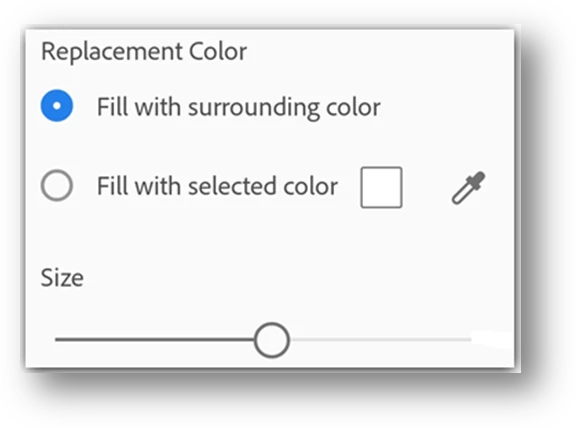
- Select your fill color:
- Fill with surrounding color: Use an app-selected background image as a brush color.
- Tap the square: Choose a color from the color picker popup.
- Tap the eyedropper: When the moveable eyedropper appears, move it over color and tap

- Zoom the image in and out as needed.
- Swipe your finger over the area to erase an area.
- Tap

Here is a small video for you to know more about Cleaning scans in a Snap.
Tell us if these helped you use Adobe Scan better.
Join the conversation here. We are listening!
To discover a host of other great features – Go straight to: Edit PDFs on any Mobile Device | Edit your Scan |


 AdChoices