Participant
December 4, 2017
Answered

3D Camera Tracker Not Working for Text/Shapes

  • December 4, 2017
  • 1 reply
  • 4118 views

Hello,

I am using the 3D Camera Tracker tool in (AE cs6) to overlay property boundaries on drone footage moving around the site. On a different video from the same day it worked flawlessly, but now i am running into problems.

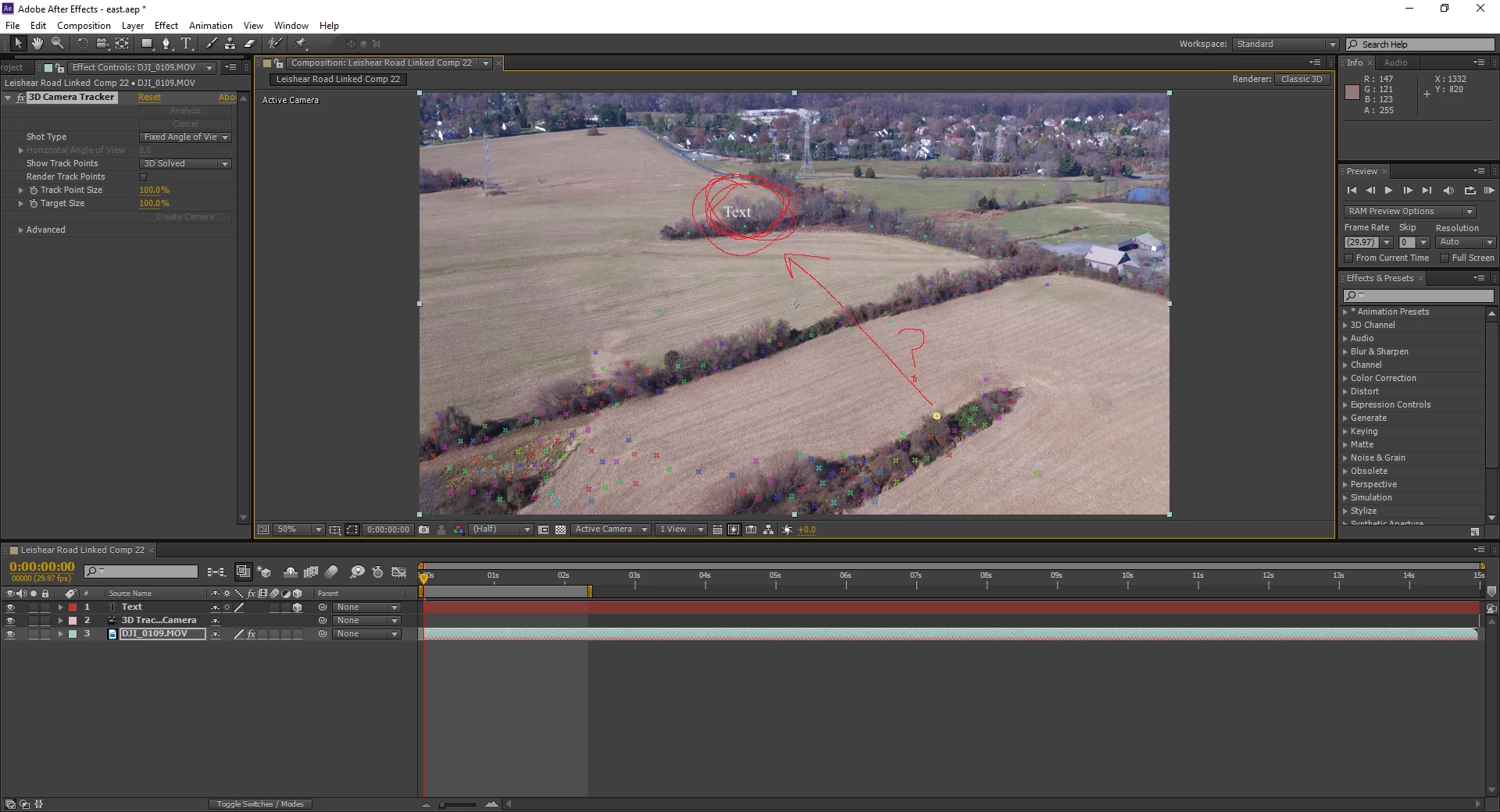
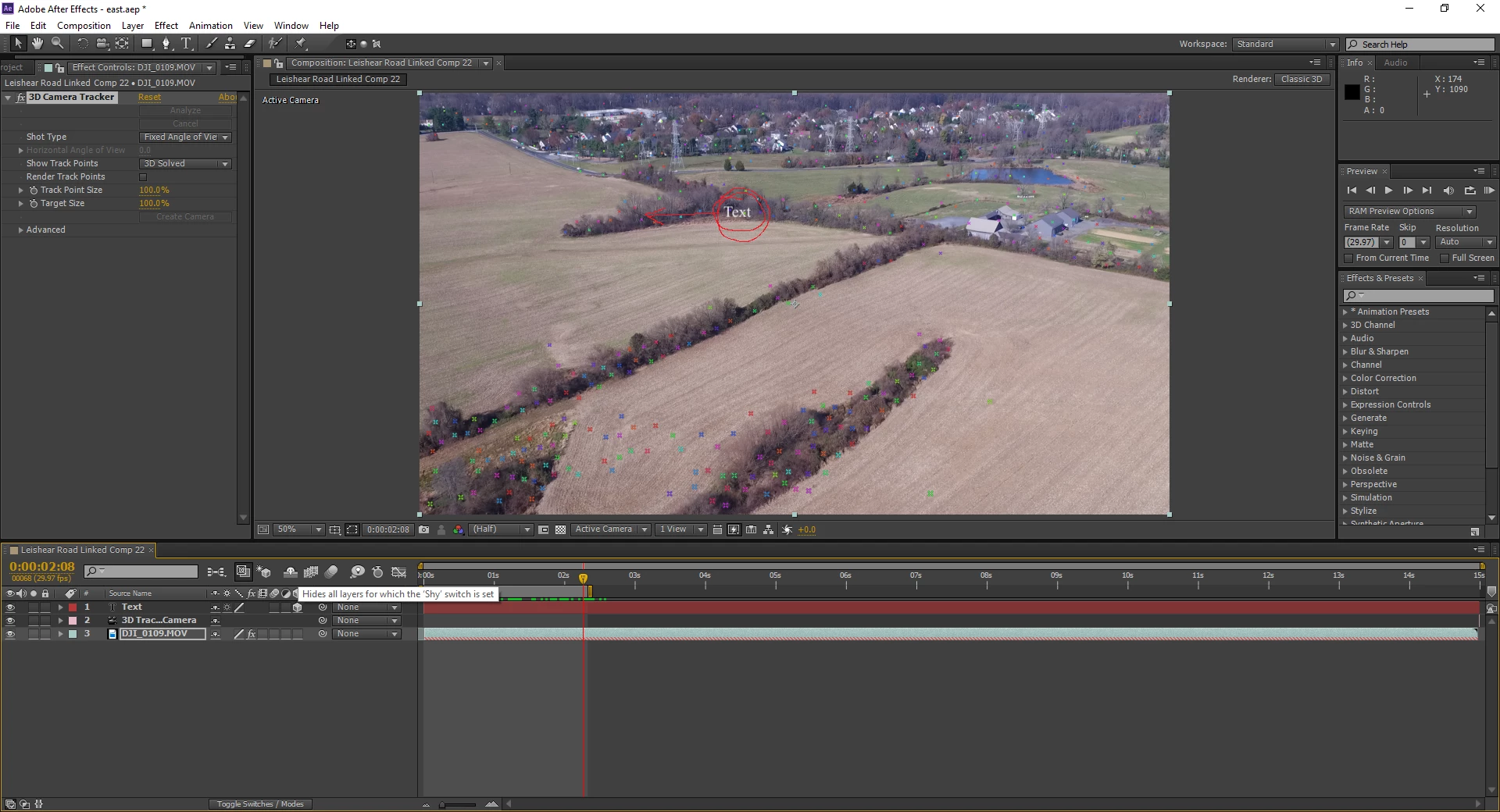
When I insert text or a shape two things happen.

  1. The text/shape is placed to the left of the point I select.
  2. The text/shape does not track. It just stays in the same position on the screen while the video moves behind it (see attached screenshots).

I am inserting the text/shape by selecting a marker, right clicking, and selecting create text (or shape) and camera.

After sifting through the forums and youtube for hours I am out of ideas, confused, and frustrated. I have reset after effects to the default settings as well.

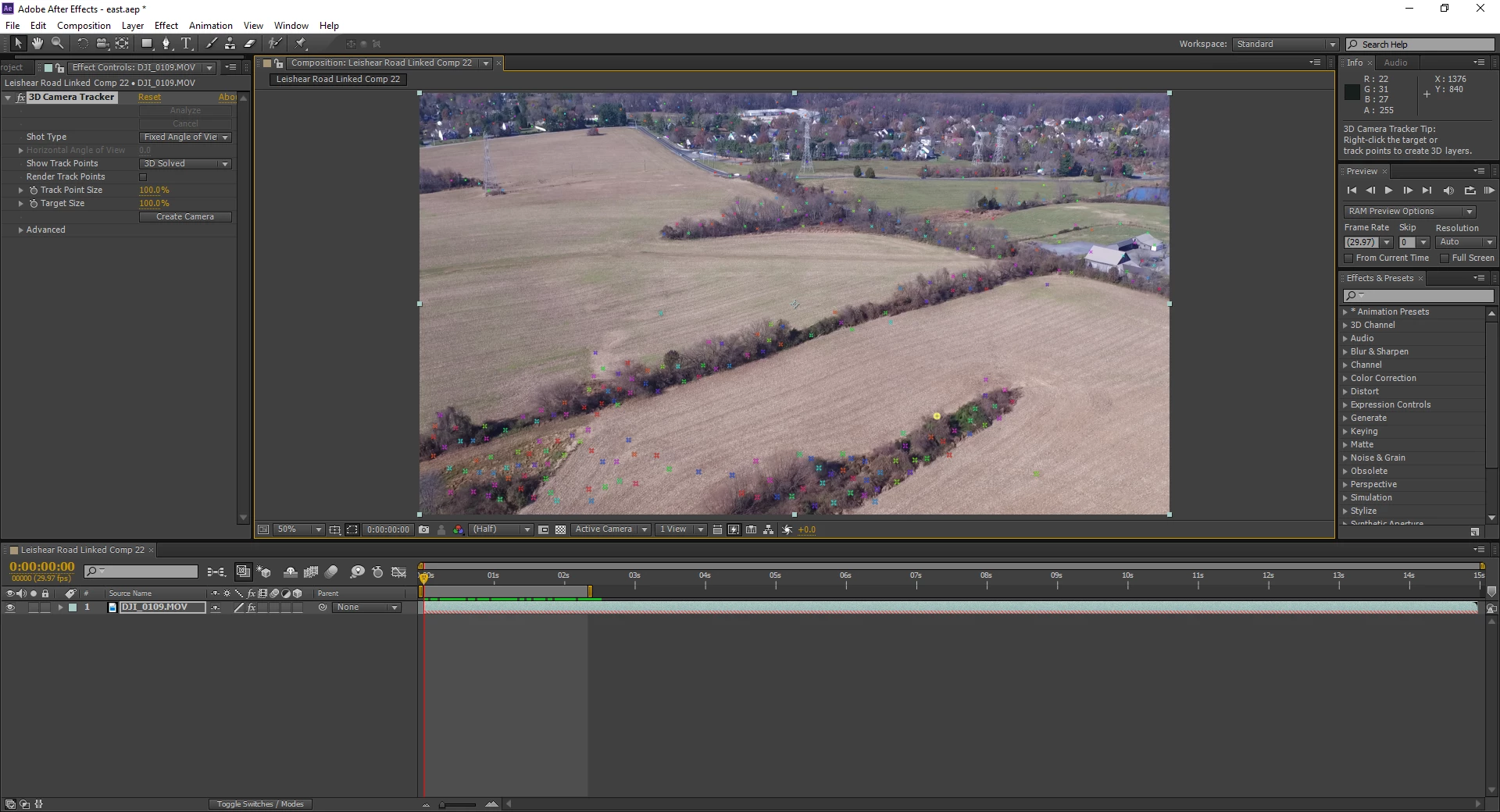
I have taken some screenshots that show the issue.
Any help is greatly appreciated.

Many thanks,

Alex

This topic has been closed for replies.
Correct answer h11g3r

I solved my problem!

On a whim I tried to open up my clip directly in after effects and trim it there rather than replacing my clip  with an After Effects file in Premier Pro. Somehow now everything is tracking properly. This is very strange, but at least now I can finish this project.

Rick Gerard​ thank you again for your help.

Best of luck to anybody else experiencing this issue.

-Alex

1 reply

Community Expert
December 4, 2017

I don't see any selected points and the target. When you choose points it is important that the target lines up with the plane you are trying to define. You should also be setting an origin and ground plane first. The easiest thing to add is a solid and then resize it, rotate it and apply the grid effect so you can see if the perspective lines match up.

It is highly likely that this is nothing but user error. You must have 3 points selected to cause a target to be selected. You should select some plane in the shot to be the origin and ground plane, then you should add a camera and a solid to see if you have a good track. After that, if you pick points that define a plane in the shot and the target appears to properly line up you can add additional objects to the shot.

If you have not already done so try spending some time with the help resources for Camera Track. You can find them by typing "Camera Track" in the search help field at the top right corner of AE.

h11g3rAuthor
Participant
December 4, 2017

Rick,

Thank you for your fast response.

I did it again by selecting a plane.

Inserting a solid. It strangely had an anchor point that was not at 0,0.

So i set the anchor point to 0,0

At it still is not tracking. It remains in the same place.

h11g3rAuthorCorrect answer
Participant
December 4, 2017

I solved my problem!

On a whim I tried to open up my clip directly in after effects and trim it there rather than replacing my clip  with an After Effects file in Premier Pro. Somehow now everything is tracking properly. This is very strange, but at least now I can finish this project.

Rick Gerard​ thank you again for your help.

Best of luck to anybody else experiencing this issue.

-Alex