
Participant
June 14, 2023
Answered

After Effects can not run

  • June 14, 2023
  • 3 replies
  • 430 views

I was still able to run After Effects when I just bought Create Cloud a few days ago. I've been trying to reinstall it and my OS has been set to Chinese, but it doesn't work. 


Please help me. This is very important to me. I need to use it before July.
 

This topic has been closed for replies.
Correct answer T30405164kun2

The funny thing is, I actually found a solution. AE Error: Could not convert Unicode Characters 23::46. Maybe I did this setting when I was using Photoshop beta. 

3 replies

James Landy
Inspiring
June 22, 2023

Here's a document I'm preparing for Adobe HelpX that explains how to configure your system to install and launch After Effects in Chinese Simplified and Japanese languages. I've verified these steps work with Ae 23.4, 23.5, and 23.6 on macOS 12, 13, and Win 10.   Following these instructions should get you up and running.


How to Install and Launch Ae in CH and JP Languages


Creative Cloud
1. Open Adobe Creative Cloud desktop application.

  1. Uninstall After Effects application and preferences.
  2. Open Adobe Account preferences.
    4. Click the Apps button, then choose a preferred language from the Default install language drop-down menu.
    5. Click the Done button.


Mac OS Settings

  1. Open System Preferences, then select Language & Region.
    2. In the Preferred languages pane, click on the plus button (+).
    3. In the Select a preferred language to add dialog, select Chinese Simplified, or Japanese.  Then click the Add button and close the dialog.
    4. In the Would you like to use (selected language) as your primary language dialog, click on the Use (selected language) button.
    5. In the Select input sources to add dialog, click the Cancel button (macOS 13) or Not Now button (macOS 12).
  2. In the Language & Region preferences dialog, move the selected language to the top of the list of Preferred languages pane.
    7. Close the System preferences.
    8. Restart system.

Win OS Settings

1. Open Windows Settings, Time & Language, Language Preferences.
2. In the Preferred languages section, click the Add a language (+) button.
3. In the Choose a language to install dialog, select Chinese (Simplified) or Japanese. 
4. Click the Next button, then click the Install button in the Install language features dialog using default settings.
5. In the Preferred languages section, move the order of the installed language Up so it’s the first preferred language. 
6. In the Language, Related settings, click on Administrative language settings.
7. In the Region Administrative tab, click on Change system local button
8. In the Region Settings select a preferred language from the Current system locale drop-down menu, then click OK.
9. In the Change System Locale dialog, click Restart now button to restart Windows in the preferred language.
 
Creative Cloud
1. Open Adobe Creative Cloud desktop application, click the All apps tab, then click the Install button for After Effects.
2. When install is complete, click the Open button to launch Ae.

T30405164kun2AuthorCorrect answer
Participant
June 15, 2023

The funny thing is, I actually found a solution. AE Error: Could not convert Unicode Characters 23::46. Maybe I did this setting when I was using Photoshop beta. 

Participant
June 15, 2023

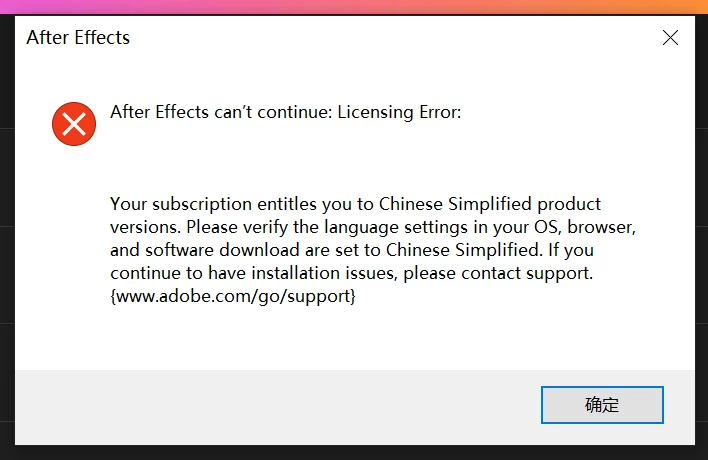
Then I changed the language of Create Cloud according to “ After Effects can't continue: Licensing error. ” and “ After effects CC 2017 licensing error  ”


But it popped up with these questions. ↓↓↓


If anyone can help, I would be very grateful.