


ryanespi28
Participant
June 3, 2016
Answered

AI layer files appear black in AE... Does anyone know how to change that?

  • June 3, 2016
  • 14 replies
  • 49738 views

Hey Everyone,

So I'm creating an animation in AE, but first I wanted to create a custom logo in Illustrator. It's a simple word and rectangular box outline. I had separated the text as individual shapes so that I could manipulate each one manually in AE.
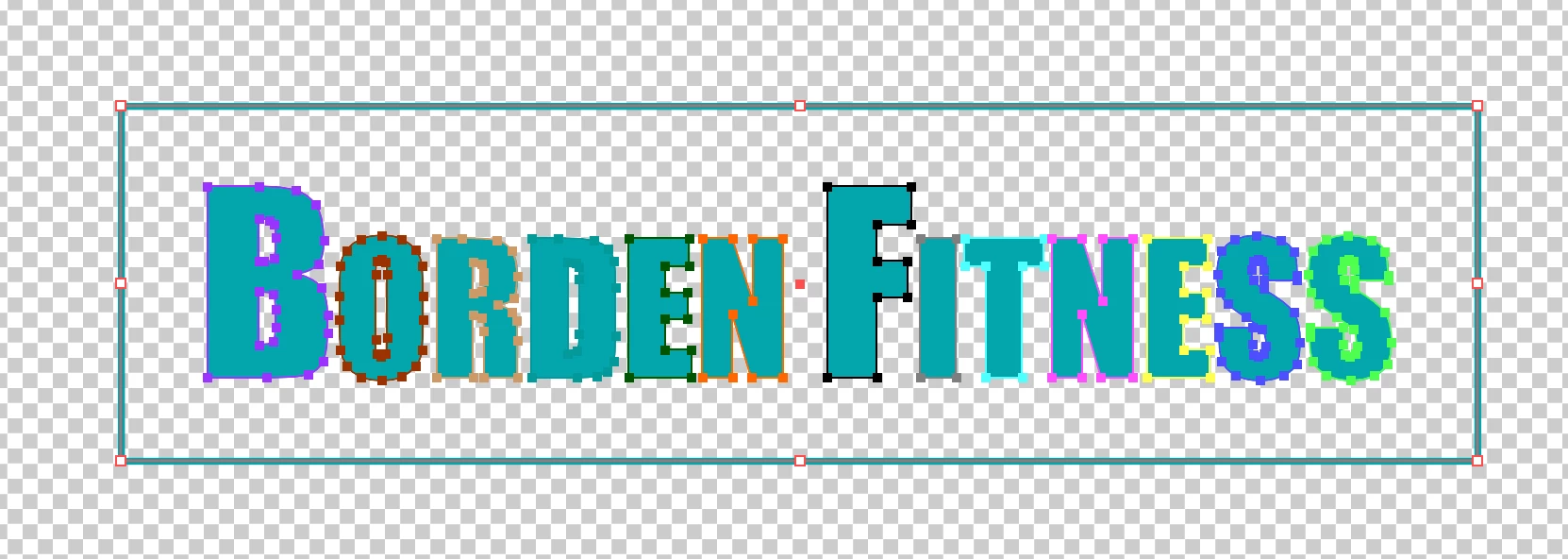
Having separated each shape into its own layer I saved the file. I only used ONE artboard. The background is obviously not black, and it's in RGB colorspace not CMYK. Going into AE I import the file with the following setup:
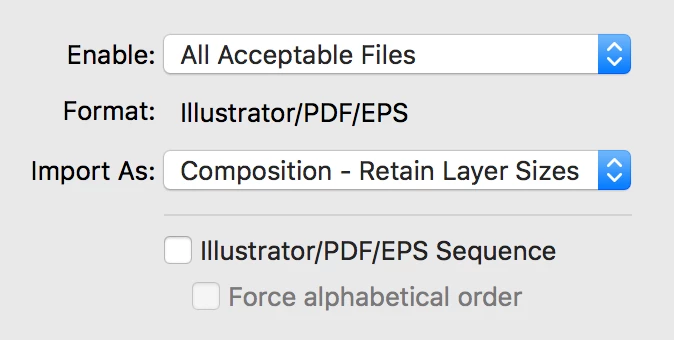
All layers import. The problem is that they are all black when I open the composition.
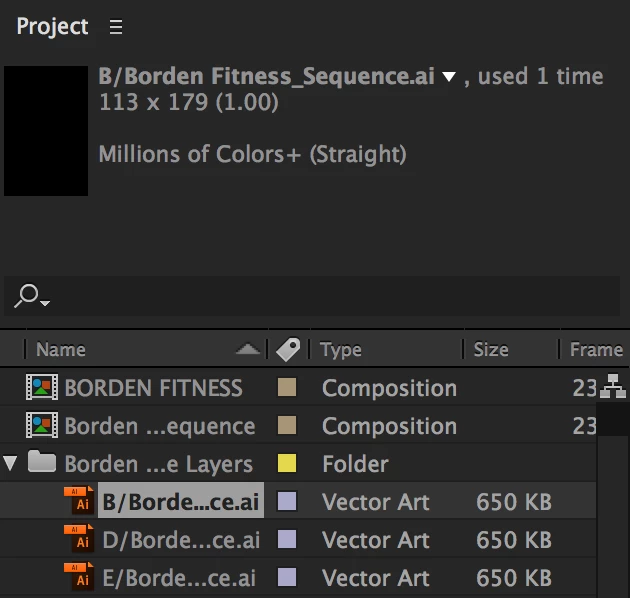
If anyone can please answer this question it would be greatly appreciated as I haven't found the correct answer after searching the forums for the last couple hours.

Thanks!

Correct answer RyanAlbracht

I had the same issue and it was fixed once my caps lock was turned off.

14 replies

Participant
June 27, 2022

I had this same problem, where my art was layered correctly in Illustrator but was importing into AE just all black - it turns out I had a small second artboard I didn't know existed and that was messing the import up. So I deleted the small artboard that didn't have any work on it, made sure my work was all on the correct arboard, and re-imported it into AE and then it worked smoothly!

Participant
May 7, 2021

like somone said below, I did everything people suggested such as: "checking the 'Create PDF Compatible File' box in the AI options panel, switching the AI file to RGB mode, turning on the Transparency Grid and reducing the screen resolution to 72 dpi"


Might seem obvious, but I started fresh on a new AI 2020 file and copied/pasted my layers from the old file to the new file. It worked! I double checked that my dpi was 72 and was on RBG before tranfering to AE and all of my layers appeared. Sometimes files just get corrupt, dealt with it before using 3D Maya.

Participant
June 17, 2020

Hey there. I was experiencing this same issue and it seems that my solution was to delete all the raster files that were included in my Illustrator file. I had textures that were raster photographs on top of my vector layers and they were causing the problem. Hope that might help! 

Participant
September 8, 2020

What worked for me was simply waiting. 

I realised my file was quite large, more than 8000 pixels across. After 5 minutes or so, all the black layers showed up as normal in AE. 

Participant
May 9, 2020

Hi everyone,


After digging through many discussions and threads about this very issue, I have miraculously found a solution that has worked for me. Followed all of the suggestions on forums like these, including checking the "Create PDF Compatible File" box in the AI options panel, switching the AI file to RGB mode, turning on the Transparency Grid and reducing the screen resolution to 72 dpi, but alas none of them have been successful. However, after repeated trials of saving and importing, I came across a strange discovery that has lead me to having visible Illustrator Layers in After Effects with no black screen!


In my particular case, I found out that After Effects would not showcase AI files that were saved in the latest version of Illustrator. So I saved the Illustrator 2020 file as a legacy one (or Illustator CC) and opened it in an earlier version of AI (Illustrator 2018). I then saved the file in Illustrator 2018 - replacing the one that was saved in Illustrator 2020 - , imported that into AE and - Voila! It worked! Not sure why it did but I can now see the layers when I drag them into the timeline!


Just to clear up - I am using the newest version of After Effects (2020) in case you thought I was using an earlier one which does not support newer AI files. Also as a side note, I am not sure whether this solution will work for everybody who is searching all over the web like I was, but I am posting my findings on here anyways to potentially save a life out there!

Participant
January 29, 2021

Thank you very much it worked.

😊

Participant
December 5, 2019

Hi there, I think that you should check Artboard in file AI and make sure that only have 1 Artboard in file AI

 
famous
Participant
December 20, 2019

Yes ! It worked for me !!! Thanks for sharing 🙂

Department4
Known Participant
July 13, 2018

For some reason, the Caps Lock solution is not working for me. My Caps Lock has not been on for any point in this process and all of my layers still appear black in AE.

Anyone else find alternative solutions?

Community Expert
July 13, 2018

Start by creating a new Illustrator file. Select red for fill and white for stroke and create a rectangle. Create a new layer. Select blue for fill and green for stroke and create another shape. Save the file making sure that PDF compatible file is checked and import as a composition retaining layer size. You should see the artwork in the preview pane of the Project Panel.

If that works, check the original file for differences. If it doesn't work make sure the document settings in AI are RGB and not CMYK. It should not make any difference if your AI and AE are current versions.

If none of that works, your AE and AI are up to date, create a file that does not work for you and share it here and somebody will take a look at it. There is more than a 95% chance that the problem is user error.

RyanAlbrachtCorrect answer
Participant
August 18, 2017

I had the same issue and it was fixed once my caps lock was turned off.

good_style16B8
Participant
August 31, 2017

ryana52278096  wrote

I had the same issue and it was fixed once my caps lock was turned off.

Crazy as it might seem, this fixed the issue for me as well. Caps lock on - anything I import to AE was black. Caps lock off, everything imports perfect and is visible.

Participant
August 7, 2017

Hi,
Try  this and if the situation is for you also
Here is it
Check all the active layers are placed in artboard or not, in ai file by opening in illustrator.

if not
select all the elements by marking around the objects using move tool and then drag them to the art board.
Then save it and reimport the newly saved file with your desired comp settings in AE

Have  a nice day!!

Participant
May 22, 2017

Try going to Composition > Preview > Play Current Preview. That seemed to work for me. I had the same problem, hopefully this works out for you.

d_a_v_i_d_s_h_o_o_t_e_r
Participant
January 25, 2017

I Was having same prob and Szalam suggestion fixed it for me.
When saving illustrator file make sure "Create PDF Compatible File" is ticked: